You save a clean-looking sheet as a CSV, open the file in a text editor, and every line ends with a comma. The comma adds an empty last field, and the next program may read it as an extra column. We tried to reproduce this in Excel, found three conditions that produced it, and tested what removed it.
Short answer from our test: the commas appeared when the sheet had something beyond the data, such as a formatted but empty column, a column of formulas that return empty text, or a cell holding only a space. Formatted but empty rows below the data added lines of commas instead. Deleting the extra columns or rows fixed it. Pressing the Delete key did not fix the formatted ones.
Tested in: Excel 2021 desktop (Version 2608) with an English interface, on Windows with Korean regional settings (list separator ,, decimal point .). Everything below describes what happened on that one setup. We did not test other Excel versions, other regional settings, or Mac, and results may differ there.
Our Test Sheets
We made small workbooks with a script. Each has the same header and four data rows in columns A to C:
| id | item | qty |
|---|---|---|
| 1 | Pen | 10 |
| 2 | Ink | 20 |
| 3 | Pad | 30 |
| 4 | Cap | 40 |
Then we made one variation per workbook, each saved as a new workbook so the originals stayed as they were:
- Plain: nothing else on the sheet.
- Formatted column: column D filled with yellow for rows 1 to 5, with no values in it.
- Formatted row: a border on A8:C8, with no values in it.
- Empty-text formulas: the formula
=""in D2 to D5. - Space: a single space typed into D4.
- Blank inside the data: B3 left empty, with nothing beyond column C.
We opened each workbook and used File > Save As with “CSV UTF-8 (Comma delimited)” under a new file name. We read the bytes of each file outside Excel. Every line ended with a carriage return and a line feed.
What Excel Wrote
| Sheet | What the file had |
|---|---|
| Plain | id,item,qty and four data lines, no extra commas |
| Formatted column D | every line ended with a comma, header included: id,item,qty, and 1,Pen,10, |
| Formatted row 8 | the four data lines were normal, followed by three lines that held only ,, |
="" formulas in D2:D5 | every line ended with a comma, the same file as for the formatted column |
| A space in D4 | every line ended with a comma, and line 4 was 3,Pad,30, with the space after the comma |
| Blank B3 inside the data | 2,,20, an empty field in the middle and no comma at the end |
So in our test, the trailing comma did not come from the data. It came from cells beyond the last column of data. The formatted row case added lines rather than commas: the three lines were rows 6, 7 and 8, the blank rows up to the formatted one.
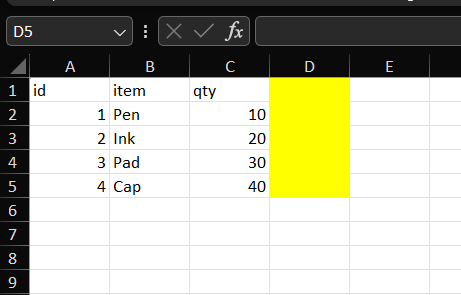
The screenshot shows the formatted-column workbook. We pressed Ctrl+End, and Excel jumped to D5, one column past the data, even though D has no values.
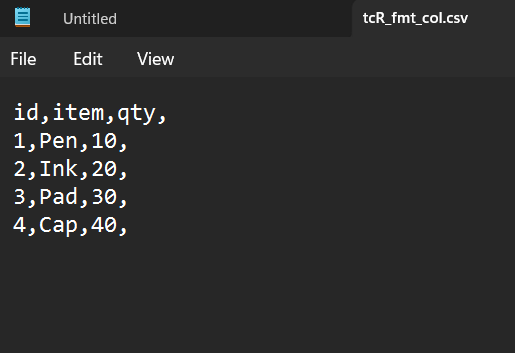
The screenshot shows the CSV saved from that workbook in a text editor, with a comma at the end of each line.
In an earlier post, our test of what a CSV holds, every line of the file also ended with a comma. We did not check that sheet against these three conditions, so we do not say which one caused it.
What Removed the Extra Comma
For each variation that reproduced the problem, we tried the Delete key and then deleting the whole column or rows.
| Sheet | Delete key on the column or rows | Delete the entire column or rows |
|---|---|---|
| Formatted column D | commas stayed | commas gone |
| Formatted row 8 (rows 6 to 8 selected) | the three lines stayed | the three lines gone |
="" formulas in column D | commas gone | commas gone |
For the formatted column and the formatted rows, pressing Delete clears values but not formatting, and the file did not change. In our test the file matched the one saved before pressing Delete. For the formula column there was no formatting, so pressing Delete was enough.
What worked:
- Press Ctrl+End to find where Excel thinks the data ends.
- If that cell is past your data, select the extra columns or rows by their headers.
- Right-click and choose Delete, or press Ctrl+minus. This removes the columns or rows themselves.
- Use File > Save As and choose a CSV format, with a new file name.
After deleting column D, the file was the same as the one from the plain sheet, byte for byte. After deleting rows 6 to 8, it was too. We did not test how to remove the single space case.
How We Would Use This
- Before you save, press Ctrl+End. If it lands past your data, check for formatting, formulas or spaces out there.
- Delete the extra columns or rows themselves, not just their contents.
- Open the CSV in a text editor and look at the line ends before you share or upload it.
- Keep the original workbook, and save the CSV under a new file name.
Things to Know
- Scope. Everything above comes from small test workbooks on Excel 2021 (Version 2608) with Korean regional settings and a comma list separator. Other Excel versions, other regional settings and Mac may behave differently.
- Not tested. Other kinds of cell content beyond the data, such as comments, data validation or conditional formatting; removing the space-only cell; clearing formats instead of deleting; other CSV formats; how other programs read the extra field; and Excel for the web.
- Unconfirmed. After we deleted rows 6 to 8, Ctrl+End still jumped to C8, but the saved file had no extra lines. We did not look into why.
One-line Summary
In our Excel 2021 test, a formatted empty column, empty-text formulas or a lone space beyond the data added a comma to every CSV line, formatted empty rows added lines of commas, and deleting the extra columns or rows removed them.
Sources
The screenshots and behavior described as “we saw” come from our own test in Excel 2021 on one setup. We did not rely on Microsoft documentation for the results above.