A merged cell looks like one big cell in Excel, but a CSV has no merged cells. If you save a sheet with merged cells as a CSV, what does the file hold in the cells that were merged? We saved a small test sheet, read the bytes of the file, and then tested one way to fill the blanks and one way to remove the merged title row.
Short answer from our test: only the top-left cell of each merged range kept its value. The other cells of the range were empty in the CSV. Unmerging the cells, filling the blanks with the value above, and deleting the merged title row gave a CSV with every row filled in.
Tested in: Excel 2021 desktop (Version 2608) with an English interface, on Windows with Korean regional settings (list separator ,, decimal point .). Everything below describes what happened on that one setup. We did not test other Excel versions, other regional settings, or Mac, and results may differ there.
Our Test Sheet
We made a workbook with a script. It has a merged title across A1:D1, a header row, and five data rows. In the region column, B3:B5 is merged with the value East, and B6:B7 is merged with the value West.
On a phone, you can swipe this table sideways to see all the columns.
| Row | A | B | C | D |
|---|---|---|---|---|
| 1 | Q3 orders (merged A1:D1) | |||
| 2 | id | region | product | amount |
| 3 | 1 | East (merged B3:B5) | Pen | 10 |
| 4 | 2 | Ink | 20 | |
| 5 | 3 | Pad | 30 | |
| 6 | 4 | West (merged B6:B7) | Cap | 40 |
| 7 | 5 | Tag | 50 |
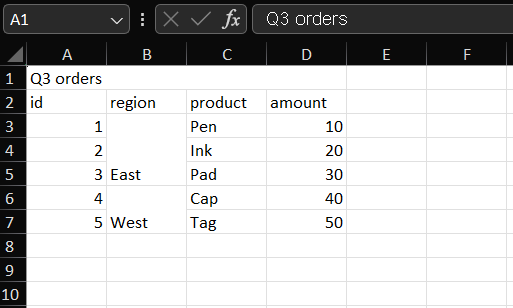
The screenshot shows the sheet as we saw it in Excel. Excel displays East and West at the bottom of each merged range, which is its default vertical alignment; in the file, as you will see below, the values were on the first row of each range. We kept this workbook as it was and saved new files from it.
Saving the Sheet As It Is
We used File > Save As and saved the sheet under a new name as “CSV UTF-8 (Comma delimited)”. We read the bytes of the file outside Excel. Each line ended with a carriage return and a line feed. The file looked like this:
Q3 orders,,,
id,region,product,amount
1,East,Pen,10
2,,Ink,20
3,,Pad,30
4,West,Cap,40
5,,Tag,50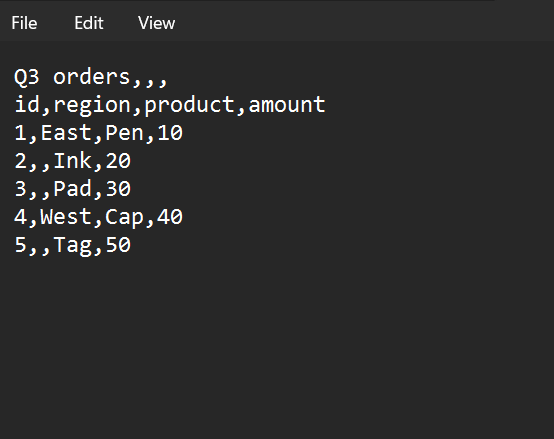
The screenshot shows the same file in a text editor.
- Vertical merge:
Eastappeared only on the line for id 1, the first row of the merged range, andWestonly on the line for id 4. The region field was empty on the lines for ids 2, 3 and 5. - Merged title:
Q3 orderswas in the first field of the first line, followed by three commas for the other three cells of the merged range. The title became a first line of the file, above the header.
So the empty fields are real: the CSV does not repeat the merged value. A program that reads the file by line will see an empty region for those rows.
Filling the Blanks
Precaution (advice, not a test result): Work on a copy of your workbook so the original remains unchanged.
We started from the sheet above and did these steps in Excel:
- Select B3:B7. In the Name Box, we typed
B3:B7and pressed Enter. - Choose Home > Merge & Center > Unmerge Cells. We used the keys Alt, H, M, U. After this,
Eaststayed in B3 andWestin B6, and B4, B5 and B7 were empty. - With B3:B7 still selected, press Ctrl+G, choose Special, then Blanks, and click OK. This selected the three empty cells. Precaution (advice, not a test result): Before filling, check that every selected blank cell is meant to be filled. If the selection includes blanks that should stay empty, adjust the range or selection before continuing.
- Type
=B3and press Ctrl+Enter. With the first empty cell, B4, active, Excel read B3 as the cell above it and filled the other empty cells the same way.
After step 4, the region column showed East, East, East, West, West. We left the formulas as they were and did not convert them to values. We saved the sheet as a CSV under a new name, and the file had the filled-in values, not the formulas:
Q3 orders,,,
id,region,product,amount
1,East,Pen,10
2,East,Ink,20
3,East,Pad,30
4,West,Cap,40
5,West,Tag,50
The blanks in the region field were gone. The title line was still there, because we had not touched A1:D1. If you want more on this technique, our post on filling blank cells with the value above covers it; the steps above are the ones we tested.
Removing the Merged Title Row
We selected row 1 by its row header and pressed Ctrl+minus, which deletes the row. Then we saved the sheet again under another name. The file started with the header:
id,region,product,amount
1,East,Pen,10
2,East,Ink,20
3,East,Pad,30
4,West,Cap,40
5,West,Tag,50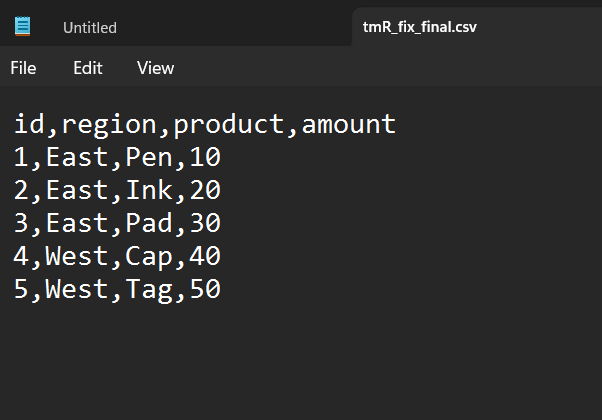
The screenshot shows this final file in a text editor. Every row has a region, and the first line is the header.
How We Would Use This
- Before you save a CSV, look for merged cells. They are easy to miss in a report-style sheet.
- Unmerge the ranges, fill the blanks with the value above, and remove any merged title or note rows above the header.
- Open the CSV in a text editor and check that no field is empty where it should not be.
- Keep the original workbook, and save the CSV under a new file name.
Things to Know
- Scope. Everything above comes from one small test sheet on Excel 2021 (Version 2608) with Korean regional settings and a comma list separator. Other Excel versions, other regional settings and Mac may behave differently.
- Not tested. Merges across columns inside the data rows, merged header cells, merged cells that contain line breaks or long text, converting the filled formulas to values before saving, other ways of filling the blanks such as Power Query, other CSV formats, and Excel for the web.
- Unconfirmed. We did not look into why Excel leaves the other cells of a merged range empty in the file. We only saw that it does.
One-line Summary
In our Excel 2021 test, only the top-left cell of each merged range reached the CSV, and unmerging, filling the blanks with the value above and deleting the merged title row gave a file with every row filled in.
Sources
The screenshots and behavior described as “we saw” come from our own test in Excel 2021 on one setup. We did not rely on Microsoft documentation for the results above.