If a column of numbers is left-aligned, shows a small green triangle in the corner of each cell, or calculations such as SUM ignore the values, Excel may be treating those values as text rather than numbers. This is common after importing data from CSV files, databases, or copy-pasting from a website.
Here are four ways to fix it in bulk, plus a hidden-character case that can make a value look like it’s still text after you’ve tried one of them.
Applies to: Excel for Microsoft 365, Excel 2024, Excel 2021, Excel 2019, and Excel 2016. All four methods below use only long-standing Excel features (no new dynamic-array functions), so they work the same way across every version in this list.
Method 1: Error Checking Button (fastest when available)
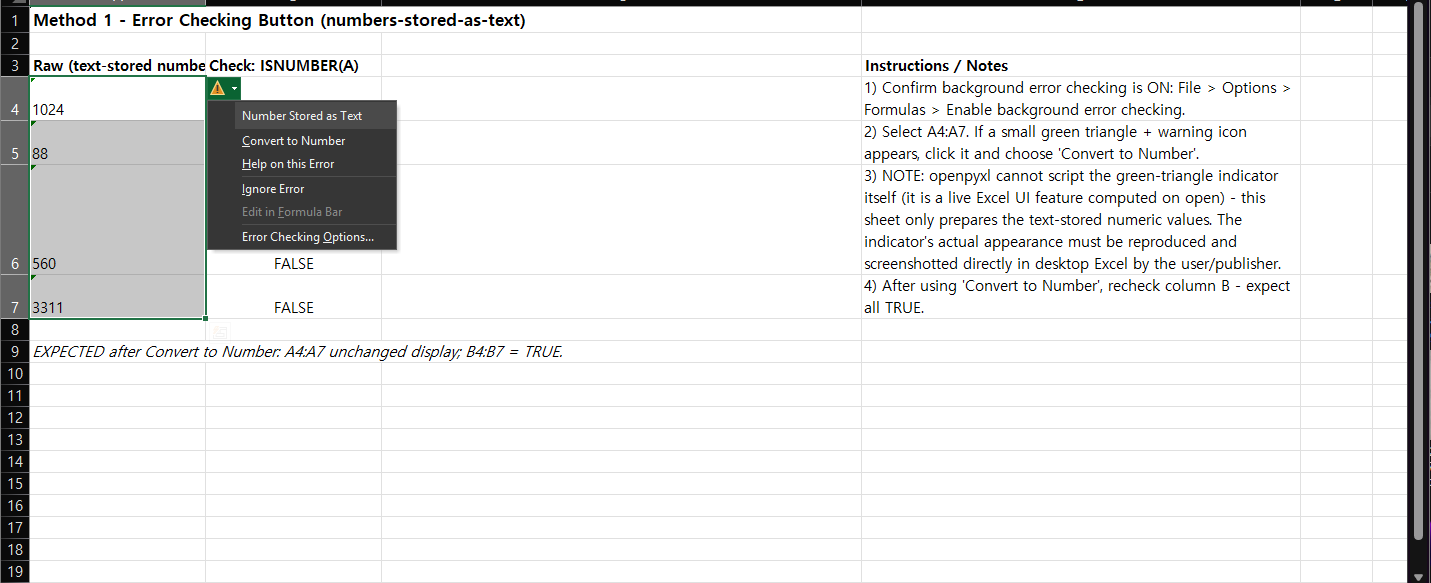
If Excel’s background error checking is on, cells with text-stored numbers can show a small green triangle in the top-left corner.
- Select the cells you want to convert.
- Click the warning icon that appears next to the selection.
- Choose Convert to Number.
If you do not see the warning icon, background error checking may be disabled under File > Options > Formulas > Enable background error checking.
Method 2: Paste Special → Multiply
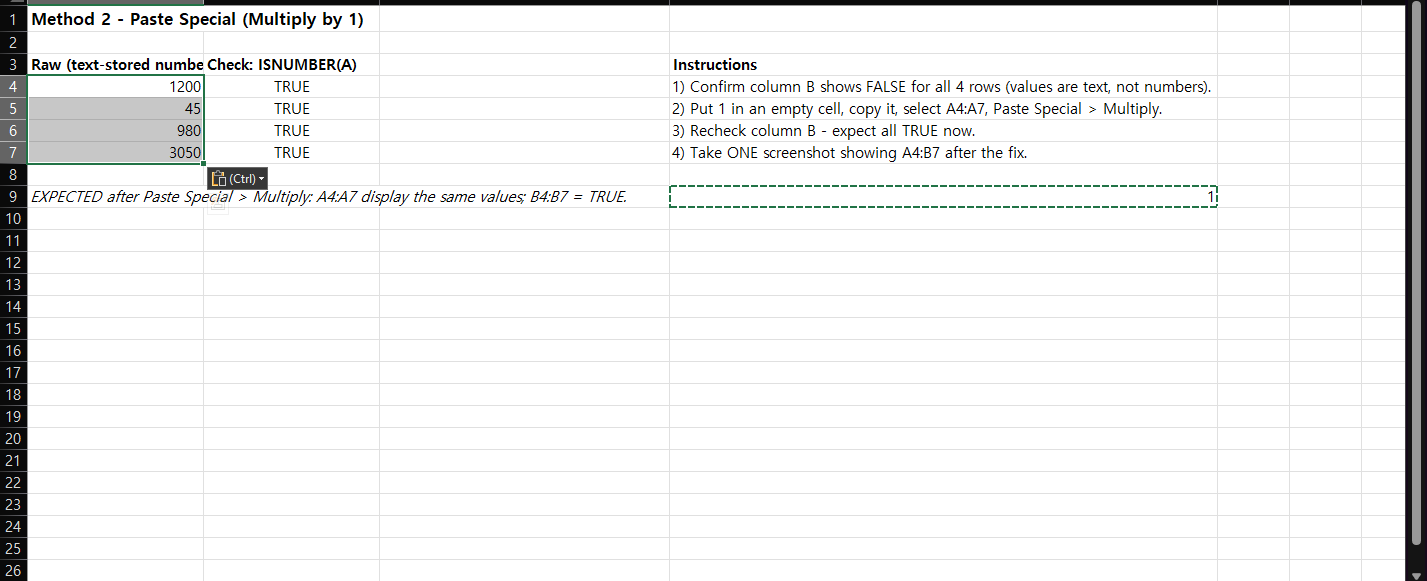
This method works even when the error-checking indicator is unavailable:
- Type
1in an empty cell. - Copy that cell.
- Select the range containing numbers stored as text.
- Open Paste Special.
- Choose Multiply under Operation, then click OK.
Multiplying by 1 forces text-formatted numeric values to become numeric values while leaving their displayed numbers unchanged.
Method 3: VALUE() Helper Column
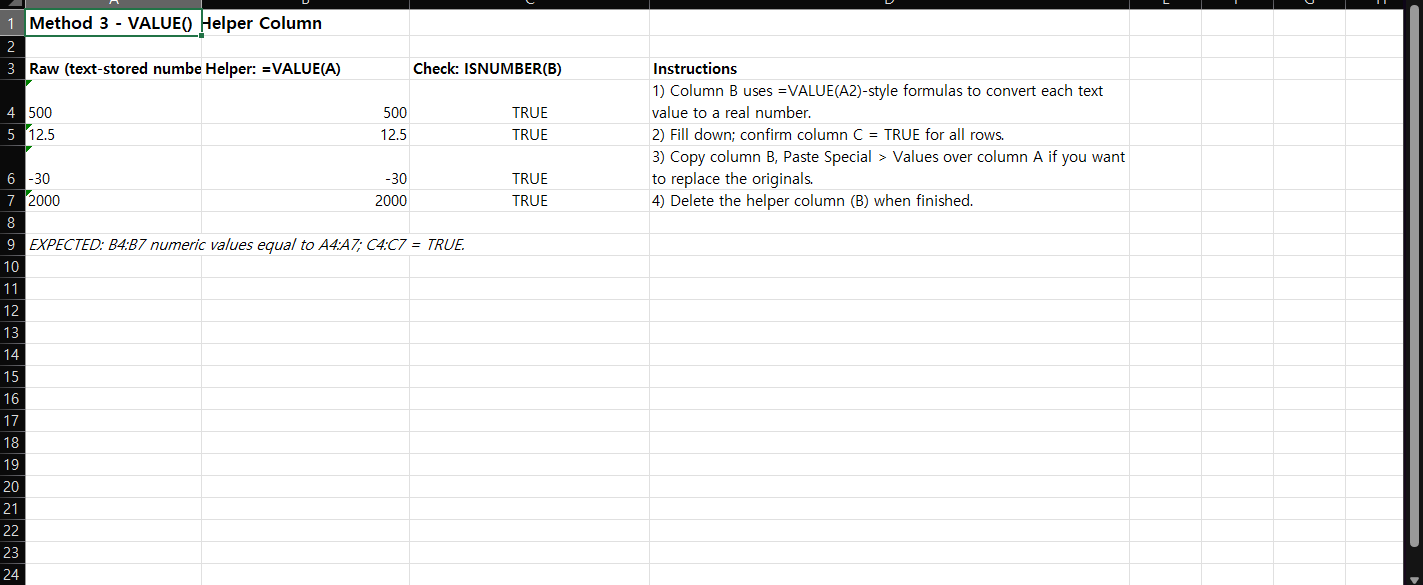
For mixed or messy imports, a helper column makes the conversion visible and easier to audit:
- In a new column, enter
=VALUE(A2)and adjust the reference as needed. - Fill the formula down.
- Copy the converted results.
- Use Paste Special > Values if you want to replace the original text values.
- Remove the helper column when finished.
VALUE converts text that Excel recognizes as a valid number, date, or time into a numeric value.
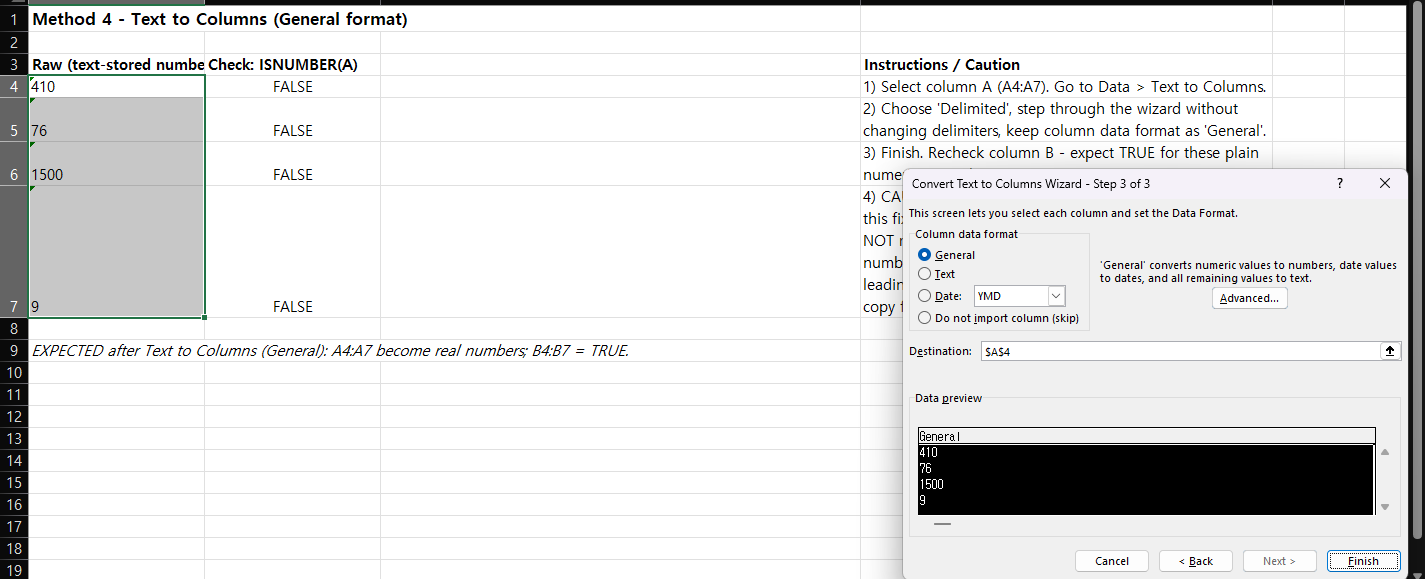
Method 4: Text to Columns
Text to Columns can also cause Excel to reinterpret simple numeric text using the General column format.
- Select the column containing the text-stored numbers.
- Go to Data > Text to Columns.
- Keep the column format as General.
- Finish the wizard.
Use this method carefully if the source contains leading zeros, long identifiers, dates, or mixed text-and-number values, because automatic conversion may change how those values are represented.
If Conversion Still Fails, Check for Hidden Characters
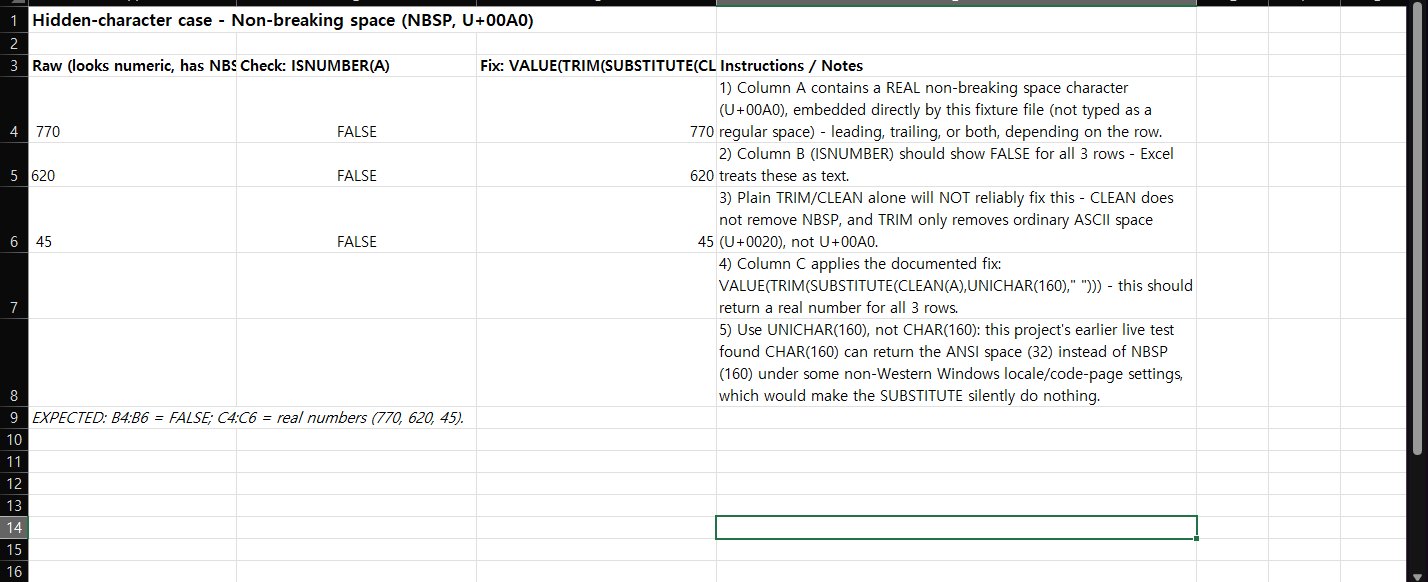
A value can look numeric while still containing a hidden character, such as a non-breaking space (NBSP, Unicode character 160) left over from a web copy-paste or an export from another system. When a value contains one, the methods above may not convert it, because Excel still sees a text string rather than a clean number.
TRIM removes ordinary spaces (the character you get from pressing the spacebar, code 32) and collapses multiple spaces between words down to one — but by itself it does not remove the non-breaking space character. CLEAN removes the first 32 nonprinting ASCII control characters (codes 0–31); the non-breaking space falls outside that range, so CLEAN does not address it either. In other words, TRIM and CLEAN are each scoped to a different kind of unwanted character, and neither is designed to target a literal U+00A0.
For a closer look at this, see our guide on why TRIM isn’t removing non-breaking spaces.
To target the non-breaking space specifically, use UNICHAR(160), which returns the Unicode character for code point 160 — the non-breaking space — so it can be matched and replaced explicitly:
=VALUE(TRIM(SUBSTITUTE(CLEAN(A2),UNICHAR(160)," ")))For readability on smaller screens, here is the same formula wrapped across lines (the single-line version above is the one to copy):
=VALUE(
  TRIM(
    SUBSTITUTE(
      CLEAN(A2),
      UNICHAR(160),
      " "
    )
  )
)
This formula uses CLEAN to strip ordinary control characters, SUBSTITUTE with UNICHAR(160) to swap the literal non-breaking space for a regular space, TRIM to clean up the result, and VALUE to convert the cleaned text into a number.
Which Version of Excel Do You Need?
All five techniques in this article — the four bulk-conversion methods and the UNICHAR fix — work in Microsoft 365, Excel 2024, Excel 2021, Excel 2019, and Excel 2016. None of them depend on newer dynamic-array functions like UNIQUE, FILTER, or TEXTSPLIT, so there is no version-specific fallback needed here.
One-line Summary
For a quick one-time fix, use Convert to Number or Paste Special > Multiply. For mixed imported data, use a helper formula such as VALUE() so you can see which rows converted successfully before replacing the source values. If a value still won’t convert, check for a hidden non-breaking space and use the UNICHAR(160) formula above.
Sources
- Convert numbers stored as text to numbers in Excel — Microsoft Support. Backs Method 1 (error-checking indicator, Convert to Number) and Method 3 (
VALUEas a helper-column method). - Fix text-formatted numbers by applying a number format — Microsoft Support. Backs Method 2 (Paste Special with Multiply).
- VALUE function — Microsoft Support. Reference for the
VALUEfunction used in Method 3 and in the hidden-character formula. - TRIM function — Microsoft Support. Explicitly documents the non-breaking space (decimal 160) and states that TRIM alone does not remove it — the basis for the “Check for Hidden Characters” section.
- CLEAN function — Microsoft Support. Documents that CLEAN removes only the first 32 nonprinting ASCII control characters, which do not include the non-breaking space.
- UNICHAR function — Microsoft Support. Reference for
UNICHAR, which returns the Unicode character for a given code point (160 for the non-breaking space). - Split text into different columns with the Convert Text to Columns Wizard — Microsoft Support. General reference for the Text to Columns wizard used in Method 4. Note: this page does not document the specific behavior of “General” format reinterpreting text-stored numbers — that claim rests on this project’s own reproduction in Excel, not on this official page.