If =TRIM(A2) still leaves extra space in a cell — or two values that look identical still fail an exact-match comparison — the cause is usually a non-breaking space (NBSP, Unicode character U+00A0, decimal code 160), not a regular space. TRIM does not remove it, and one common fix formula can fail depending on your Windows language settings.
Applies to: all current Excel versions (Excel for Microsoft 365, Excel 2024, Excel 2021, Excel 2019, Excel 2016). The CHAR(160) behavior described below was reproduced specifically on Excel 2021 running on Korean-language Windows — see the scoped explanation in the section below before assuming it applies to your setup.
Why TRIM Alone Isn’t Enough
Microsoft’s own documentation for the TRIM function states that the Unicode character set includes an additional space character with decimal value 160 — the non-breaking space commonly used on web pages — and that TRIM by itself does not remove this character. TRIM removes regular ASCII spaces (character code 32) from the start and end of text and collapses multiple spaces between words down to one, but it does not touch character code 160.
This matters because non-breaking spaces commonly end up in Excel data pasted from web pages, PDFs, or other applications that use them to prevent line breaks. The cell can look completely normal — same font, same visible spacing — while LEN() reports a longer string than expected, or an exact-match formula (=A2=B2) returns FALSE for text that appears identical.
CLEAN does not solve this either: CLEAN removes the first 32 ASCII control characters (character codes 0–31, non-printing characters like line breaks and tabs), not code 160. A non-breaking space is a printable character, not a control character, so CLEAN has no effect on it.

The Standard Fix Formula
The general-purpose pattern for stripping both regular and non-breaking spaces is:
=TRIM(SUBSTITUTE(CLEAN(A2), UNICHAR(160), " "))Read this from the inside out:
CLEAN(A2)strips any non-printing control characters.SUBSTITUTE(..., UNICHAR(160), " ")replaces every non-breaking space with a regular space.TRIM(...)then collapses the now-all-regular spaces and trims the ends.

A Formula That Can Fail: CHAR(160) vs. UNICHAR(160)
A common version of this formula uses CHAR(160) instead of UNICHAR(160):
=TRIM(SUBSTITUTE(A2, CHAR(160), CHAR(32)))This project reproduced one specific case where this formula did not fix the problem: on Excel 2021 running on Korean-language Windows. Direct diagnosis in Excel — checking the actual character codes in the source text with UNICODE(MID(...)), then testing =UNICODE(CHAR(160)) directly — showed that on that machine, CHAR(160) did not return the Unicode non-breaking space at all. It returned a regular space (character code 32) instead. Because CHAR(160) was returning the wrong character, SUBSTITUTE had nothing matching to replace, and the non-breaking spaces in the text were left untouched.
On the tested machine, UNICODE(UNICHAR(160)) returned 160 while UNICODE(CHAR(160)) returned 32. That is why this article uses UNICHAR(160) for the NBSP replacement.
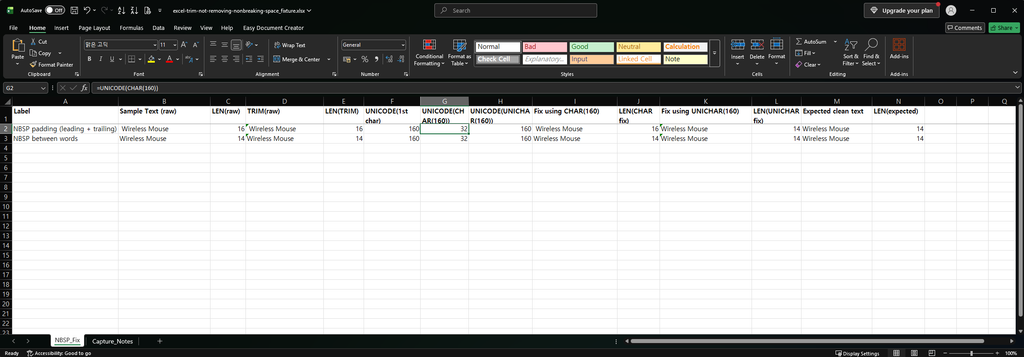

This project has confirmed this behavior on one specific configuration (Excel 2021, Korean-language Windows) and has not tested it on other locales. It has not been verified whether this also happens on other non-Western Windows locales, other Excel versions, or other regional settings — that would require separate reproduction on each configuration. Rather than assuming the scope of the issue, the practical takeaway is: verify what CHAR(160) actually returns on your own machine before relying on it (see the check below), and default to UNICHAR(160) in any formula that needs to target the non-breaking space specifically, since it does not depend on this ambiguity.
How to Check Whether This Affects You
Before assuming a fix formula worked, verify it rather than trusting that it ran without an error:
- Check the actual character code(s) around the suspect space with
=UNICODE(MID(A2, n, 1))for the relevant positionn. A non-breaking space returns 160; a regular space returns 32. - Check what your own
CHAR(160)actually returns:=UNICODE(CHAR(160)). If this returns 160,CHAR(160)is working correctly as a non-breaking space on your system. If it returns anything other than 160, useUNICHAR(160)instead in any formula that needs to target the non-breaking space. - After applying the fix formula, re-check the result’s length with
LEN()against the expected clean length, rather than assuming success because the formula didn’t error.

If the symptom you see is a lookup returning #N/A, see our guide on VLOOKUP or XLOOKUP returning #N/A on values that look identical. If you are cleaning phone numbers copied from a web page, see our guide on standardizing US phone numbers.
One-line Summary
TRIM alone does not remove non-breaking spaces (character code 160); use =TRIM(SUBSTITUTE(CLEAN(A2), UNICHAR(160), " ")). On at least one tested configuration (Excel 2021, Korean-language Windows), CHAR(160) returned the wrong character and silently broke a CHAR(160)-based fix formula — check what =UNICODE(CHAR(160)) returns on your own machine, and prefer UNICHAR(160) if you’re unsure.
Sources
- TRIM function — Microsoft Support. States that Unicode includes an additional space character (decimal value 160, the non-breaking space used on web pages) and that TRIM by itself does not remove it.
- UNICHAR function — Microsoft Support. Backs UNICHAR’s behavior of returning the character for a given Unicode code point.
- CLEAN function — Microsoft Support. Backs the statement that CLEAN removes the first 32 ASCII control characters and does not affect character code 160.
- The CHAR(160) behavior — returning a regular space (code 32) instead of the non-breaking space on one specific machine (Excel 2021, Korean-language Windows), while UNICHAR(160) correctly returned code 160 on the same machine — was diagnosed and confirmed by this project through direct reproduction in Excel, recorded in the Pilot C entry of the project decision log. This is a project-verified reproduction on one configuration, not a general claim about Windows locales, and it has not been tested on other locales or Excel versions.