Excel’s Save As list has two similar-looking CSV choices: “CSV UTF-8 (Comma delimited)” and “CSV (Comma delimited)”. They do not produce the same file. We saved one small test sheet both ways and looked at the bytes of each result.
This guide shows what we saw in the Save As dialog, how the two files differed at the start and in the accented letters, and which characters did not survive in one of them.
Tested in: Excel 2021 desktop (Version 2608) with an English interface, on Windows with Korean regional settings (list separator ,, decimal point .). Everything below describes what happened on that one setup. We did not test other Excel versions, other regional settings, or Mac, and results may differ there.
Our Test Data
The source was a five-row CSV file that we created ourselves. It is UTF-8 with a byte order mark (BOM), 201 bytes:
id,name,city,price
1,José Álvarez,São Paulo,€12.50
2,Zoë Müller,Zürich,€8.00
3,Chloé Dupont,Montréal,€15.25
4,Søren Ødegård,København,€9.90
5,Łukasz Nowak,Łódź,€7.00
Row 5 is there on purpose. The letters Ł and ź are not in the Windows-1252 character set, so they show whether a save loses characters. We did not test Korean, Japanese, Chinese, or other scripts.
We opened the file directly with File > Open (Ctrl+O). As in our earlier encoding test, the Text Import Wizard appeared first with File origin 65001 : Unicode (UTF-8). We ticked Comma, clicked Finish, and the sheet showed the names and the euro sign correctly. The prices appeared as € 12.50 with a space. We did not check why.
The Two Save As Choices
We did not save over the source file. We used File > Save As (F12) in the same folder and typed a new file name each time.
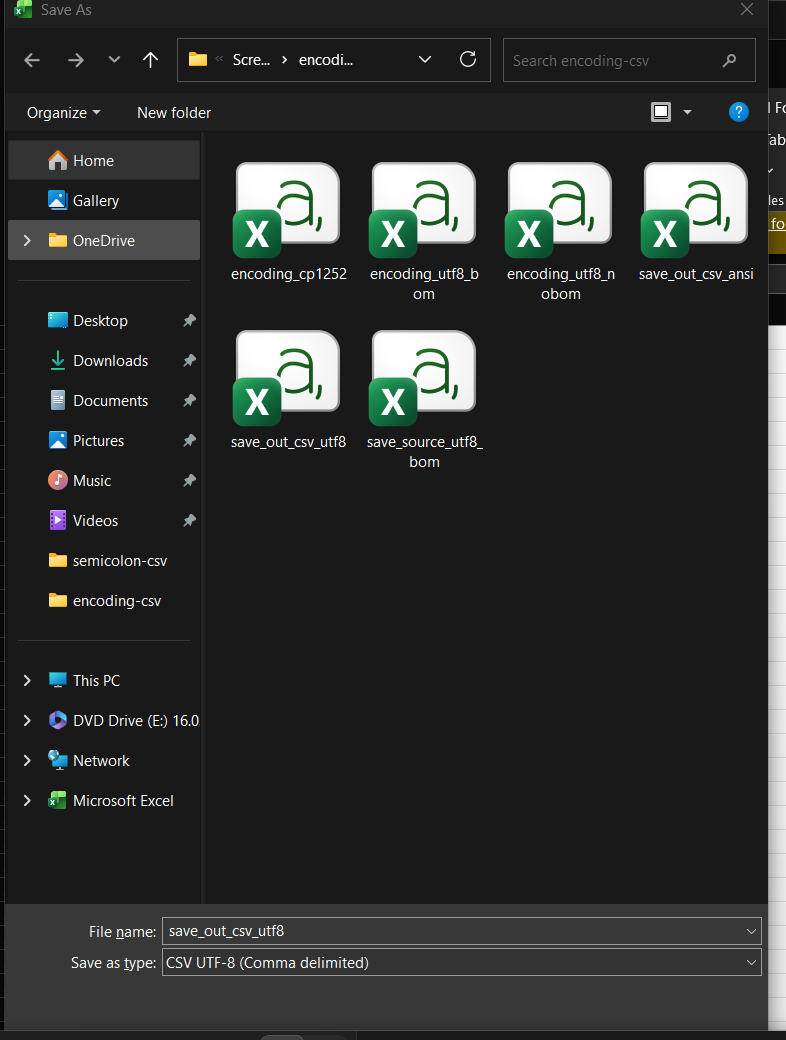
When the Save As dialog opened on this workbook, the “Save as type” box already showed “CSV UTF-8 (Comma delimited)”. We saved this one as save_out_csv_utf8.csv.

For the second file, we changed “Save as type” to “CSV (Comma delimited)” and saved it as save_out_csv_ansi.csv. We chose the name “ansi” ourselves; Excel does not label the format that way.
Excel did not show a warning dialog when we saved either file. A yellow “POSSIBLE DATA LOSS” banner was already on the sheet when we opened the source CSV and stayed there; it is not in the screenshots.
What Was Inside Each File
We looked at the bytes of both files outside Excel, with a small script that prints the hex values and tries decoding the text.
On a phone-width screen, the comparison table below was wider than the page in our preview, so swipe it left and right to see every column.
| Source file | CSV UTF-8 (Comma delimited) | CSV (Comma delimited) | |
|---|---|---|---|
| File size | 201 bytes | 206 bytes | 177 bytes |
Starts with EF BB BF (BOM) | Yes | Yes | No |
| Line endings | CRLF | CRLF | CRLF |
é as bytes | C3 A9 | C3 A9 | E9 |
€ as bytes | E2 82 AC | E2 82 AC | 80 |
Ł and ź | Kept (UTF-8) | Kept (UTF-8) | Both became 3F (?) |
| Strict UTF-8 decode in our script | Succeeded | Succeeded | Failed (byte E9) |
| Strict Windows-1252 decode in our script | Failed (byte 81) | Failed (byte 81) | Succeeded |
| Original text when read as Windows-1252 | Not checked | Not checked | Correct except row 5 |
The decode rows describe what our script could do with each file’s bytes. A failed strict decode only means that the script could not map every byte to a character. We did not check how Excel or any other program shows the two UTF-8 files when they are read as Windows-1252, so we do not draw a conclusion about that.
- The UTF-8 save kept the BOM, and every letter in our five rows came back unchanged when decoded as UTF-8.
- The “CSV (Comma delimited)” save had no BOM and stored accented letters such as
éand the euro sign as single bytes. Decoded as Windows-1252, the text reads correctly, apart from row 5. - Row 5 lost three characters in that file:
Łukaszbecame?ukaszandŁódźbecame?ód?. The other accented letters in our data were stored as single bytes. We counted three?bytes in the whole file. - In both saved files the prices were written as
€ 12.50, with a space, instead of the€12.50in the source. Both files did this, so we do not tie it to the encoding. We did not check the cell format. - The ANSI file did not decode as Korean (code page 949) in our check. We did not look at the Windows system code page setting itself, so we only say what the bytes show: they decode as Windows-1252.
What Excel Showed When We Reopened the Windows-1252 File
We opened save_out_csv_ansi.csv directly with File > Open. It opened without the Text Import Wizard.

Row 5 reads ?ukasz Nowak and ?ód?. In the bytes of this saved file, the positions of Ł and ź hold 3F (?), as the table above shows. From this saved CSV alone we cannot recover the original letters. The other four rows looked correct on our screen. We closed the workbook without saving.
We did not reopen the UTF-8 save, and we did not open either saved file with Data > From Text/CSV. We therefore do not say how Excel shows the UTF-8 save when reopened.
How We Would Choose
- If your data has characters outside Western European languages, such as Ł and ź in our test, we would use “CSV UTF-8 (Comma delimited)” on this setup. In our test, only that file kept all of them.
- If the receiving program needs a particular encoding, check what it expects before saving. We did not test any receiving program.
- Keep the original workbook. A CSV file stores values only, so we would save the sheet as an .xlsx too if you need the formatting.
- After saving, check the result outside Excel if the characters matter. If a letter from the original appears as
?in the saved file, as Ł and ź did in ours, the saved CSV alone cannot give the original letter back; go back to the original workbook or source data. A?can also be a real question mark in the data, so compare with the original before concluding anything.
If you later open a CSV and see broken accents, see garbled CSV characters in Excel. Our saved files used a comma as the separator, which matches the list separator on our Windows setup. We did not change that setting; if a CSV opens in one column, see what happened with a semicolon CSV.
Things to Know
- Scope. Everything above comes from one five-row file, saved twice on Excel 2021 (Version 2608) with Korean regional settings. We did not test other Excel versions, other regional settings, or Mac.
- Not tested. Korean and other non-Latin scripts, UTF-16 or “Unicode Text”, the “CSV (Macintosh)” and “CSV (MS-DOS)” choices, changing the Windows list separator, reopening the UTF-8 save, opening either saved file with From Text/CSV, receiving programs, files with more than five rows, and Excel for the web.
- Unconfirmed. We do not know why the source file with a BOM opened in the Text Import Wizard, why the price text gained a space on saving, or whether the same two choices behave this way on other setups.
- Keep the original. Save under a new file name and keep a copy of the source CSV.
One-line Summary
In our Excel 2021 test, “CSV UTF-8 (Comma delimited)” produced a file with a BOM that kept every letter in our data, while “CSV (Comma delimited)” produced a file without a BOM that our script could decode as Windows-1252 and turned Ł and ź into question marks.
Sources
Screenshots and behavior described as “we saw” come from our own test in Excel 2021 on one setup. We did not rely on Microsoft documentation for the results above.