A cell in Excel can show one thing and hold another: $1,234.50 on screen, 1234.5 in the formula bar. When you save the sheet as a CSV, which one ends up in the file? We saved a small test sheet in Excel, read the bytes of the files, and reopened one of them to see what survived.
This guide shows the cells we tested, what Excel wrote for each one, what changed when we turned on Show Formulas first, and what happened to a 16-digit number.
Tested in: Excel 2021 desktop (Version 2608) with an English interface, on Windows with Korean regional settings (list separator ,, decimal point .). Everything below describes what happened on that one setup. We did not test other Excel versions, other regional settings, or Mac, and results may differ there.
Our Test Sheet
We created a workbook with a script, with 19 data rows. These are the rows that matter most for this question:
On a phone, you can swipe this table sideways to see all the columns.
| Cell | What we put in | Format | Shown in Excel |
|---|---|---|---|
| C2 | 1234.5 | $#,##0.00 | $1,234.50 |
| C3 | 3.14159 | 0.00 | 3.14 |
| C4 | 0.256 | 0.0% | 25.6% |
| C5 | a date | dd/mm/yyyy | 05-03-2026 |
| C6 | 123 | 00000 | 00123 |
| C7 | text 00123 | text | 00123 |
| C8 | 1234567890123456 | General | 1.23457E+15 |
| C9 | text 1234567890123456 | text | 1234567890123456 |
| C10 | 1234567890123456 | 0 | 1234567890123460 |
| C11 | formula =1234.5*2 | General | 2469 |
| C13 | formula =NA() | General | #N/A |
On our PC, the slash in the date format dd/mm/yyyy was displayed as a hyphen. The sheet also has a few cells for hidden rows and columns, a merged range, a narrow column, and euro amounts; we cover those near the end.
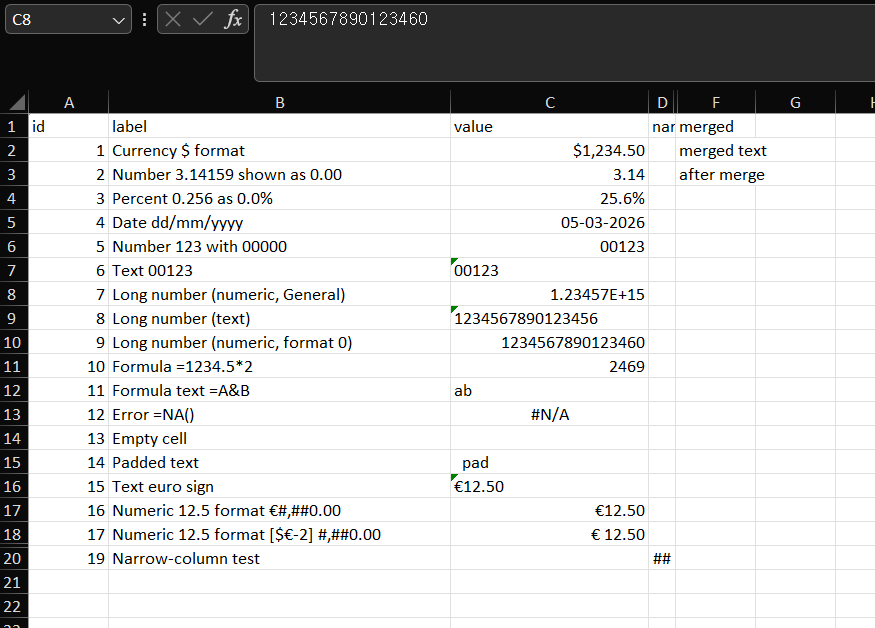
The screenshot shows cell C8 selected. Its formula bar reads 1234567890123460, even though our script wrote 1234567890123456 into the file. We did not look into why. We kept this workbook as it was and saved new files from it.
Saving the Sheet as CSV
We used File > Save As and saved the sheet twice under new file names, once as “CSV UTF-8 (Comma delimited)” and once as “CSV (Comma delimited)”. Excel did not show a warning dialog for either save. After each save, a yellow “POSSIBLE DATA LOSS” bar appeared above the sheet, saying some features might be lost in the comma-delimited format.
For the value cells in the table above, the two files had the same text. The differences were the BOM at the start of the UTF-8 file and the euro sign bytes, which we describe below. If you are choosing between the two formats, our byte-level comparison of both save options covers those differences.
What Excel Wrote
We looked at the bytes of both files outside Excel. Here is what each cell became:
| Cell | In the saved CSV |
|---|---|
| C2 | "$1,234.50" (quoted because of the comma) |
| C3 | 3.14 |
| C4 | 25.6% |
| C5 | 05-03-2026 |
| C6 | 00123 |
| C7 | 00123 |
| C11 | 2469 |
| C13 | #N/A |
In every one of these, the file holds what the cell displayed: the dollar sign and the thousands comma, the two decimals, the percent sign, the leading zeros from the 00000 format, and the date as it appeared. The number behind C3, 3.14159, is not in the file. In our test this matched Microsoft’s description that the format saves values as displayed (see Sources).
Formula cells were saved as their results, not as formulas: =1234.5*2 became 2469. A cell with padding spaces, pad , kept its spaces. Each row ended with a carriage return and a line feed (0D 0A).
Long Numbers: In Excel, Then in the File
We want to keep two things apart here: the value Excel held before saving, and the text in the saved file. We tried three cells.
On a phone, you can swipe this table sideways to see all the columns.
| Cell | What our script wrote | Formula bar in Excel | Saved CSV |
|---|---|---|---|
| C8, number, General | 1234567890123456 | 1234567890123460 | 1.23457E+15 |
C10, number, format 0 | 1234567890123456 | 1234567890123460 | 1234567890123460 |
| C9, text | 1234567890123456 | 1234567890123456 | 1234567890123456 |
The General-format cell was saved in scientific notation, because that is what the cell displayed. The other digits are not in the file. The cell with the 0 format displayed all 16 digits, so the file has them, but the last digit is the 0 that Excel held, not the 6 our script wrote. The text cell kept all 16 digits exactly.
If you need every digit of a long ID in the CSV, our test points to keeping it in a text cell before you save. Our earlier posts on long numbers turning into scientific notation and on leading zeros in CSV imports cover the opening side of the same problem.
Show Formulas Changes What Is Saved
We pressed Ctrl and the grave accent key (the key to the left of 1) to turn on Show Formulas, then saved the same sheet as “CSV UTF-8 (Comma delimited)” under another name. We did not try the other CSV format in this mode.
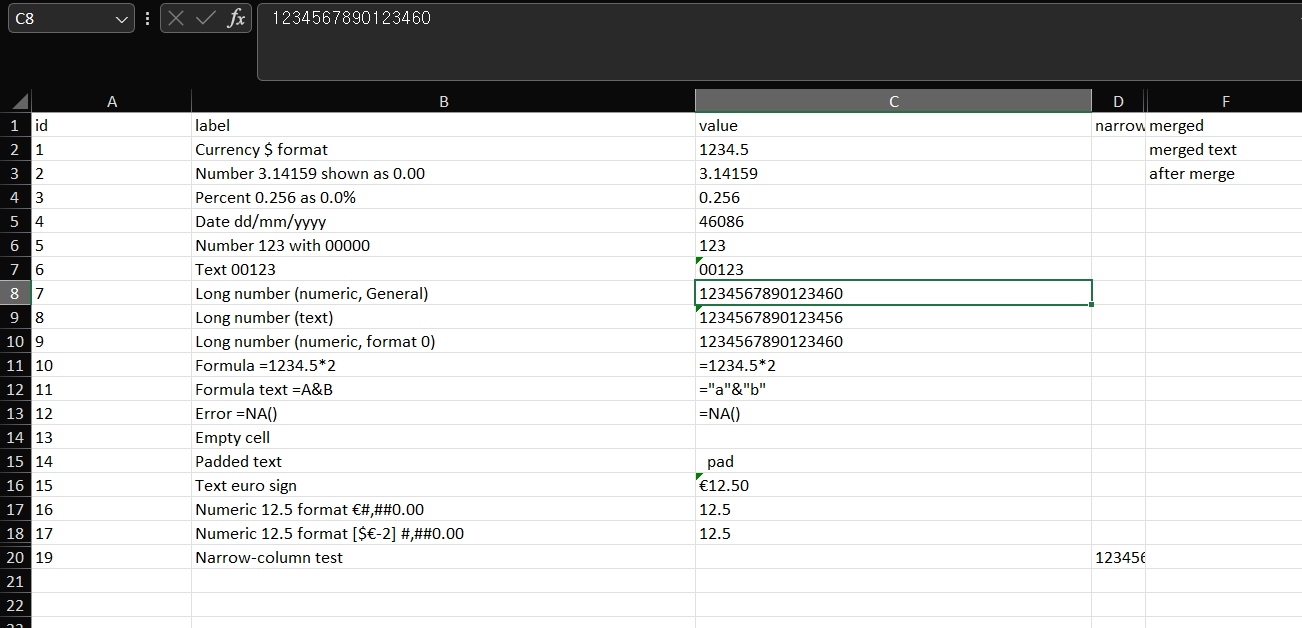
Tap the image to view it at full size.
The file followed the screen again, and now the screen showed formulas and raw values:
- Formula cells were saved as text:
=1234.5*2,="a"&"b"(written as"=""a""&""b"""), and=NA(). - Number formats were gone. C2 was
1234.5, C3 was3.14159, C4 was0.256, the date was46086, and the00000cell was123. - The long number in General format was
1234567890123460, with all its digits, because the cell no longer showed scientific notation. - Text cells,
00123and the long number text, were unchanged.
If a CSV from your workbook has formulas or odd numbers in it, check whether Show Formulas was on when it was saved. Press the same keys again to turn it off.
What We Saw When Opening the CSV Again
We opened the file saved as “CSV (Comma delimited)” with File > Open (Ctrl+O). It opened without the Text Import Wizard.
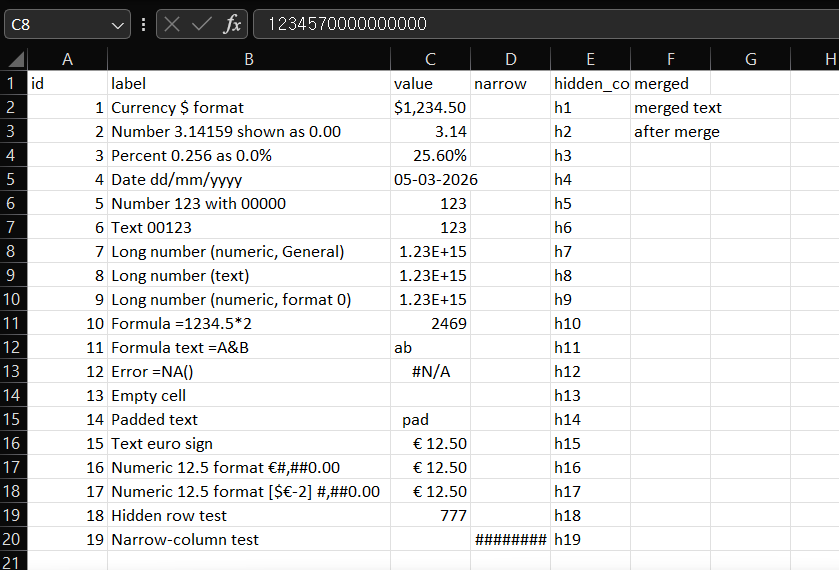
00123came back as123in both C6 and C7, including the cell that was text in the source.- The General-format long number, saved as
1.23457E+15, came back with1234570000000000in the formula bar, and the number format box showed Scientific. - The text cell saved as
1234567890123456came back as a number, with1234567890123450in the formula bar. - The dollar amount, the percent and the date appeared as the file had them:
$1,234.50,25.60%and05-03-2026.
So the digits and zeros that were not in the file could not come back, and the ones that were in the file were read as numbers. We closed the workbook without saving. We did not reopen the UTF-8 file this way.
Hidden Rows, Hidden Columns, Merged Cells and Narrow Columns
We kept this part short. All of it comes from the same two files.
- Hidden row: a row we hid (
Hidden row test, value 777) was in the file. - Hidden column: a column we hid (cells
h1toh19) was in the file. - Merged cells: we merged F2 and G2. The file has
merged textin the F2 position and an empty field for G2. Every line in the file ended with a comma, which adds an empty last field. We did not test what causes the trailing comma. - Narrow column: a number in a column too narrow to show it displayed
##in Excel, but the file had the formatted value"1,234,567.89", not##.
Euro Amounts and a Space in the Price
We put the same amount, 12.5, in cells with two number formats, plus one text cell with €12.50:
| Cell | Format | Saved as |
|---|---|---|
Text €12.50 | text | €12.50 |
| 12.5 | €#,##0.00 | €12.50 |
| 12.5 | [$€-2] #,##0.00 | € 12.50 (with a space) |
The space in the last row comes from a space we typed into that format code. We did not test the cells from our earlier encoding post, so this does not explain them.
The euro sign itself differed between the two files. In the UTF-8 file it was the three bytes E2 82 AC. In the “CSV (Comma delimited)” file it was the single byte 80, not a question mark. Microsoft’s page for these formats says the euro symbol is converted to a question mark in the comma-delimited format. We do not know why our file differs from that description, and we did not look for the cause. The page lists Excel for Microsoft 365, 2024 and 2021 as applying.
How We Would Use This
- Before saving a CSV, look at what the cells display. In our test, that is what the file held, formats and all.
- Keep long IDs as text, as in C9, if every digit must reach the file.
- Check that Show Formulas is off before you save.
- Keep the original workbook, and save the CSV under a new file name.
Things to Know
- Scope. Everything above comes from one test sheet on Excel 2021 (Version 2608) with Korean regional settings and a comma list separator. Other formats, other Excel versions and Mac may behave differently.
- Not tested. Show Formulas with “CSV (Comma delimited)”, reopening the UTF-8 files, other date and currency formats, text cells with other kinds of spaces, very long text, other programs reading these files, a different list separator, and Excel for the web.
- Unconfirmed. Why the General cell held
1234567890123460after the file was opened, why the euro sign was80instead of a question mark, and what causes the trailing comma in each line.
One-line Summary
In our Excel 2021 test, a CSV held the values as the cells displayed them, including scientific notation for a long General-format number, while Show Formulas wrote formulas and raw values instead, and reopening the file could not bring back digits or leading zeros that were not in it.
Sources
Screenshots and behavior described as “we saw” come from our own test in Excel 2021 on one setup. Microsoft documentation used for the points noted above:
- Excel formatting and features that are not transferred to other file formats: for CSV (Comma delimited), it says the format saves the text and values as displayed, and that a formula shown instead of its result is saved as text. It also mentions the euro symbol being converted to a question mark. As we read it, the page does not address numbers longer than 15 digits, hidden rows or columns, or merged cells, so those results come from our test.