You import a CSV and the dates look wrong. Some are stuck as text and will not sort or calculate. Some show a five-digit number such as 46086. And some look fine but may have the day and month swapped, which is the worst case because nothing warns you.
This guide covers those three problems: text dates, serial numbers, and swapped day and month. For each one you will see how to recognize it, which formula or setting fixes it, and what we actually saw in Excel when we tried it. It also shows what Power Query does to dates automatically and how to control it.
Applies to: Microsoft documents the DATE function for Excel for Microsoft 365, Excel 2024, Excel 2021, Excel 2019, and Excel 2016. Tested in the Excel desktop app with an English interface on Korean-language Windows. How Excel reads a date typed as text can depend on your regional date settings. We did not change ours, so results may differ on your computer.
The screenshots use one made-up table of five dates. The same five dates appear in several formats: ISO text (2026-03-05), US text (03/05/2026), day-first text (05/03/2026), a second US-style column we call ambiguous, and a serial number (46086). All values are fictional.
Step 1: Find Out What Kind of Date You Have
Look at the alignment first. Numbers align to the right by default and text aligns to the left. In our test the four text columns are left-aligned and the serial number column is right-aligned.
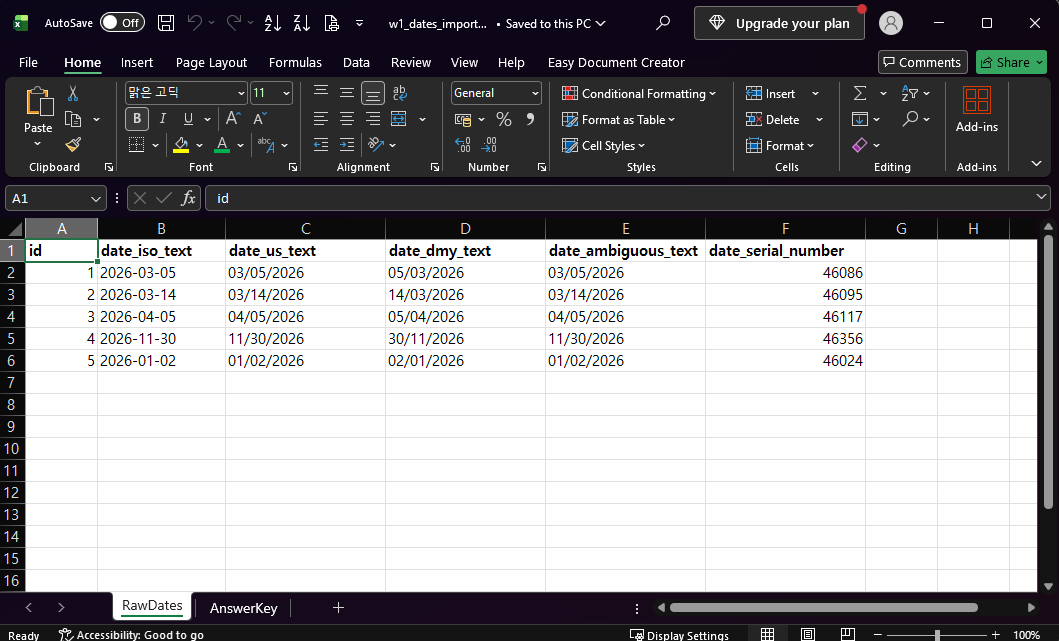
Alignment is only a hint, so confirm with ISTEXT. It returns TRUE for text and FALSE for a real number or date. Then try DATEVALUE, which converts a date written as text into a serial number:
=ISTEXT(B2)
=DATEVALUE(RawDates!B2)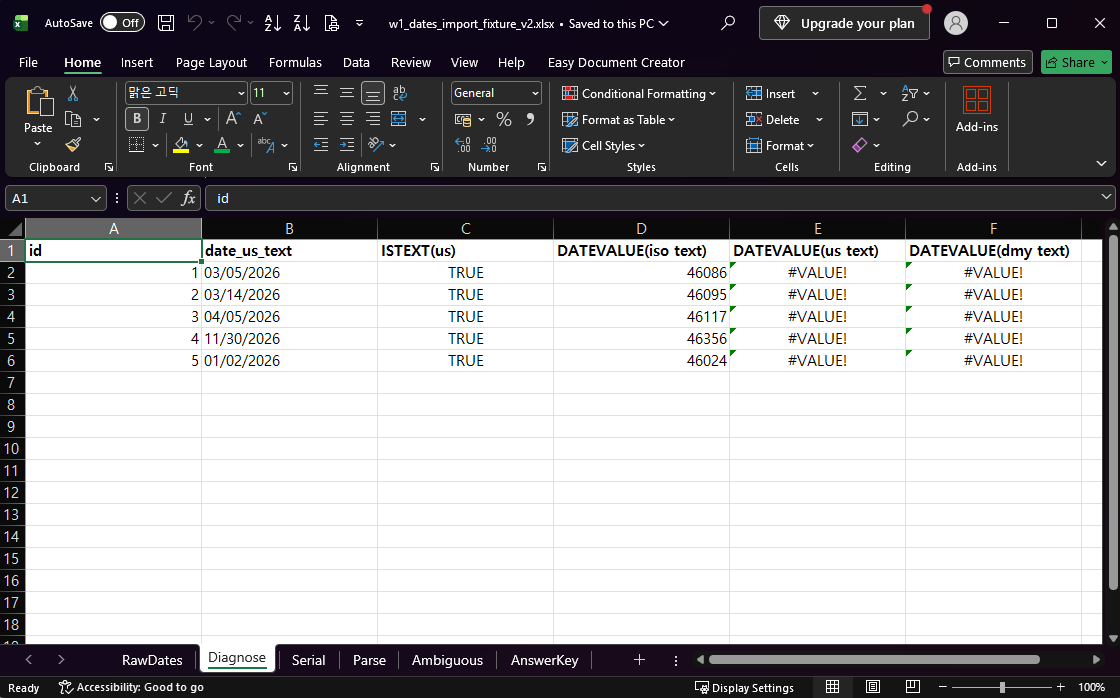
This is what we observed in our environment: ISTEXT was TRUE on all five rows. DATEVALUE converted the ISO text (2026-03-05 became 46086) but returned #VALUE! for both 03/05/2026 and 05/03/2026. Our Windows short date format was yyyy-MM-dd, which fits what we saw, but we did not change that setting to prove it is the cause. So do not assume DATEVALUE will read your format. Test it on a few rows before you rely on it.
Fix Dates Stored as Serial Numbers
A value such as 46086 is a real number. Excel stores a date as a number and the cell format decides how it looks. To see the date, keep the number and apply a Date format to the cell:
- Select the cells that hold the serial numbers.
- On the Home tab, open the Number Format box and choose Date.
In our test the formula in the new column was just =B2 and the Date format did the rest.
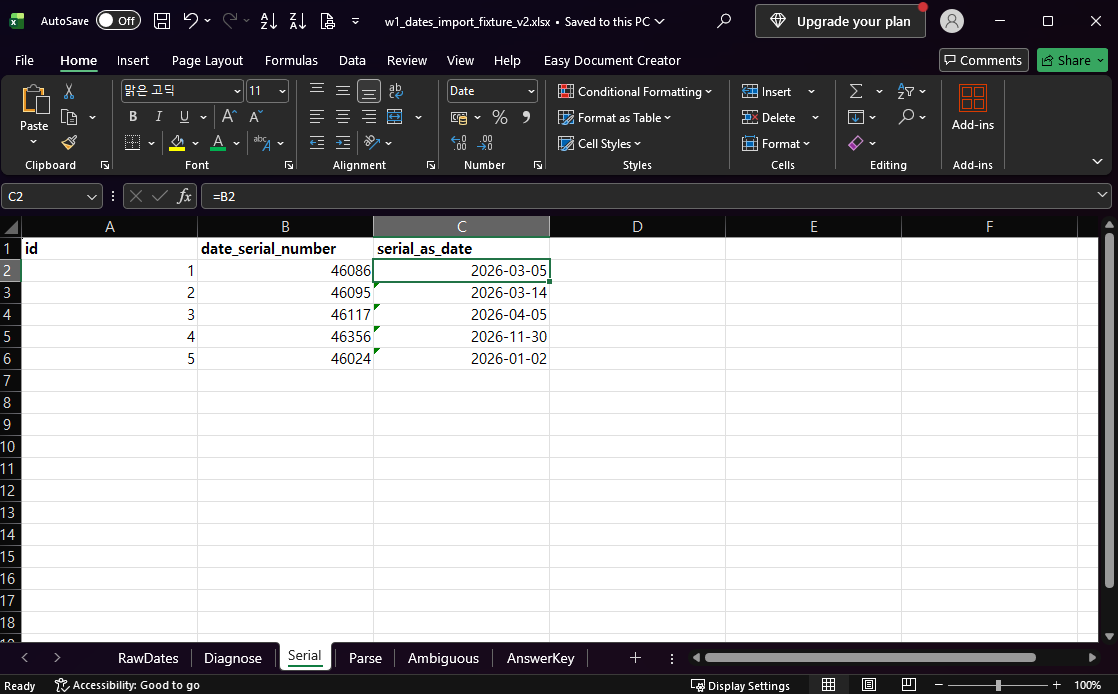
The five serial numbers became 2026-03-05, 2026-03-14, 2026-04-05, 2026-11-30, and 2026-01-02, which matched our answer key. How the date is displayed (2026-03-05 here) can follow your computer’s regional settings, so yours may look different.
Fix Dates Stored as Text When You Know the Order
If DATEVALUE fails, you can build the date from its parts with DATE, RIGHT, LEFT, and MID. This works only if you know whether the text is month-first or day-first. For month-first text such as 03/05/2026, where the month is the first two characters:
=DATE(RIGHT(B2,4),LEFT(B2,2),MID(B2,4,2))RIGHT(B2,4) is the year, LEFT(B2,2) is the month, and MID(B2,4,2) is the day. Format the result cell as Date.
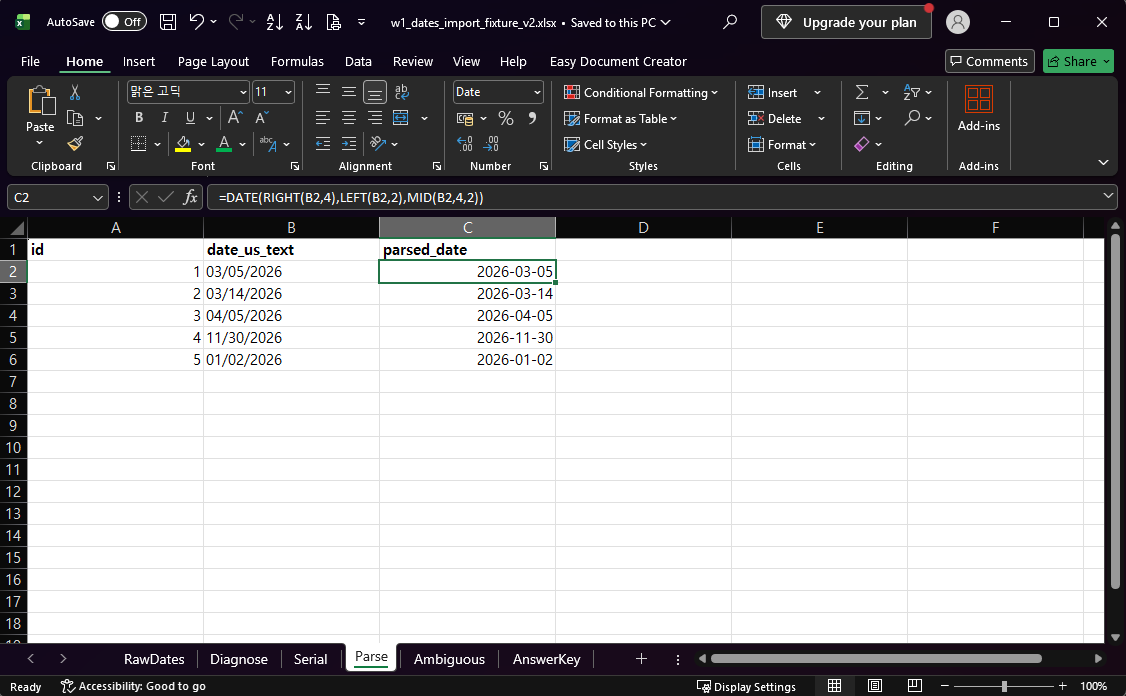
In our test all five rows came out correct, including 03/14/2026 (2026-03-14) and 11/30/2026 (2026-11-30). This formula assumes a two-digit month and a two-digit day with slashes, as in our file. We did not test text such as 3/5/2026, so check your own values first.
The Risky One: Day and Month Swapped
Some text dates cannot be read in only one way. 03/05/2026 could be March 5 or May 3. In our data the true date was March 5, but nothing in the text says so.
We compared two readings of the same column. The first reads the text as month-first. The second assumes day-first and uses the same functions with the pieces swapped:
=DATE(RIGHT(B2,4),LEFT(B2,2),MID(B2,4,2))
=DATE(RIGHT(B2,4),MID(B2,4,2),LEFT(B2,2))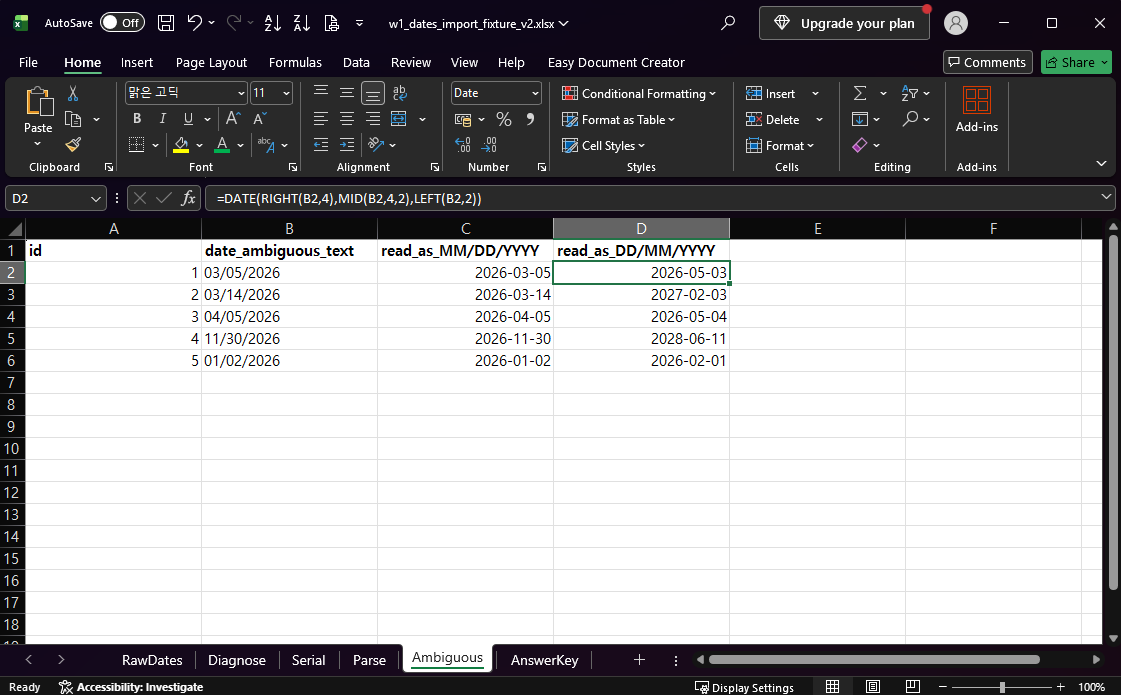
| Text | Read as month first | Read as day first (assumed) |
|---|---|---|
03/05/2026 | 2026-03-05 | 2026-05-03 |
04/05/2026 | 2026-04-05 | 2026-05-04 |
01/02/2026 | 2026-01-02 | 2026-02-01 |
03/14/2026 | 2026-03-14 | 2027-02-03 |
11/30/2026 | 2026-11-30 | 2028-06-11 |
Two things stand out. When both numbers are 12 or less, both readings are valid dates and they differ, so you cannot tell which is right from the value alone. And when the second number is above 12, such as 03/14/2026, the day-first reading did not return an error. It returned 2027-02-03. Microsoft’s DATE page explains why: if the month is greater than 12, DATE adds that many months to the first month of the year you gave. So an assumed day-first formula on month-first text can quietly produce a wrong date in a later year.
These results come from our assumed day-first formula. They are not what Excel decided on its own. The practical rule: before you convert, scan the column for a value above 12 in the first or second position. A first number above 12 means day-first text. A second number above 12 means month-first text. If every row is 12 or less, ask whoever produced the file which order they used.
What Power Query Does to Dates Automatically
When you import with Data > From Text/CSV or From Table/Range and open the Power Query Editor, Excel adds a Changed Type step for you. In our test it turned both month-first columns into dates and left the day-first column as text.

The values in those two columns looked right (2026-03-05, 2026-03-14, and so on), but the step’s formula does not say which date format it assumed. That is why you should compare a few converted rows against the source, especially rows where both numbers are 12 or less.
If you know the source uses month-first dates, you can set the type with a locale. In our test the Applied Steps list had a Changed Type step that set those two columns back to Text. We selected both columns and opened Change Type with Locale. We chose Date as the data type and English (United States) as the locale.
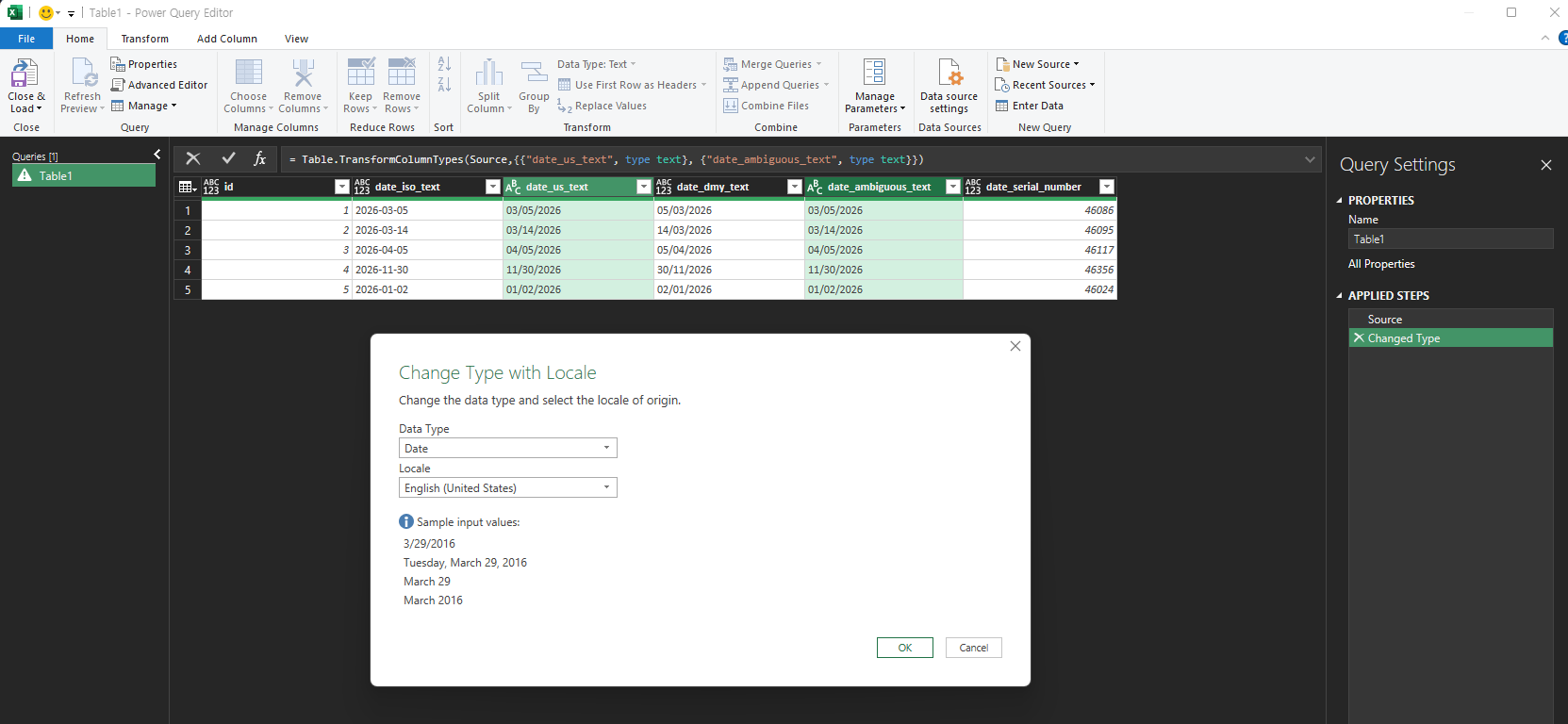
In our Excel build the Home tab’s Data Type list did not include a Using Locale item, so we reached the dialog another way. Menu names and locations can differ by version. If you cannot find it, look for a Change Type option that mentions a locale.

The result matched our answer key on all five rows. The step’s formula now includes "en-US", so the locale is written down. This is only correct when the source really is month-first. We tested only the English (United States) locale, not other locales.
Which Fix to Use
| What you see | Check | Fix | Our test |
|---|---|---|---|
Five-digit number such as 46086 | Right-aligned, ISTEXT is FALSE | Apply the Date format | Worked on 5 of 5 rows |
Text date that DATEVALUE can read | ISTEXT is TRUE, DATEVALUE returns a number | DATEVALUE, then Date format | Worked for ISO text |
Text date that DATEVALUE rejects | DATEVALUE returns #VALUE! | DATE with LEFT, MID, RIGHT in the right order | Worked on 5 of 5 rows (month-first) |
| Both numbers 12 or less | Look for rows above 12 or ask the source | Confirm the order first, then convert | Wrong order gave different dates |
| Dates imported through Power Query | Compare against the source | Change Type with Locale | Worked with en-US |
Which Version of Excel Do You Need?
Microsoft lists Excel for Microsoft 365, Excel 2024, Excel 2021, Excel 2019, and Excel 2016 for the DATE function. We tested only one desktop Excel build (English interface, Korean-language Windows). Power Query menus and DATEVALUE results can differ in other versions and regional settings.
One-line Summary
Check whether your dates are text, serial numbers, or ambiguous, then fix each with the matching tool: the Date format for serial numbers, DATE with LEFT, MID, and RIGHT for text with a known order, and Change Type with Locale in Power Query. Never convert text like 03/05/2026 until you know whether the month or the day comes first.
If your imported IDs or long numbers are also changing, see our guides on keeping leading zeros and long numbers that turn into scientific notation.
Sources
- DATE function — Microsoft Support. Backs the statement that a month greater than 12 adds that many months to the first month of the year, and the Applies-to list. It also shows how to build a date from text with
DATE,LEFT,MID, andRIGHT. - Note: the
ISTEXTandDATEVALUEresults, the serial-number display, the month-first and day-first comparison, the automatic Changed Type step, and the Change Type with Locale result come from our own reproduction in the Excel desktop app, not from this page.