Some exports write the number one thousand two hundred thirty-four and fifty-six hundredths as 1.234,56: a dot between the thousands and a comma before the decimals. Others write 1,234.56. Both are meant to be the same number, but Excel does not necessarily read them the same way.
This guide shows what we observed when we opened one small test CSV containing both styles, and three ways to turn the comma-decimal column into real numbers. The one we would use for files you import repeatedly is setting a locale in Power Query.
Tested in: Excel 2021 desktop (Version 2608) with an English interface, on Windows with Korean regional settings (decimal point ., thousands separator ,). Everything below describes what happened on that one setup. We did not test other Windows regional settings, other Excel versions, or Mac, and results may differ there.
Our Test File
The CSV has six rows and two amount columns. In each row, the two columns are meant to be the same number, written in two styles:
| Column | Example (first row) | Style |
|---|---|---|
amt_us_style | "1,234.56" | comma for thousands, dot for decimals |
amt_eu_style | "1.234,56" | dot for thousands, comma for decimals |
The six intended values are 1234.56, 0.5, 1234567.89, 12, 999.99, and 1234, and they add up to 1,238,048.94. Because the values contain commas, they are written in quotes in the file.
Row 6 is the one to watch. Its comma-decimal value is 1.234. In this file we mean that as one thousand two hundred thirty-four, with the dot as a thousands separator. A reader who sees 1.234 on its own could also read it as one point two three four, so the intended value is something we decided for the test file, not something Excel can know. We chose 1234 as the intended value for this file; the text 1.234 alone cannot tell you which one the file’s author meant. Check the source system or ask the file’s author to confirm what the value means.
Opening the CSV Directly
We opened the file directly in Excel, not through the Data tab, and added a few helper columns (E to H) to check each cell.

Tap the image to view it at full size.
- The
amt_us_stylecolumn came in as numbers.ISNUMBERreturned TRUE in all six rows and our helper showed 1234.56, 0.5, 1234567.89, 12, 999.99, and 1234. - In
amt_eu_style, rows 1 to 5 (1.234,56,0,50,1.234.567,89,12,00,999,99) stayed left-aligned text, andISNUMBERreturned FALSE. - Row 6,
1.234, was different. Excel turned it into a number, and our helper shows it as 1.2340. That is not the 1234 we intended, and there was no error or warning. This is the kind of silent mistake to look for.
We also tried =VALUE() on the text cells in rows 1 to 5, and it returned #VALUE!. We did not capture that in an image.
If Excel Has Already Turned a Value Into a Number
Row 6 shows the risk. Once Excel has read 1.234 as the number 1.234, the cell no longer holds the original text, so the file’s intent is no longer visible in the cell. Changing the cell’s number format only changes how the stored value is displayed, and we did not test changing Windows regional settings after the fact. Neither tells Excel what the file’s author meant.
What we would do instead is keep the original CSV unchanged and import it again from there. Work on a copy, and if Excel asks whether to save changes to the CSV when you close it, we would choose Don’t Save so the original text stays as it was. Then re-import the original with a locale that matches how its numbers are written (Method 1 below), and check a few values you can verify, such as a total.
Importing With Data > From Text/CSV
Next we imported the same file with Data > From Text/CSV and opened Transform Data. Power Query had already added a type-conversion step on its own.

Tap the image to view it at full size.
The formula bar shows amt_us_style set to type number and amt_eu_style set to type text. Row 6 stayed text here (1.234) instead of becoming 1.234 as it did when we opened the file directly. We also saw the step listed in the Applied Steps pane (Source, Promoted Headers, Changed Type), which is not part of the screenshot.
So the comma-decimal column is still text at this point, and the next step is to tell Power Query how those numbers are written.
Method 1: Change Type With Locale in Power Query
In the editor we right-clicked the amt_eu_style column header and chose Change Type > Using Locale. In the dialog we set Data Type to Decimal Number and Locale to German (Germany).
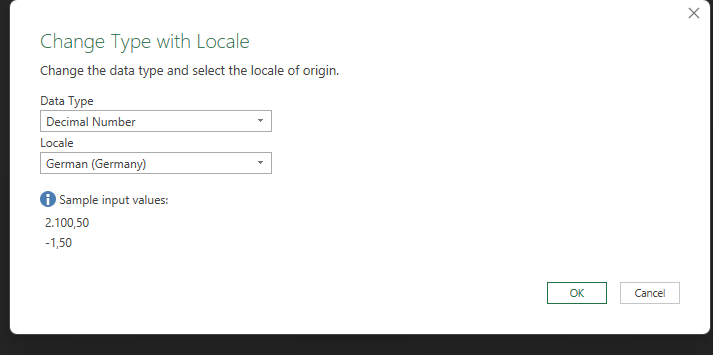
We picked German (Germany) because the dialog’s sample input values (2.100,50 and -1,50) show the dot-thousands, comma-decimal style our column uses. We did not try other locales.
After OK, the editor added a Changed Type with Locale step, and both amount columns showed the intended numbers:

Tap the image to view it at full size.
The formula bar reads:
= Table.TransformColumnTypes(#"Changed Type", {{"amt_eu_style", type number}}, "de-DE")The third argument, "de-DE", is the locale. Row 6 now reads 1234, which matches what we intended for the file.
Then we used Close & Load and added check columns next to the loaded table.

In the loaded sheet, ISNUMBER returned TRUE for both columns, and the six values were 1234.56, 0.5, 1234567.89, 12, 999.99, and 1234 in both. The sum of the converted column was 1238048.94, the total we computed for the intended values. The formula bar in the screenshot shows =ISNUMBER(C2) for the selected check cell.
What Microsoft’s documentation says about this: the locale you pick in Change Type > Using Locale is applied to that column and takes priority over the Power Query locale setting and over the operating system’s settings (see the first source below). The documentation’s own example is about dates, and it does not mention number separators, so what we show here for numbers comes from our test, not from that page.
Method 2: Text to Columns With Decimal and Thousands Separators
If the text is already in cells and you do not want to use Power Query, Text to Columns can convert it in place. We selected the comma-decimal text cells (C2:C7 in a working copy) and used Data > Text to Columns > Delimited > Next (with only Tab ticked as the delimiter) > Next. In step 3 we clicked Advanced and entered a comma as the decimal separator and a dot as the thousands separator.
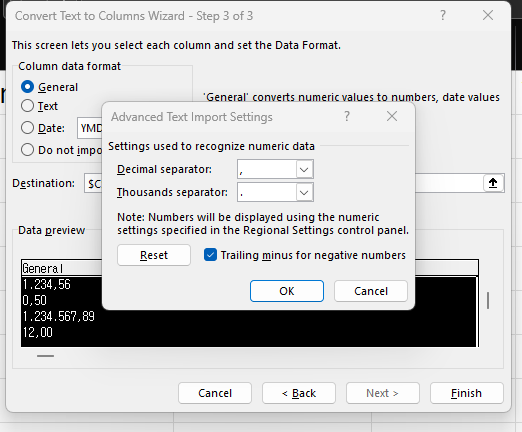
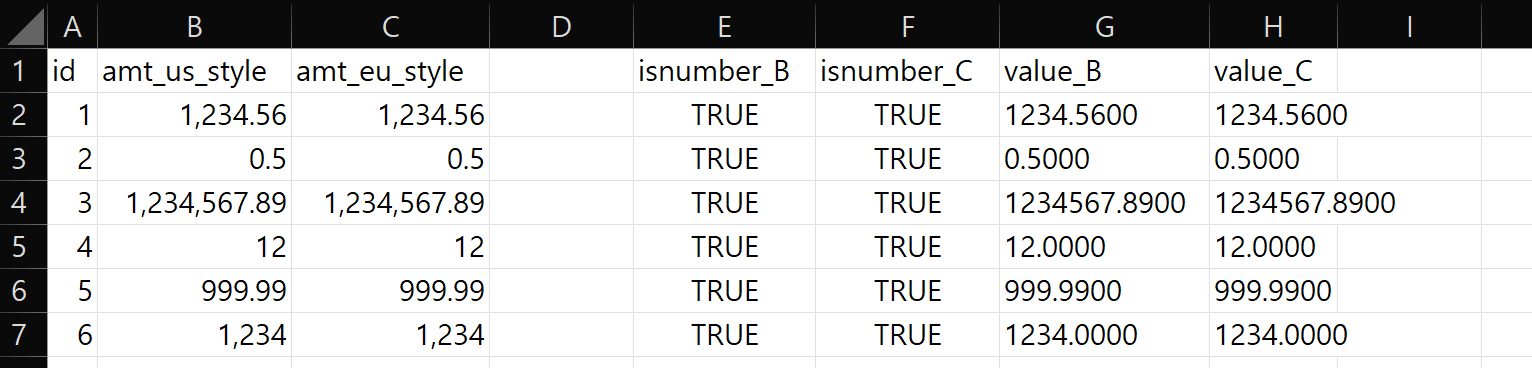
In that dialog, the “Trailing minus for negative numbers” box was ticked when we got to it; we did not change it. After OK and Finish, the cells became numbers:
Tap the image to view it at full size.
The six values were 1234.56, 0.5, 1234567.89, 12, 999.99, and 1234, the same as the intended values. The cells now display with thousands commas (for example 1,234,567.89); we did not check which number format Excel applied. Row 6 had already become the number 1.234 when we opened the file directly. Text to Columns still gave 1234 for it, because we told it the dot is a thousands separator, but Excel itself had read it as 1.234 before that. Text to Columns overwrites the original cells, so keep a copy of the column first.
Method 3: NUMBERVALUE on Text Cells
NUMBERVALUE converts text to a number and lets you say which characters are the decimal and thousands separators. Microsoft describes it as converting text to a number “in a locale-independent way” (see the sources). We tried it on a column that Power Query had loaded as text, that is, without the locale step.

The formula bar shows =NUMBERVALUE(C4,",",".") for the selected cell. The second argument is the decimal separator (a comma) and the third is the group separator (a dot). In this test the formula returned 1234.56, 0.5, 1234567.89, 12, 999.99, and 1234, and their sum was 1238048.94. ISNUMBER of the source column was FALSE, so the formulas were converting real text. Per Microsoft’s page, NUMBERVALUE is available in Excel 2021, among other versions.
One thing to watch: in an earlier trial in a working copy, we ran the same NUMBERVALUE(...,",",".") formulas on cells that Text to Columns had already turned into numbers. The results were wrong (1234.56 came out as 123456). We saw this on our setup and did not capture it in an image, but it is a good reason to convert each column once and check ISNUMBER first.
Which Method to Use
| Situation | Method we would try first |
|---|---|
| You import this kind of file repeatedly | Power Query, Change Type Using Locale |
| The text is already in the sheet and you want to replace it | Text to Columns, Advanced separators |
| You want to keep the original text beside the result | NUMBERVALUE in a new column |
All three produced the intended six values on our test file on our setup. For other ways to turn text into numbers in bulk, see converting numbers stored as text in Excel. The same locale idea applies to dates, which we cover in fixing dates after a CSV import.
Things to Know
- Scope. Everything above comes from one six-row test file on Excel 2021 (Version 2608) with Korean regional settings. We did not test other Windows regional settings, other Excel versions, or Mac.
- Not tested. We did not test files with semicolon delimiters, space or apostrophe thousands separators, currency symbols, negative numbers in this style, or a column that mixes both styles. A locale converts the whole column the same way, so check a mixed column before you apply one.
- Know the style first. A value like
1.234can mean 1234 or 1.234, and Excel cannot tell which. Other values in the column (such as0,50) are clues about the notation, not proof. Check the source system or ask the file’s author to confirm what the value means before you choose the locale. - Excel’s own separator option. Microsoft documents File > Options > Advanced > Use system separators, which temporarily replaces the separators from your Windows regional settings. We did not test it, so we cannot say how it would change the direct-open results above.
- Keep the original file. Do not save over the source CSV. If a value has already been converted to a number, we would re-import from the original rather than try to repair the converted cell.
- Overwriting. Text to Columns replaced the original cells in our test. Work on a copy.
- Our helper cells. The
ISNUMBER, value, and sum cells in the screenshots are cells we added for testing; they are not part of the CSV.
One-line Summary
In our Excel 2021 test, a comma-decimal column (1.234,56) stayed text on import and one value (1.234) silently became 1.234; setting Decimal Number with the German (Germany) locale in Power Query, Text to Columns with comma and dot separators, or NUMBERVALUE each produced the intended numbers.
Sources
Screenshots, values, and behavior described as “we saw” come from our own reproduction in Excel 2021 on one PC. Microsoft documentation used for the points noted above:
- Set a locale or region for data (Power Query): Change Type > Using Locale, and which locale takes priority.
- NUMBERVALUE function: arguments and the versions it applies to.
- Change the character used to separate thousands or decimals: the Use system separators option.