Sometimes you want a code or a name with only letters and numbers: no dashes, hash signs, commas, or brackets. This guide does that two ways, with an Excel formula and with Power Query. It also lists what these methods remove beyond what you might expect, including spaces and accented letters.
Tested in: Excel 2021 desktop (Home & Business 2021, Version 2608) with an English interface on Korean-language Windows. We did not test other Excel versions.
The Test Data
Our SpecialChars sheet has ten made-up strings in column A, such as ACME-Corp. #42!, SKU_1001/A, and A&B Co., Ltd.. Two are there to test the edges: Café Müller 12 has accented letters, and Spaced Out 9 has extra spaces. One, already_clean, contains an underscore.

Method 1: One Formula
In B2, enter this formula and fill it down:
=LET(t,A2,c,MID(t,SEQUENCE(LEN(t)),1),k,CODE(c),TEXTJOIN("",TRUE,IF((k>=48)*(k<=57)+(k>=65)*(k<=90)+(k>=97)*(k<=122)>0,c,"")))Here is what it does:
MID(t,SEQUENCE(LEN(t)),1)splits the text into single characters.CODE(c)gives each character’s code number.- The
IFkeeps a character only if its code is 48 to 57 (digits0to9), 65 to 90 (AtoZ), or 97 to 122 (atoz). TEXTJOINjoins the kept characters back together.
The formula ran without errors in our Excel 2021.

| Original | Result |
|---|---|
ACME-Corp. #42! | ACMECorp42 |
Smith, John (VIP) | SmithJohnVIP |
SKU_1001/A | SKU1001A |
100% Pure | 100Pure |
A&B Co., Ltd. | ABCoLtd |
Order #A-77 *rush* | OrderA77rush |
Cafe Muller 12 | CafeMuller12 |
Café Müller 12 | CafMller12 |
Spaced Out 9 | SpacedOut9 |
already_clean | alreadyclean |
What It Removes Besides Punctuation
The results show three things you might not want:
- Spaces. Every space is removed, so words join:
Smith, John (VIP)becomesSmithJohnVIP. - Underscores and hyphens.
already_cleanbecamealreadyclean. - Accented letters.
Café Müller 12becameCafMller12. Theéand theüare gone, not replaced byeandu.
This follows from the rule: only A-Z, a-z, and 0-9 are kept. If you need spaces or underscores kept, the rule would have to allow more codes. We did not test a changed rule, so check any version on your own data.
Method 2: Power Query
In Power Query, add a custom column with this formula:
Text.Select([raw_text], {"a".."z","A".."Z","0".."9"})Text.Select keeps only the characters in the list you give it. Ours was the same letters and digits.
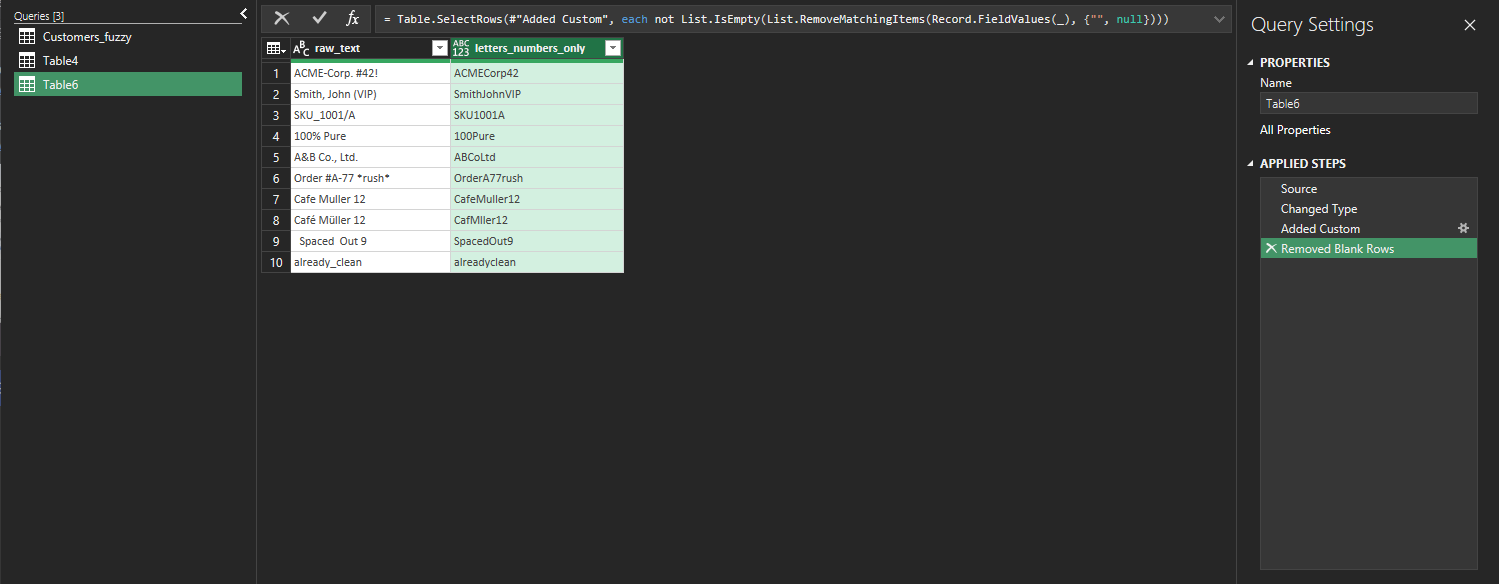
All ten rows matched the Excel formula, including CafMller12.
One setup problem. Our first attempt showed 999+ rows with empty values after row 10. We had made the Power Query table from a range that was larger than the data. We fixed it by adding a Remove Blank Rows step. Selecting only the data range avoids the problem in the first place.
Things to Know
- Only English letters and digits are kept. Letters with accents and letters from other alphabets are removed too. We did not test a way to keep them, and we did not test any regular-expression function.
- The formula’s code ranges. We tested it on these ten strings and did not try other character sets or other Windows language settings.
- Original data. Both methods write to a new column, so column
Ais unchanged. - Related. If you only need to clean phone numbers, see our guide on standardizing US phone numbers. For hidden non-breaking spaces, see why TRIM isn’t removing them. We did not test either case here.
One-line Summary
To keep only English letters and digits, either use the LET formula above or Text.Select in Power Query. Both gave identical results on our ten strings, and both also removed spaces, underscores, hyphens, and accented letters.
Sources
- Note: all ten results and the Power Query comparison come from our own reproduction in the Excel 2021 desktop app. We did not check these functions against Microsoft’s documentation for this guide.