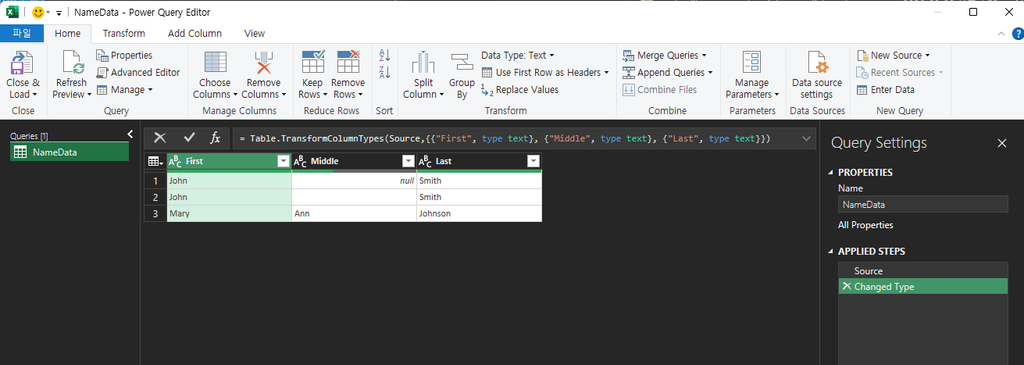
A column that appears empty at a glance in Power Query can hold either null or "" (an empty string). In this project’s observed preview, null appeared in italics while an empty string appeared as a plain blank cell. Functions like Text.Combine treat the two differently, and mixing them up silently produces wrong results — not an error.
Applies to: Power Query / Get & Transform in all current Excel versions (Excel for Microsoft 365, Excel 2024, Excel 2021, Excel 2019, Excel 2016) and Power BI, since the M language and its functions behave the same way across these hosts.
The Problem: A Middle Name Column
Take a simple “combine three name columns into one” task — First, Middle, Last — joined with Text.Combine and a space separator:
Text.Combine({[First], [Middle], [Last]}, " ")For most rows this works exactly as expected. But this project directly reproduced a case where two rows that both “look” like they have no middle name produce different results:
- A row where
Middleisnull: Text.Combine skips it entirely. Result: “John Smith” (one space between the names, as expected). - A row where
Middleis""(empty string, not null): Text.Combine does not skip it — it still inserts a separator on each side of the empty value. Result: “Jane Doe” — two spaces between “Jane” and “Doe”, not one.
This is exactly the kind of bug that passes a quick visual check and then breaks something downstream, like a text match or a fixed-width export — the extra space is easy to miss just by looking at the result, but it’s really there and will affect anything that compares the text exactly or counts characters.
Why This Happens
Text.Combine joins a list of text values into one, and it treats null as “no value to contribute” — it does not add a separator for a null entry. An empty string, on the other hand, is a real value (a zero-length piece of text), so Text.Combine treats it as a legitimate entry that still gets a separator placed around it, even though the value itself contributes nothing visible.

It’s worth noting that Excel’s own Go To Special > Blanks command draws a related but not identical distinction: it selects genuinely empty cells, not cells that merely display as blank because a formula returned “”. The underlying lesson is the same one this article is about — don’t assume “looks empty” means “is empty” — but Excel’s blank cell and Power Query’s null are not literally the same data type, and Go To Special’s cell-selection behavior isn’t run through the same code as Text.Combine. Treat the comparison as a useful reminder to check, not as proof that the two features work identically.
How to Tell Them Apart
In the Power Query editor, null values are displayed in italics; empty strings display as a blank cell without italics. This is a visual cue you can check directly in the data preview — it’s easy to miss if you’re scanning quickly, but it’s there.
To check programmatically instead of relying on the visual difference, add flag columns with Table.AddColumn. As a full Advanced Editor step sequence, chained so each step references the previous one:
IsNull = Table.AddColumn(Source, "IsNull", each [Middle] = null, type logical),
IsEmptyString = Table.AddColumn(IsNull, "IsEmptyString", each [Middle] = "", type logical)
This adds a column that’s TRUE only for a genuine null, and a separate column that’s TRUE only for an empty string, so you can see row by row which rows actually have which value.
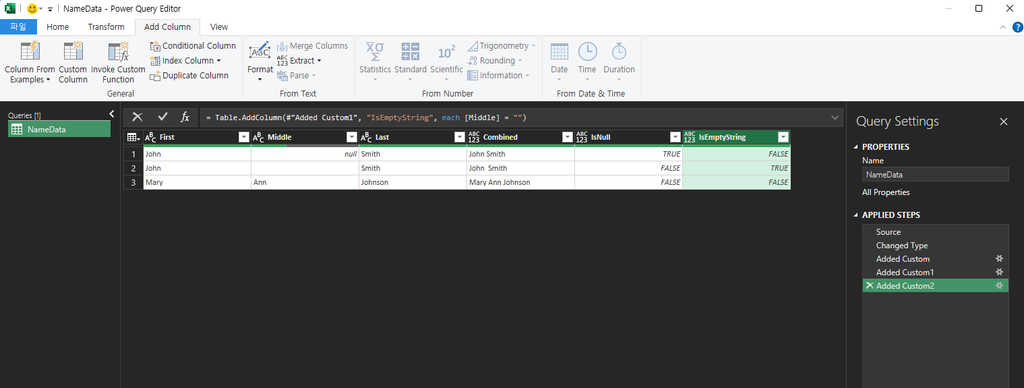
If you’re building this through the UI instead of the Advanced Editor, use Add Column > Custom Column twice — once per flag. In the Custom Column dialog, you don’t paste the Table.AddColumn(…) wrapper; you only enter the expression after each, i.e. [Middle] = null for the first column and [Middle] = "" for the second. Power Query generates the surrounding Table.AddColumn step for you.
How to Fix It
If you want both null and "" treated the same way (skipped, not contributing a stray separator), normalize one to the other before combining — for example, replace empty strings with null first:
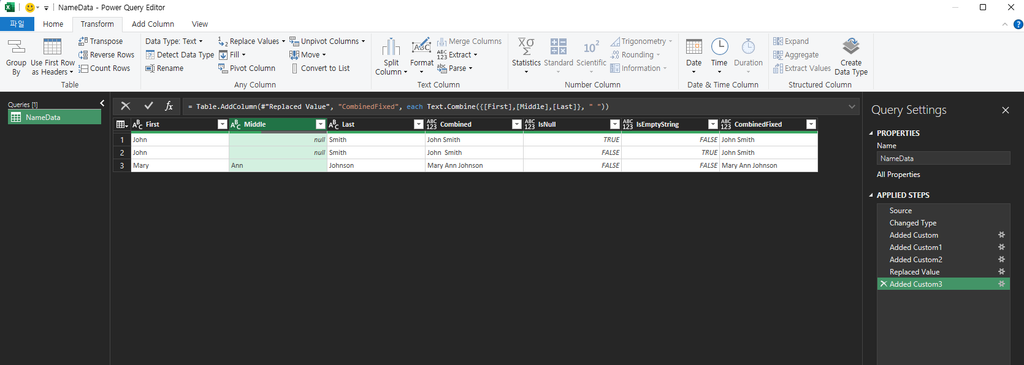
Table.ReplaceValue(Source, "", null, Replacer.ReplaceValue, {"Middle"})After this step, every “no middle name” row is a genuine null, and Text.Combine will skip all of them consistently, regardless of whether the original data used null or “” to represent “nothing here.” For how null and empty-string keys behave when you remove duplicates, see our guide on Power Query Remove Duplicates.
One practical note from testing this: Power Query columns are computed once, at the step where they’re added, not live-recalculated. If you already have a Text.Combine step earlier in your query, adding Table.ReplaceValue after it will not retroactively fix that column’s existing output. Put the Table.ReplaceValue step before your Text.Combine step, or add a fresh Text.Combine column after the fix, to see the corrected result.
One-line Summary
Text.Combine skips null values but not empty strings (“”) — a null “no value” is invisible to it, while an empty string is a real, zero-length value that still gets a separator placed around it, producing an extra space that’s easy to miss on a visual check. Use Table.AddColumn with each [Column] = null / each [Column] = “” to check which rows actually have which value, and normalize “” to null with Table.ReplaceValue before combining if you need consistent behavior.
Sources
- Text.Combine — Microsoft Learn (Power Query M reference). Backs the general syntax and purpose of Text.Combine (joining a list of text values with a separator).
- The specific behavior difference — Text.Combine skipping null but not skipping “”, including the exact resulting text for both cases — was directly reproduced by this project in Power Query, including a dedicated fixture and 5 screenshots. This distinction is not explicitly spelled out in the Text.Combine reference page itself; it is project-verified behavior, not a direct quote from official documentation.