A single cell like Apple, Banana, Cherry sometimes needs to become three separate rows instead of three separate columns — for example, to make each value filterable, sortable, or usable in a pivot table. Excel has two ways to do this, and which one you can use depends on your Excel version.
Applies to: Excel for Microsoft 365 and Excel 2024 (TEXTSPLIT, native row-splitting); Excel 2021, 2019, and 2016 (Power Query fallback — TEXTSPLIT is not available).
Method 1: TEXTSPLIT (Microsoft 365 / Excel 2024 only)
TEXTSPLIT splits text using a delimiter you specify, and it can split into rows, not just columns, by passing the delimiter as the row_delimiter argument instead of the default col_delimiter:
=TEXTSPLIT(A2, , ",")This splits the text in A2 on commas and spills the results downward into separate rows starting at the formula’s cell (the blank argument skips col_delimiter so only row_delimiter is used).
Microsoft documents three behaviors of TEXTSPLIT that matter for this task:
- row_delimiter: the argument that controls splitting into rows, as used above.
- ignore_empty: when set to TRUE, consecutive delimiters (for example, Apple,,Cherry) do not produce a blank row between values. The default is FALSE, which does produce blank entries for empty splits.
- Multiple delimiters: row_delimiter accepts an array of delimiters (for example, {“,”, “;”}), so a column mixing comma- and semicolon-separated values can be split with one formula.
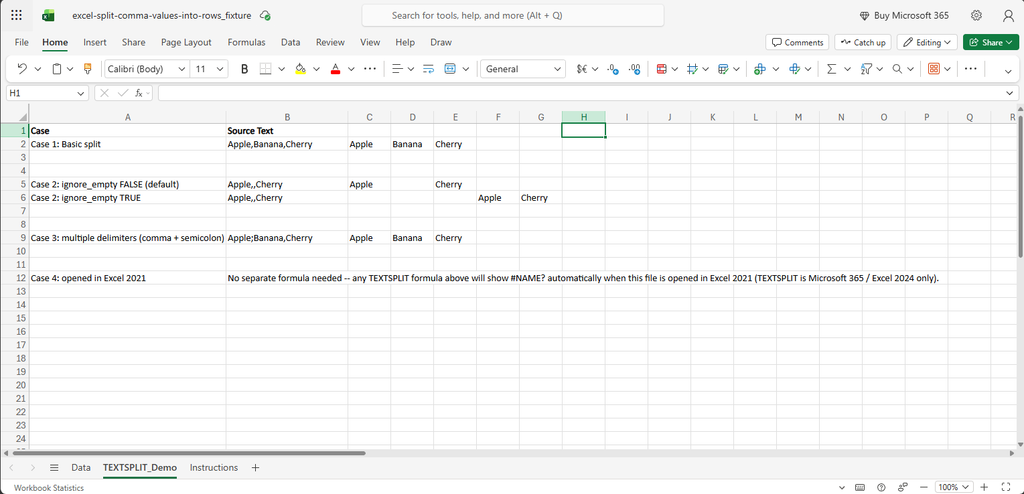
Because the formula spills, do not type anything into the cells below it — TEXTSPLIT needs that space to place the split results, and existing content there will cause a #SPILL! error.
Why TEXTSPLIT Might Not Work For You
TEXTSPLIT is a newer dynamic-array function. This project directly reproduced the following in Excel 2021: entering a TEXTSPLIT formula returns #NAME? — Excel 2021 does not recognize the function name at all, across every delimiter/blank/multiple-delimiter case tested. This matches Microsoft’s own version scoping for the function, which lists Microsoft 365 and Excel 2024 as the supported versions.
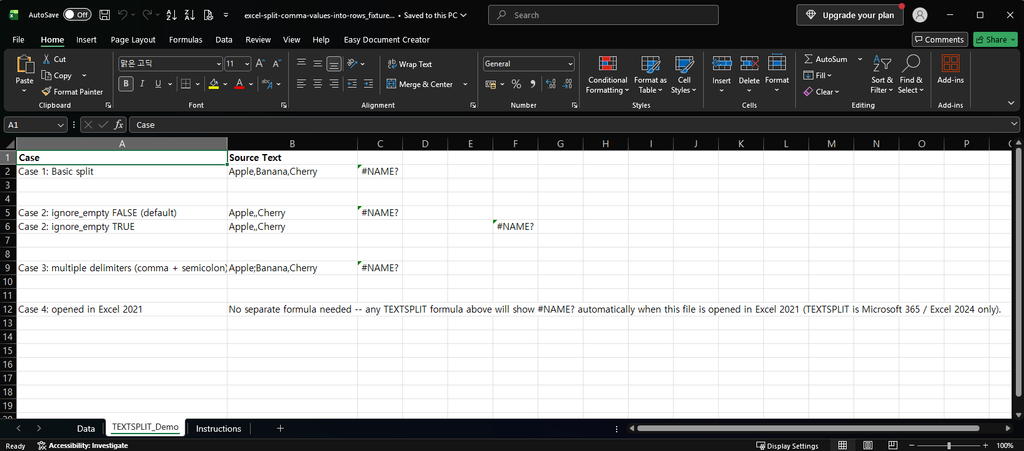
If you see #NAME? after typing a TEXTSPLIT formula, that is very likely the cause — not a typo in the formula. Another function that returned #NAME? in our Excel 2021 is TEXTBEFORE; see our guide on extracting text before or after a character.
Method 2: Power Query (Excel 2021, 2019, 2016)
Power Query’s Split Column by Delimiter, using the Rows option instead of the default Columns option, does the same job on older Excel versions:
- Select the column you want to split.
- Go to Data > Get & Transform > From Table/Range (or open the query in Power Query Editor if the data is already a query).
- Right-click the column, choose Split Column > By Delimiter.
- Choose your delimiter (Comma, Semicolon, or Custom).
- Under Split into, choose Rows instead of the default Columns.
- Click OK, then Close & Load.
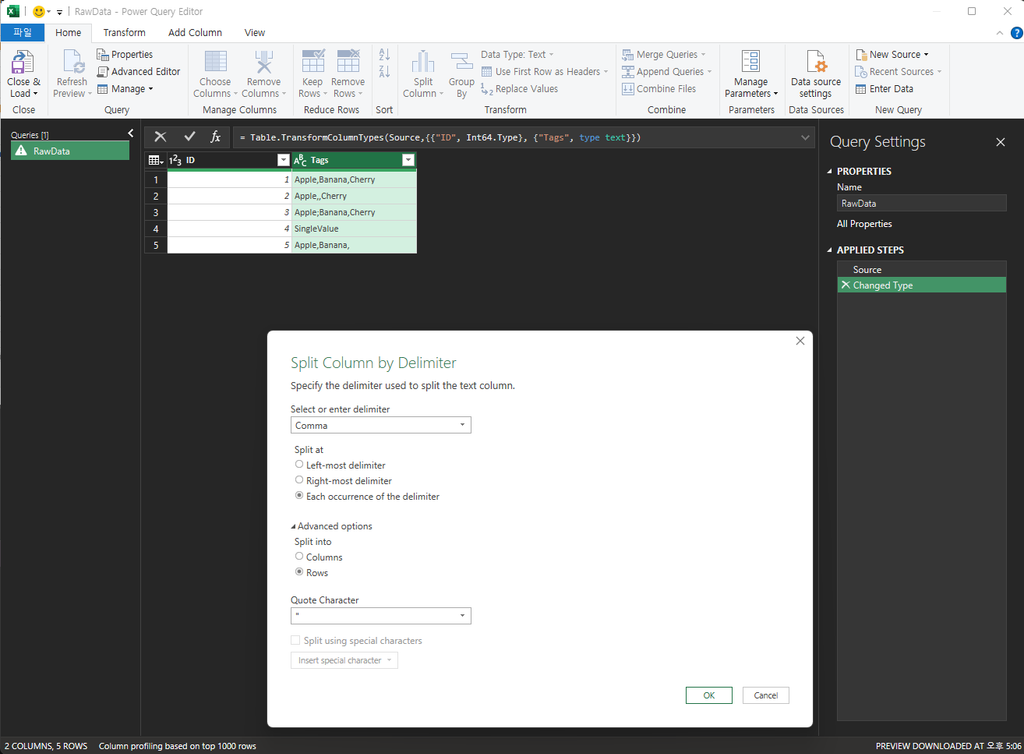
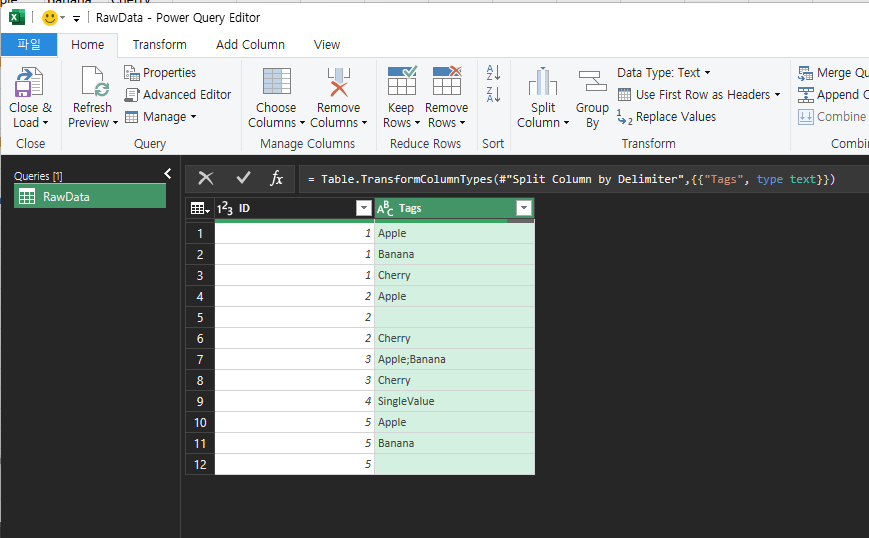
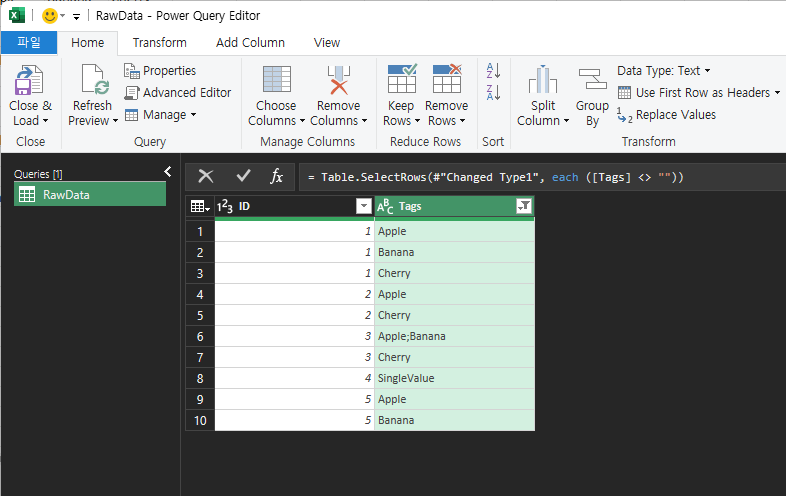
The Split Column by Delimiter dialog takes a single delimiter per step (Comma, Semicolon, or one Custom value you type in) — it does not have TEXTSPLIT’s array-of-delimiters argument for mixing delimiter types in one pass. This project confirmed the result directly: splitting a column that mixes delimiters (for example Apple;Banana,Cherry) by comma only splits on the comma — the semicolon-joined portion (Apple;Banana) stays together as a single value. To fully split mixed-delimiter data, run the Split Column step again on the result (once per delimiter type), or normalize all delimiters to one character first (for example with a Find & Replace step) before splitting.
This project confirmed how the split-into-rows step behaves on consecutive delimiters (for example, Apple,,Cherry): unlike TEXTSPLIT’s ignore_empty argument, Power Query has no built-in option to skip blank results — splitting produces a literal blank row wherever two delimiters are adjacent (or a delimiter is at the start/end of the text). To remove them, filter the split column afterward: click the column’s filter arrow and uncheck (blank), or use Home > Remove Rows > Remove Blank Rows.
Which Method Should You Use?
| TEXTSPLIT | Power Query | |
|---|---|---|
| Excel version | Microsoft 365, Excel 2024 only | 2016, 2019, 2021, 2024, Microsoft 365 (all versions) |
| Result type | Formula (recalculates automatically when source cell changes) | Query (needs “Refresh” to pick up source changes) |
| Skips blank splits | Yes, via ignore_empty argument | No built-in option — produces a blank row; filter it out afterward |
| Multiple delimiters | Yes, via a delimiter array | No — one delimiter per step; run the split again per delimiter type, or normalize first |
If you’re on Microsoft 365 or Excel 2024, TEXTSPLIT is simpler for a one-off, self-updating formula. If you’re on an older version, or you’re already building a Power Query pipeline for other cleanup steps, the Power Query method keeps everything in one place and doesn’t depend on a specific Excel version.
One-line Summary
Use TEXTSPLIT(cell, , delimiter) to split values into rows on Microsoft 365 or Excel 2024. On Excel 2021, 2019, or 2016 — where TEXTSPLIT returns #NAME? — use Power Query’s Split Column > By Delimiter, choosing Rows instead of Columns. Power Query produces a blank row for consecutive delimiters (filter it out afterward) and splits on only one delimiter per step (run it again per delimiter type for mixed data) — both confirmed by this project’s own reproduction, not just documentation.
Sources
- TEXTSPLIT function — Microsoft Support. Backs the row_delimiter, ignore_empty, and multiple-delimiter-array behavior described in Method 1, and the Microsoft 365 / Excel 2024 version scoping.
- Split a column of text (Power Query) — Microsoft Support. Backs the Split Column by Delimiter steps in Method 2, including the Rows-vs-Columns choice.
- The specific finding that TEXTSPLIT returns #NAME? in Excel 2021 was independently reproduced by this project in real Excel 2021 across all tested delimiter/blank/multiple-delimiter cases. Power Query’s blank-row and multi-delimiter behavior for the Split Column by Delimiter step was also independently reproduced by this project (fixture and screenshots): splitting produces a literal blank row for consecutive delimiters with no built-in skip option, and splits on only the one delimiter chosen per step.