Some exports separate fields with semicolons (;) instead of commas, and the file can still end in .csv. Opened in Excel, such a file may not look like a table at all.
This guide shows what happened when we opened one small semicolon-separated test file in Excel, why Text to Columns lost part of one row in our test, and how Data > From Text/CSV kept every value in its own cell.
Tested in: Excel 2021 desktop (Version 2608) with an English interface, on Windows with Korean regional settings (decimal point ., thousands separator ,, list separator ,). Everything below describes what happened on that one setup. We did not test other Windows regional settings, other Excel versions, or Mac, and results may differ there.
Our Test File
The file has a header and four data rows:
id;name;city;qty;note
1;Alpha Co;Seoul;12;ok
2;Beta, Inc;Busan;7;"has; semicolon inside"
3;Gamma Ltd;Daegu;0;
4;Delta;Incheon;150;ok
Two rows are there on purpose. In row 2 of the data, the company name Beta, Inc contains a comma, and the note is written in quotes because it contains a semicolon. In row 3 the last field is empty, so the line ends with ;. What we expected from a correct import is five columns, four data rows, Beta, Inc in one cell, has; semicolon inside in one cell, and an empty note for Gamma Ltd.
Opening the CSV Directly
We opened the file directly with File > Open (Ctrl+O), not through the Data tab. We did not test double-clicking the file in File Explorer.

- The header and the Alpha Co, Gamma Ltd, and Delta rows each sit entirely in column A, semicolons and all.
- The
Beta, Incrow is split in two, but at the comma, not at a semicolon. A3 shows2;Beta, and the formula bar for the selected cell B3 showsInc;Busan;7;"has; semicolon inside". - On our screen, the title bar also said Read-Only and a yellow “POSSIBLE DATA LOSS” banner appeared. Neither is in the screenshot.
Our reading is that Excel split only where it found a comma, and the list separator on our Windows setup is a comma. We did not change that setting, so we cannot say it is the cause. Microsoft’s page on importing text files does not explain how Excel picks the delimiter when you open a .csv directly (see the sources).
Method 1: Data > From Text/CSV
In a blank workbook we used Data > Get Data > From File > From Text/CSV and chose the file. Excel showed a preview window before loading anything.

Tap the image to view it at full size.
The window showed three settings: File Origin 949: Korean, Delimiter Semicolon, and Data Type Detection Based on first 200 rows. We did not change any of them. The preview had five columns. Beta, Inc sat in one cell, has; semicolon inside sat in one cell, the note for Gamma Ltd was empty, and the id and qty values were right-aligned.
We do not know how Excel chose Semicolon here. Microsoft’s page says that with From Text/CSV you can pick a delimiter and preview the result before importing, so the choice is yours to check. Our file contains only plain ASCII characters, and we did not test other encodings.
We clicked Load.

The table filled A1:E5. Excel’s Queries & Connections pane said “4 rows loaded”, which is not in the screenshot. We compared the cells with the file text by eye: Beta, Inc and has; semicolon inside stayed in single cells, and the empty note for Gamma Ltd stayed empty, matching the trailing ; in the file. We did not run formulas such as ISNUMBER on the loaded columns, and we did not test refreshing the query or moving the file.
Method 2: Text to Columns
If the file is already open in one column, Text to Columns on column A can split it. We selected column A (the selection is not visible in the screenshots) and used Data > Text to Columns > Delimited > Next. In step 2, only Semicolon was ticked, and the text qualifier was a double quote.

The data preview shows only what is in column A, so the Beta, Inc row stops after Beta. When we clicked Finish, Excel asked whether to replace existing data.
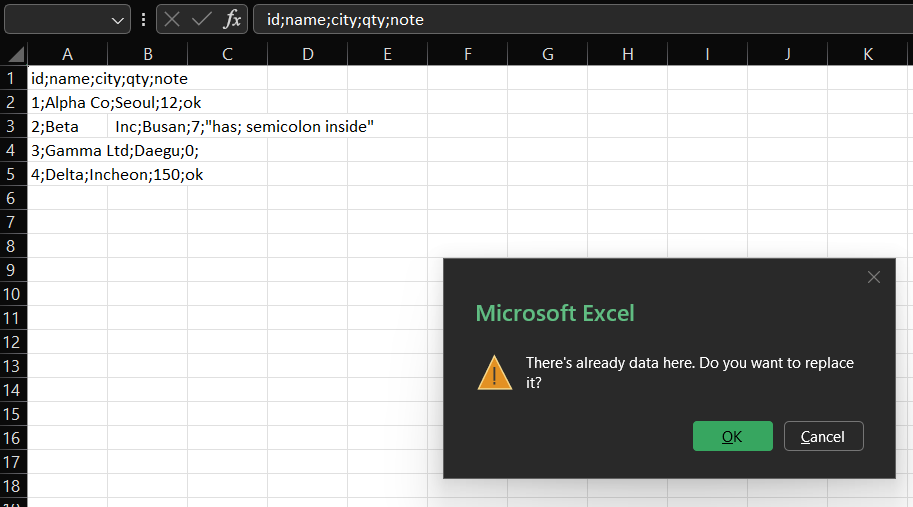
That fits what we saw earlier: B3 already held the piece after the comma, and the split would write into column B. We clicked OK.
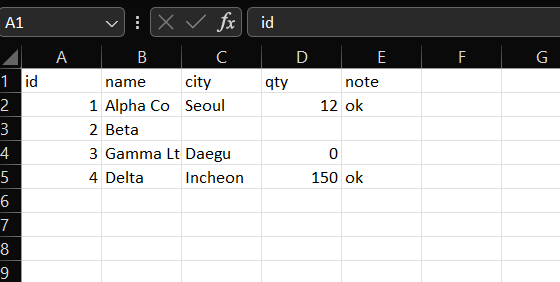
Rows for Alpha Co, Gamma Ltd, and Delta split into five columns. The Beta, Inc row did not: it ended up with only 2 and Beta, and the city, qty, and note cells are empty. The text after the comma, Inc;Busan;7;"has; semicolon inside", is no longer on the sheet. We would treat that as lost data. That is what happened in this test; we did not test other files, so we cannot say every semicolon file behaves this way.
What we would do: before running Text to Columns on a directly opened file, check whether any cell to the right of column A already has data, as our row 3 did. We did not test other ways around this, such as clearing column B first or changing the Destination box. If the split has already damaged the sheet, we would not try to repair it. We would close the workbook with Don’t Save so the original file is never overwritten, and import the original again with Data > From Text/CSV (Method 1). In our test we never saved the workbook, and Method 1 afterwards loaded the same file with all four data rows intact.
Which Method to Use
| Situation | Method we would try first |
|---|---|
| You have the CSV file and want every value in its own cell | Data > From Text/CSV |
| The file is already open in one column | Text to Columns, after checking for data to the right of column A |
On our test file, From Text/CSV kept all four data rows intact, and Text to Columns lost part of one row. If numbers or dates come in wrong after an import, see how a decimal comma import behaved in Excel and fixing dates after a CSV import.
Things to Know
- Scope. Everything above comes from one five-line test file on Excel 2021 (Version 2608) with Korean regional settings and a comma list separator. We did not test other Windows regional settings, other Excel versions, or Mac.
- Not tested. We did not change the Windows list separator. Microsoft’s page describes it, under Region settings > Additional settings > Numbers, as the default separator for new text files saved as .csv and says the change affects all programs. We did not test whether it changes how a directly opened file is split. We also did not test renaming the file to .txt to get the Text Import Wizard, the Transform Data option, other delimiters, other encodings such as UTF-8 with a byte order mark, quoted fields that contain line breaks, Excel for the web, or files with more than four data rows. Data Type Detection used the first 200 rows in the dialog, and our file had four.
- Keep the original file. Do not save over the source CSV. If Excel asks whether to save changes to it when you close it, we would choose Don’t Save. If a split has gone wrong, re-import the original with Data > From Text/CSV.
- Look for lost cells. After any split, compare the row count and a few rows with the original text, especially rows with commas, quotes, or empty last fields.
One-line Summary
In our Excel 2021 test, a semicolon CSV opened directly landed mostly in column A, Text to Columns on column A lost part of the Beta, Inc row, and Data > From Text/CSV kept every value in its own cell.
Sources
Screenshots and behavior described as “we saw” come from our own reproduction in Excel 2021 on one setup. Microsoft documentation used for the points noted above:
- Import or export text (.txt or .csv) files: choosing a delimiter and previewing in From Text/CSV, and the list separator for saved .csv files. The page does not explain how the delimiter is chosen for a directly opened .csv.
- Split text into different columns with the Convert Text to Columns Wizard: the wizard steps, including the Destination choice. The page does not mention replacing existing data, so what we show about that comes from our test.