A CSV with names like José or Zürich can open in Excel as José or Zürich, and a euro sign can turn into €. One possible cause is an encoding mismatch: the program reading the file uses a different character set than the one used to save it. In our test we could not see which encoding Excel used when it opened a file directly, so we describe only what the screen showed.
This guide shows what happened when we opened the same four-row test data saved three ways, and how Data > From Text/CSV let us see and change the File Origin before loading anything.
Tested in: Excel 2021 desktop (Version 2608) with an English interface, on Windows with Korean regional settings. Everything below describes what happened on that one setup. We did not test other Excel versions, other regional settings, or Mac, and results may differ there.
Our Test Files
We saved the same four rows as three CSV files, so we know exactly how each one is encoded:
id,name,city,price
1,José Álvarez,São Paulo,€12.50
2,Zoë Müller,Zürich,€8.00
3,Chloé Dupont,Montréal,€15.25
4,Søren Ødegård,København,€9.90- UTF-8 without a byte order mark (BOM)
- UTF-8 with a BOM
- Windows-1252, the Western European Windows code page
The data uses accented letters and a euro sign instead of non-Latin text. We did not test Korean, Japanese, Chinese, or other scripts.
Opening the UTF-8 File Without a BOM Directly
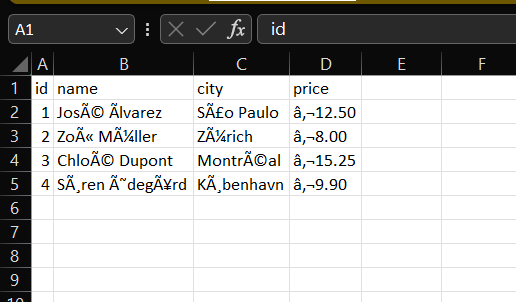
We opened the UTF-8 file without a BOM directly with File > Open (Ctrl+O), not through the Data tab. We did not test double-clicking the file in File Explorer.
- The header
id,name,city,pricelooks normal. The names, cities, and prices do not:José Ãlvarez,São Paulo,Zürich,€12.50(the second character of the garbled euro sign looks like a comma on screen; when we checked the cell with Excel’sUNICODEfunction it was code 8218, a low single quotation mark, which we write as‚). - The garbled prices sit on the left side of their cells, like text.
- On our screen, a yellow “POSSIBLE DATA LOSS” banner also appeared. It is not in the screenshot.
We did not save this workbook. The banner talks about saving in the .csv format, so we closed the file without saving over the original.
Opening the UTF-8 File With a BOM Directly
We used the same File > Open steps on the UTF-8 file that has a BOM. This time Excel did not open the file straight into the sheet. The Text Import Wizard appeared first, with File origin set to 65001 : Unicode (UTF-8) and a preview that shows the accents and the euro sign correctly.
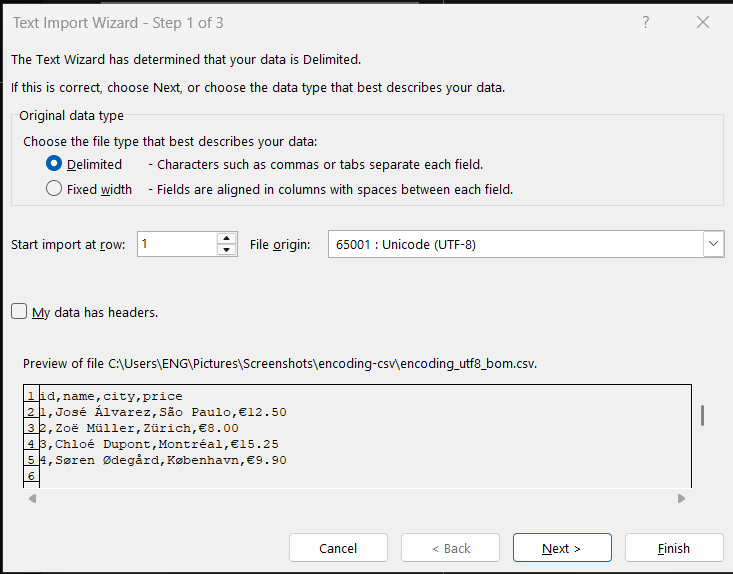
We saw the wizard each of the four times we opened this file, including twice after restarting Excel. We do not know why it appeared here and not for the other files, and we did not test whether the Excel setting for legacy import wizards plays a role.
In the wizard, step 2 showed Semicolon ticked, so we ticked Comma instead and clicked Finish. On our screen the sheet then showed José Álvarez, São Paulo, Zürich and € 12.50 correctly. That sheet is not in a screenshot.
Microsoft’s page on opening UTF-8 CSV files says a UTF-8 file saved with a BOM opens normally and that, for a file without one, you can use From Text/CSV or the Text Import Wizard (see the sources). We saw a wizard for the BOM file, so we would not describe our result as “it simply opens”. We did not test whether a file with a BOM opens straight into a sheet on other setups.
Opening the Windows-1252 File Directly
The Windows-1252 file opened straight into the sheet, with no wizard.
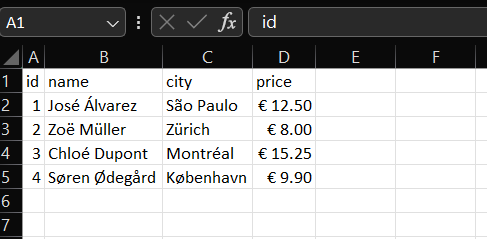
The names, cities, and prices look right: José Álvarez, Zoë Müller, København. The prices appear right-aligned with a euro sign, such as € 12.50. We do not know whether Excel read the file with the Windows-1252 code page or detected it some other way, and we did not look at which settings are involved. We did not open this file with Data > From Text/CSV, so we did not try 1252 on it.
So on our setup, the same four rows came out garbled from the UTF-8 file without a BOM and correct from the other two files (the BOM file after the wizard).
Check the File Origin With Data > From Text/CSV
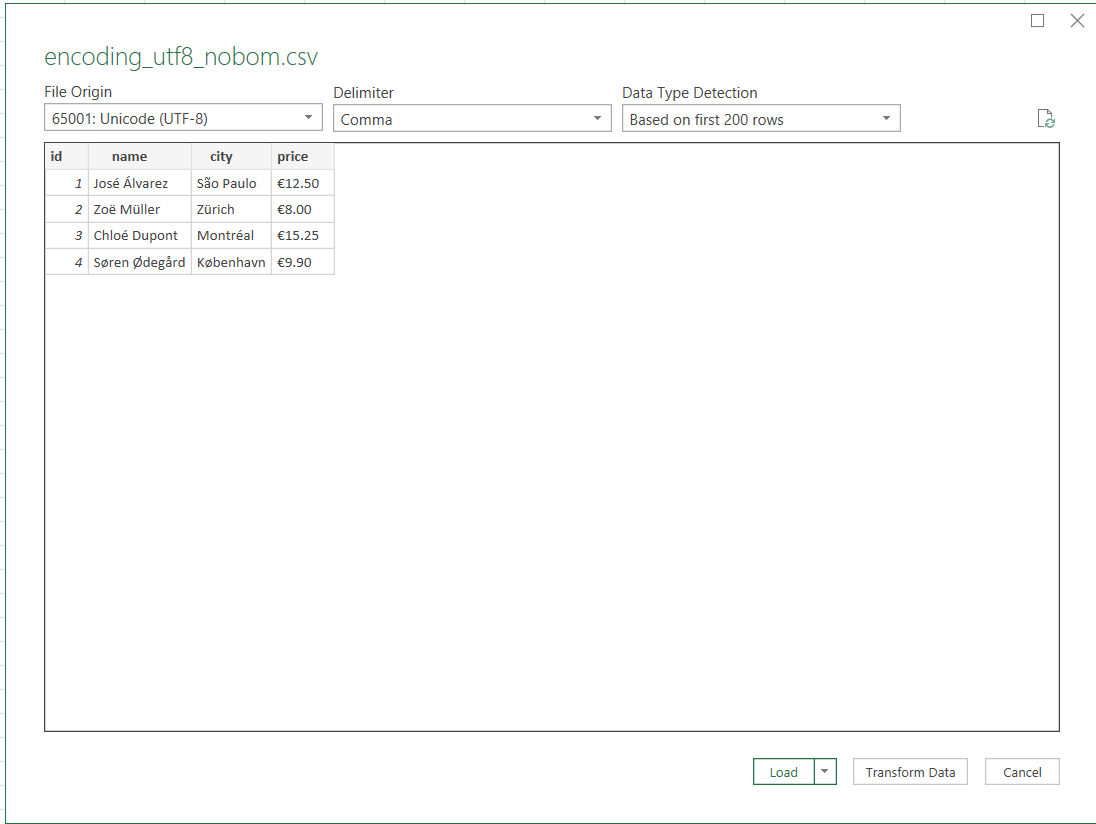
In a blank workbook we used Data > Get Data > From File > From Text/CSV and chose the UTF-8 file without a BOM. Excel showed a preview window before loading anything.
Tap the image to view it at full size.
The window showed File Origin 65001: Unicode (UTF-8), Delimiter Comma, and Data Type Detection Based on first 200 rows. We did not change any of them. The preview shows José Álvarez, Zoë Müller, and Søren Ødegård correctly, and the prices appear on the left side as €12.50.
We do not know how Excel chose 65001 here. For this file, the same one that came out garbled when opened directly, the preview was correct without any change from us.
We clicked Load. On our screen the table showed the names, cities, and prices correctly, and the Queries & Connections pane said “4 rows loaded”. We did not take a screenshot of the loaded table, and we did not test refreshing the query.
What the Wrong File Origin Looks Like
To see what a wrong choice looks like, we opened the same preview of the UTF-8 file and changed only File Origin to 1252: Western European (Windows). We know this file is UTF-8, so 1252 is the wrong value for it.

Tap the image to view it at full size.
The preview now showed José Ãlvarez, São Paulo, Zürich and €12.50. These look like the garbled text from opening the file directly. That was a deliberate wrong choice for this test. We loaded it once into a scratch workbook only to check the characters, and closed that workbook without saving. The characters were the same as in the directly opened sheet: â, then ‚ (code 8218), then ¬. We did not check the preview itself character by character, and we did not check which code page Excel used when the file opened directly, so we can only say the screens look alike.
Microsoft’s Text Import Wizard page describes File origin as the character set used in the text file, says you can usually leave it at the default, and says to change it when the file was made with a different character set (see the sources).
A Check You Can Do on Your Own File
- Find out how the file was saved. Look at the export settings where the file was created, or ask whoever supplied it. We did not test any other way of finding out, such as looking at the file in a text editor.
- Open the file with Data > Get Data > From File > From Text/CSV, not with a double click or File > Open, and look at the preview before you load anything.
- Pick the File Origin that matches the encoding you were told. 65001 fit our UTF-8 test files, but it is not the right value for every CSV. A file saved as Windows-1252 would call for 1252, although we did not try that file in From Text/CSV.
- If you do not know the encoding, ask the file provider. A preview that looks right is a clue, not confirmation, and our test files were ones we created, so we knew their encoding in advance.
- When the File Origin matches the file and the preview shows the characters you expect, we would click Load. In our test we clicked Load only with 65001 on the UTF-8 file, where the preview was already correct.
Before you try different settings, keep a copy of the original CSV. If you opened the file directly and made no edits, we would close it with Don’t Save rather than save over the original CSV, then import it again as above. If you do have edits you want to keep, save them under a new file name (for example as an .xlsx) before closing.
If dates or numbers also come in wrong, see fixing dates after a CSV import and how a decimal comma import behaved in Excel. If the data lands in one column, see what happened with a semicolon CSV.
Which Way to Open the File
| What you want | What we would try first |
|---|---|
| Open a CSV whose accents or symbols look garbled | Close it with Don’t Save, then Data > From Text/CSV and check the preview |
| Choose the File Origin | The one that matches the file’s real encoding (ask the file provider if unsure), then check the preview before Load |
Things to Know
- Scope. Everything above comes from one four-row test file saved in three ways, on Excel 2021 (Version 2608) with Korean regional settings. We did not test other Excel versions, other regional settings, or Mac.
- Not tested. Non-Latin scripts such as Korean, other encodings such as UTF-16, double-clicking a CSV in File Explorer, checking the encoding in a text editor, saving a CSV from Excel as CSV UTF-8, opening the Windows-1252 file in From Text/CSV or choosing 1252 for it, the Text Import Wizard File origin list, the Transform Data option, Excel for the web, Power Query code, and files with more than four data rows. Data Type Detection used the first 200 rows in the dialog, and our file had four.
- Keep the original file. Keep a copy of the source CSV and avoid saving over it. If you have edits to keep, save them under a new name first. If you have no edits and Excel asks whether to save changes when you close, we would choose Don’t Save.
- Look at the result. After loading, compare a few names and symbols with the original, especially values with accents or a currency sign.
One-line Summary
In our Excel 2021 test, a UTF-8 CSV without a BOM opened directly as José and €, the same data opened correctly from the BOM file (through the Text Import Wizard) and from the Windows-1252 file, and Data > From Text/CSV showed a correct preview with 65001, which matched that UTF-8 file, and a garbled one with 1252, which did not.
Sources
Screenshots and behavior described as “we saw” come from our own reproduction in Excel 2021 on one setup. Microsoft documentation used for the points noted above:
- Opening CSV UTF-8 files correctly in Excel: a UTF-8 file saved with a BOM opens normally, and for a file without one it offers From Text/CSV or the Text Import Wizard.
- Text Import Wizard: File origin as the character set of the text file, and how to turn on the From Text (Legacy) option.