Excel’s built-in Data > Remove Duplicates command always keeps the first row it encounters for each duplicate key and deletes the rest. That’s fine when “first” is the row you actually want to keep. It’s a problem when you need the latest record per customer, an ID column with occasional blanks, or a tie between two rows updated on the same day.
Power Query handles all of these, but it needs to be told explicitly which row to keep — it does not have a single “remove duplicates, keep the newest” button. This guide builds that logic step by step, covering the edge cases that break a naive approach.
Applies to: Excel for Microsoft 365, Excel 2024, Excel 2021, Excel 2019, and Excel 2016 (Power Query / Get & Transform is available in all of these).
Why Not Just Use Remove Duplicates?
Microsoft documents that Excel’s Remove Duplicates command keeps the first occurrence of a duplicate and deletes the rest of the rows that match on the columns you selected as the comparison key. There is no option to control which occurrence survives — it’s always the first one in sheet order.
If your data isn’t already sorted so that the row you want is first, Remove Duplicates will keep the wrong row. And once it deletes a row, that’s it — there’s no audit trail showing what was removed or why.
Power Query solves both problems: you can define exactly which row should win, and the query itself documents the logic (it’s a repeatable set of steps, not a one-time deletion). If you only need to find duplicate or missing items without deleting anything, see our guide on comparing two lists in Excel.
The Building Block: Group and Pick One Row
The core pattern used throughout this guide is group by the key, then pick one row per group using Table.Group with a custom aggregation:
Table.Group(Source, {"CustomerID"},
  {{"Chosen", each Table.First(Table.Sort(_, {{"SortColumn", Order.Descending}})), type record}}
)
Read this as: “group all rows by CustomerID; within each group, sort by SortColumn descending, and keep only the first row of that sorted group.” Change what you sort by, and you change which row survives.
Table.Group with this aggregation produces a table with one column per grouping key plus a Chosen column holding a record (the whole winning row, packaged as one value) — not yet a normal flat table. Every case below needs one more step to turn that back into real columns:
Table.ExpandRecordColumn(
    GroupedResult,
    "Chosen",
    List.Difference(Table.ColumnNames(Source), {"CustomerID"})
)
GroupedResult already has a CustomerID column (the grouping key), and the Chosen record also contains a CustomerID field (it’s the whole original row). Expanding all of Chosen‘s fields — including CustomerID again — would try to create a second CustomerID column and fail. List.Difference removes the key column(s) from the list of fields to expand, so only the non-key fields come out of Chosen, and the existing CustomerID column from the grouping step is kept as-is.
Each case in this guide produces a grouped-and-sorted table exactly like GroupedResult above; add this expand step as the final step in every case to get the actual result table. For Case 3, which groups on a composite key, replace the last argument with List.Difference(Table.ColumnNames(Source), {"CustomerID", "OrderDate"}) instead.
Case 1: Basic Duplicate Key
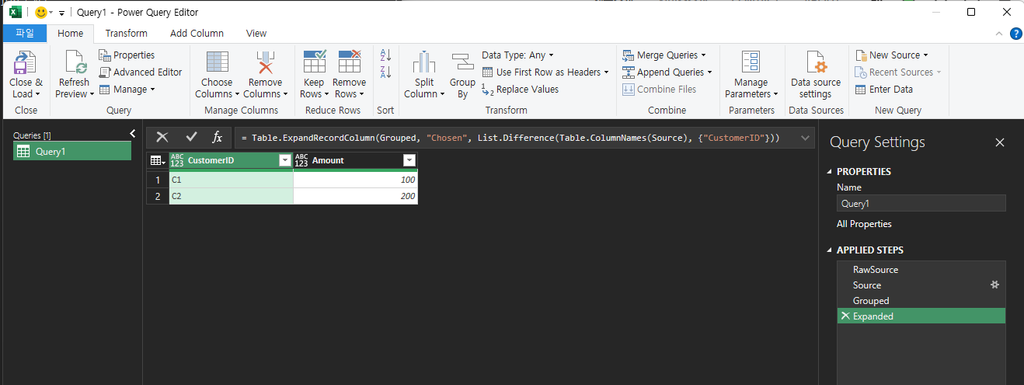
If you just need one row per CustomerID and don’t care which one, group by the key and take the first row of each group as-is (no sort needed, or sort by whatever column reflects your preferred tie-break):
Table.Group(Source, {"CustomerID"}, {{"Chosen", each Table.First(_), type record}})This is the Power Query equivalent of Remove Duplicates on a single column — except you can see and modify the logic later. If you only need a list of the distinct values, and your Excel does not have UNIQUE(), see our guide on getting unique values in Excel 2019 and 2016.
Case 2: Keep the Latest Row Per ID
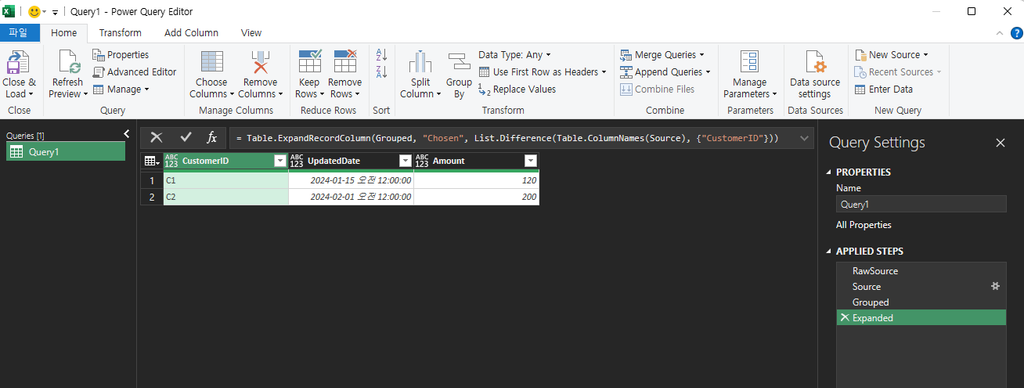
To keep the most recently updated record per customer, sort by the date column descending before taking the first row of each group:
Table.Group(Source, {"CustomerID"},
  {{"Chosen", each Table.First(Table.Sort(_, {{"UpdatedDate", Order.Descending}})), type record}}
)
This is the pattern Remove Duplicates cannot express — it has no concept of “sort within each duplicate group first.”
Case 3: Two-Column (Composite) Key
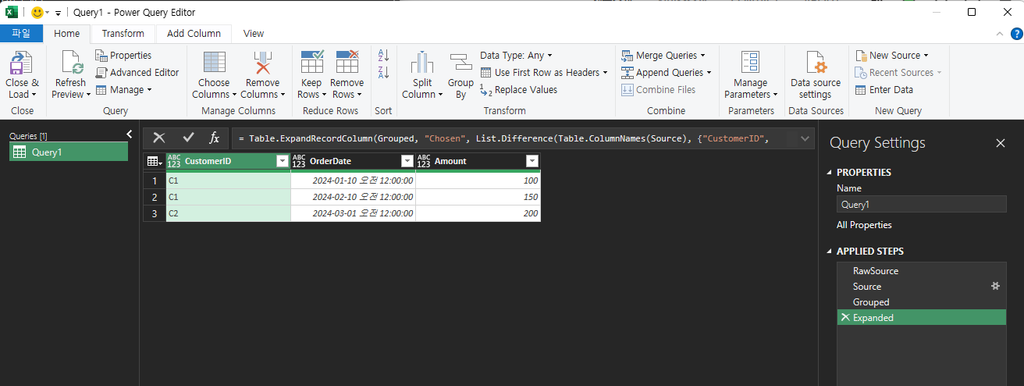
Some data doesn’t have a single unique identifier — a duplicate is only a duplicate if two columns match together (for example, CustomerID and OrderDate). Group on both columns by passing a list of column names:
Table.Group(Source, {"CustomerID", "OrderDate"},
  {{"Chosen", each Table.First(_), type record}}
)
Grouping on the wrong single column here (just CustomerID, for instance) would collapse legitimately different orders from the same customer into one row — a correctness bug, not a cleanup.
Case 4: Blank or Null Keys
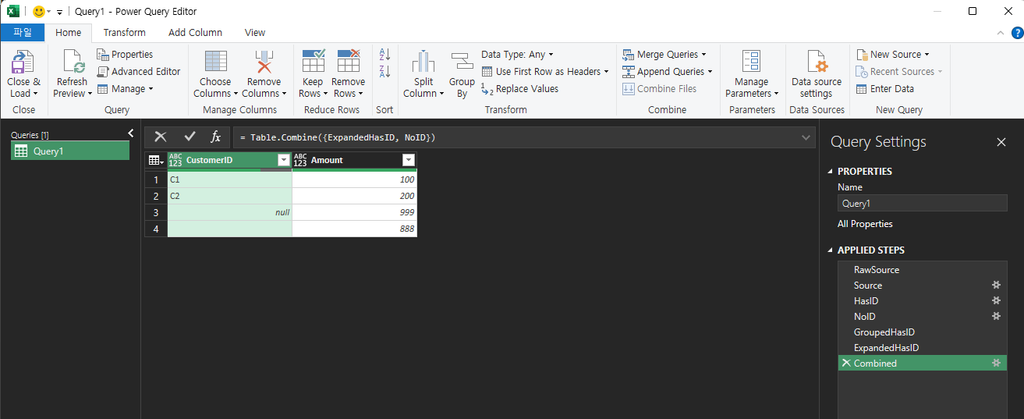
Rows with a blank or null key deserve a deliberate decision, not an accident. Table.Group treats null as its own group value — every row with a null key gets grouped together and only one of them survives, which silently deletes the others if you’re not expecting it.
Before grouping, decide explicitly:
- Decide whether
nulland""(empty string) both count as “missing” for this key. They are not the same value —Table.Grouptreatsnullas its own group and an empty-string key as a different group fromnull— so a filter written as<> nullwill still group every""key together and silently keep only one of those rows. If both should be treated as missing, filter both explicitly:Table.SelectRows(Source, each [CustomerID] <> null and [CustomerID] <> ""). - If blank-key rows are genuinely bad data, filter them out first (using the
null-and-""check above, as appropriate to your data) and handle them separately. - If blank-key rows are all real, distinct records that happen to be missing an ID, do not group them with the rest — route them around the deduplication step entirely (for example, split the table into “has ID” and “no ID” with
Table.SelectRowson the negated condition, deduplicate only the “has ID” side, then combine the results back withTable.Combine).
The mistake this case guards against is exactly the same shape as the null-vs-empty-string distinction documented elsewhere for this project: Power Query does not treat every “missing” value the same way depending on how it got there, so blank keys need an explicit rule — one that names both null and "" — instead of being left to fall through the default grouping behavior.
For a closer look at the difference, see our guide on null and empty string in Power Query.
Case 5: Same-Date Ties
Sorting by date breaks most duplicates, but two rows can share the exact same date. Sorting by date alone leaves the outcome ambiguous — Power Query will pick a row, but which one depends on the stability of the sort, not a rule you chose.
Add a second, deterministic sort key as a tiebreaker. Starting from the UpdatedDate column already used in Case 2, sort by date descending first, and add a row identifier as the second sort key to decide any tie:
Table.Group(Source, {"CustomerID"},
  {{"Chosen", each Table.First(Table.Sort(_, {
      {"UpdatedDate", Order.Descending},
      {"RowID", Order.Descending}
    })), type record}}
)
When two rows tie on UpdatedDate, the second sort key (RowID descending) decides the winner. Whatever you choose as the tiebreaker — a row ID, an import timestamp, a secondary sequence number — the important part is that it’s a column that is never itself tied, so the result is reproducible every time you refresh the query.
This pattern assumes every row has a real date. The next case (null dates) shows what to do when that’s not true, and how the tie-break code above needs to change once you’ve handled it.
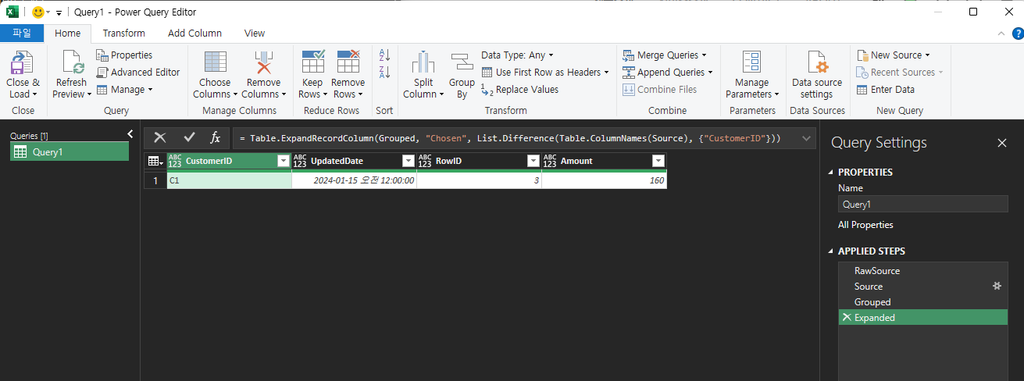
Case 6: Null Dates
A null date can’t be compared or sorted the normal way, and it will otherwise sort inconsistently against real dates. This project’s reproduction handled it by substituting a fixed, clearly-out-of-range placeholder date for null before sorting — for example, replacing null with 1900-01-01 in a helper column (here called _SortDate) so every row has a real, sortable value:
_SortDate = if [OrderDate] = null then #date(1900,1,1) else [OrderDate]This guarantees rows with a genuinely missing date always sort as the oldest record for that customer (so a row with real data wins the “keep latest” comparison), rather than causing an error or an unpredictable sort position.
Combining this with Case 5’s tie-break: once you have the _SortDate helper column, use it in place of UpdatedDate in the Case 5 pattern, so the tie-break is safe against both same-date ties and null dates at once. This project’s own live-test reproduction confirmed the following combined pattern actually executes and resolves ties predictably:
Table.Group(WithSortDate, {"CustomerID"},
  {{"Chosen", each Table.First(Table.Sort(_, {
      {"_SortDate", Order.Descending},
      {"RowID", Order.Descending}
    })), type record}}
)
WithSortDate here is the table after the _SortDate helper column from this case has been added (for example, via Table.AddColumn(Source, "_SortDate", each if [OrderDate] = null then #date(1900,1,1) else [OrderDate])). This is the version to use in practice whenever your data can have both same-date ties and null dates, which is the common case.
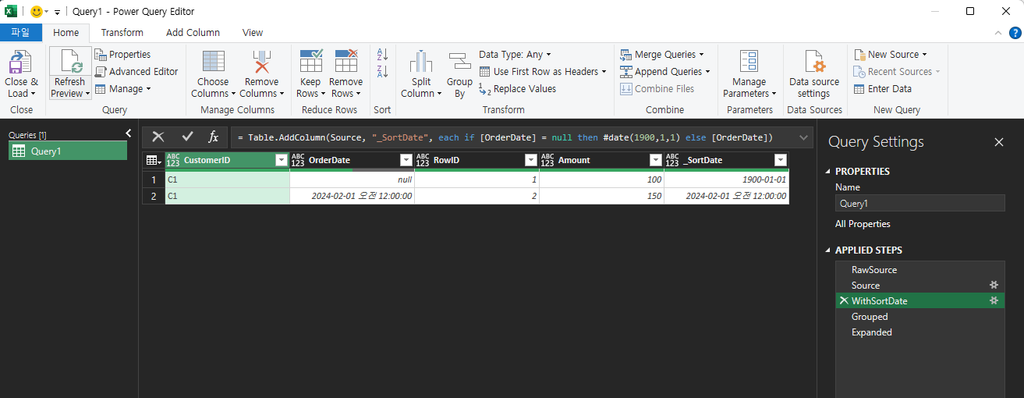
Case 7: Query Folding
Query folding is Power Query’s ability to push transformation steps back to the data source (a SQL database, for example) instead of running them locally. It matters here because if a step folds, you’re trusting the source system’s engine to execute your logic instead of Power Query’s own engine — and not every source folds every step the same way.
For data that starts inside the workbook itself (Excel.CurrentWorkbook()), query folding does not apply — an in-workbook table is not a foldable source, so this concern is not applicable for the fixture and workflow described in this article. If your source is a database instead of a workbook table, check whether your grouping and sorting steps still fold as expected before relying on this pattern at scale, since Microsoft documents that Table.Distinct in particular does not generally guarantee which duplicate row survives once folding and query-plan optimization are involved.
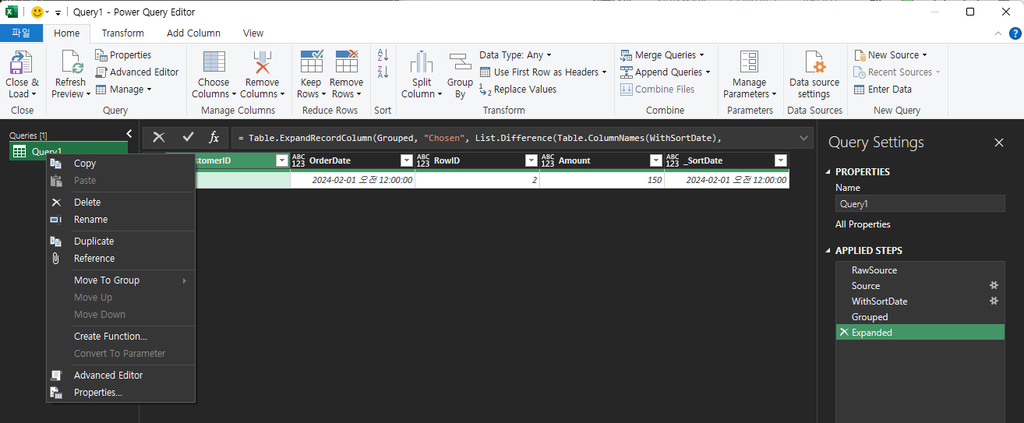
Case 8: Making the Result Deterministic
Pulling the cases above together, “deterministic” here means: given the same input data, the query produces the exact same output every time it’s refreshed — no dependence on the order rows happen to appear in the source, and no silent tie-breaking left to chance.
That requires, in order:
- A defined key (single column or composite — Cases 1 and 3).
- A defined primary sort for “which row wins” (Case 2).
- A defined, never-tied secondary sort for ties (Case 5).
- A defined substitution for values that can’t sort normally, like
nulldates (Case 6). - An explicit decision for rows with a blank/null key, made before grouping rather than left to fall through it (Case 4).
Skip any one of these and the query can still run — it just won’t be guaranteed to give you the same answer twice.
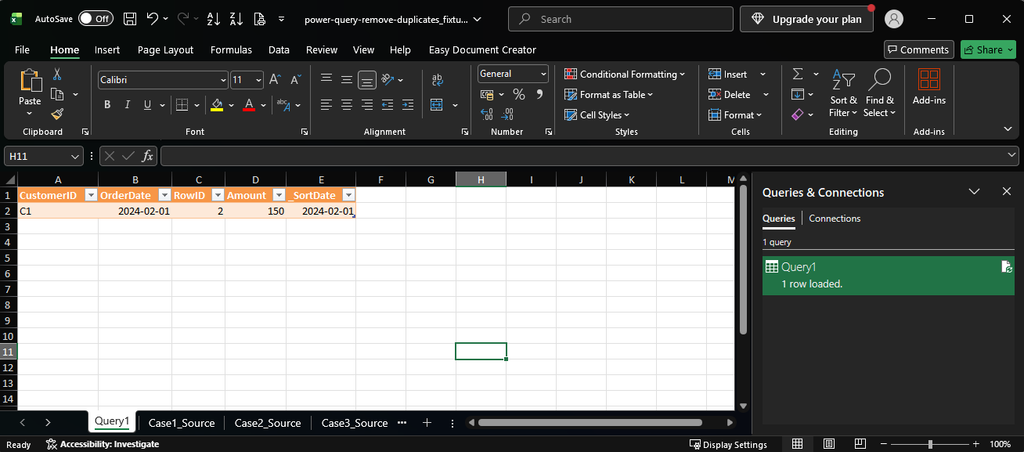
One-line Summary
Excel’s Remove Duplicates always keeps the first row and gives you no control over which one that is. Power Query’s Table.Group + Table.Sort + Table.First pattern lets you define exactly which row wins — by recency, by a composite key, and with an explicit, never-tied tiebreaker for same-date rows — as long as you also decide up front what happens to blank keys and null dates instead of leaving them to the default behavior.
Sources
- Find and remove duplicates — Microsoft Support.
- Working with duplicate values — Microsoft Learn (Power Query documentation).
- Table.Distinct — Microsoft Learn (Power Query M reference).