You have an email address and want the part before the @, or the part after it. In newer Excel you can use TEXTBEFORE and TEXTAFTER. In older versions you can build the same thing from LEFT, MID, and FIND. This guide tests both on ten made-up text values and shows what each one returned, including what happened when the @ was missing and when it appeared twice.
Applies to: Microsoft lists TEXTBEFORE for Excel for Microsoft 365 and Excel 2024. We tested in the Excel 2021 desktop app with an English interface on Korean-language Windows, so we could test only the LEFT, MID, and FIND method. We did not test other Excel versions.
The Text
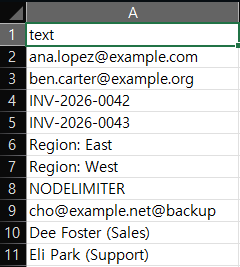
Our Strings sheet has ten values in column A: two email addresses, two invoice codes (INV-2026-0042), two lines such as Region: East, the word NODELIMITER, an address with two @ characters (cho@example.net@backup), and two names with a department in parentheses. All values are fictional. We search for @, so only three of these values contain it. The others show what happens when the character is not there.
The Classic Method: LEFT, MID and FIND
We added the headers before_classic and after_classic in D1 and E1. In D2, enter:
=LEFT(A2,FIND("@",A2)-1)In E2, enter:
=MID(A2,FIND("@",A2)+1,100)Fill both down to row 11. Here is what each part does:
FIND("@",A2)returns the position of the first@in the text.LEFT(A2,position-1)returns everything before it.MID(A2,position+1,100)returns up to 100 characters after it. The 100 is a limit we picked, so text longer than that would be cut off.

The Result
| Text | Before @ | After @ |
|---|---|---|
ana.lopez@example.com | ana.lopez | example.com |
ben.carter@example.org | ben.carter | example.org |
cho@example.net@backup | cho | example.net@backup |
INV-2026-0042, INV-2026-0043 | #VALUE! | #VALUE! |
Region: East, Region: West | #VALUE! | #VALUE! |
NODELIMITER | #VALUE! | #VALUE! |
Dee Foster (Sales), Eli Park (Support) | #VALUE! | #VALUE! |
Two results are worth noting:
- A missing character gives
#VALUE!. Microsoft saysFINDreturns#VALUE!when it cannot find the text you ask for, and all seven rows without an@show it. The error is not a sign that the formula is broken. It means there was nothing to split on. You could wrap the formula inIFERROR, but that hides every error, not only this one. We did not test that. - Two
@characters split at the first one.cho@example.net@backupreturnedchobefore andexample.net@backupafter. The second@stays in the second part. If you need the text after the last@, this formula does not do it, and we did not test a formula that does.
What About TEXTBEFORE and TEXTAFTER?
The newer functions do the same job in one step. We entered them in B2 and C2 of the same sheet, and filled them down:
=TEXTBEFORE(A2,"@")
=TEXTAFTER(A2,"@")
In our Excel 2021, all 20 cells showed #NAME?. Microsoft’s TEXTBEFORE page lists Excel for Microsoft 365 and Excel 2024, and Excel 2021 is not on that list. That matches what we saw. It also means we did not see how TEXTBEFORE handles a missing character or a second @, and we do not describe that here. If you get #NAME? after typing one of these functions, check your Excel version first. Our guide on splitting comma-separated values into rows covers another function that returned #NAME? in Excel 2021.
Things to Know
- Pick the character carefully. We searched only for
@. We did not extract text around-,:, or(in the other rows. - The first match only.
FINDstops at the first match, as the two-@row showed. - Formulas, not values. The results are formulas that depend on column
A. We did not test copying them as values.
One-line Summary
Use LEFT with FIND for the text before a character and MID with FIND for the text after it, expect #VALUE! when the character is missing, and note that TEXTBEFORE and TEXTAFTER returned #NAME? in Excel 2021:
=MID(A2,FIND("@",A2)+1,100)Sources
- How to correct a #VALUE! error in FIND/FINDB and SEARCH/SEARCHB — Microsoft Support. Backs the statement that
FINDreturns#VALUE!when it cannot find the text. - TEXTBEFORE function — Microsoft Support. Backs the Applies-to list (Microsoft 365 and Excel 2024).
- Note: the split results, the first-
@behavior, and the#NAME?results come from our own reproduction in the Excel 2021 desktop app, not from these pages.