An ISO 8601 timestamp looks like 2026-03-05T14:30:00Z or 2026-03-05T23:30:00+09:00. The ending tells you which time zone the clock time belongs to. Exports from apps, logs, and APIs often use this format.
The risk in Excel is that the ending can be dropped or reinterpreted on the way in, and the cell then shows a time that no longer matches the moment in the file. This guide shows what we observed on one test file, and how Power Query’s DateTimeZone.ToUtc lined the values up.
Tested in: Excel 2021 desktop (Version 2608) with an English interface, Windows time zone (UTC+09:00) Seoul. Screenshots were captured in Excel 2021 with an English interface on Windows using Korean regional settings; time values may display with Korean AM/PM markers. We did not test other time zones, other Excel versions, or Mac, and results may differ there.
Our Test File
The CSV has five moments, each written four ways in four columns:
| Column | Example (first row) |
|---|---|
ts_utc_z | 2026-03-05T14:30:00Z |
ts_offset_plus9 | 2026-03-05T23:30:00+09:00 |
ts_offset_minus05 | 2026-03-05T09:30:00-05:00 |
ts_no_zone | 2026-03-05T14:30:00 |
The first three columns are the same instant. ts_no_zone has the same digits as the Z column but no ending at all.
Opening the CSV by Double-Click
When we double-clicked the file, all four columns arrived as left-aligned text, with the T and the endings kept exactly as written.
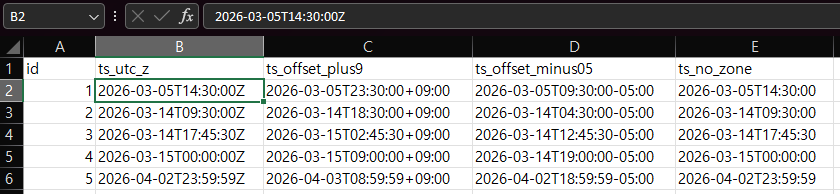
In this test, ISO strings containing a T stayed as text when opened by double-click.
Importing With Data > From Text/CSV
When we imported the same file with Data > From Text/CSV and opened Transform Data, Power Query had added a Changed Type step on its own:

The result differed by column:
ts_utc_zbecame a date-time and showed11:30:00 PMfor the file value14:30:00Z, nine hours later than the file.ts_offset_plus9andts_offset_minus05became date-time-zone values and kept their offsets (+09:00,-05:00).ts_no_zonebecame a plain date-time and showed2:30:00 PM, unchanged.
We did not investigate why the Z column moved while the offset columns did not. Microsoft’s documentation says Power Query detects data types automatically for CSV files, based on the first 200 rows. The point for you is that a type step you did not write can change what a column means, so check it.
Reading the Text Yourself With DateTimeZone.FromText
To control the conversion, we wrote our own query that reads the columns as text and parses each one with DateTimeZone.FromText. Now the offsets were visible and the Z column read as +00:00, with no nine-hour shift:

Look at ts_no_zone. It has no ending in the file, but Power Query showed it as 2:30:00 PM +09:00. In our test, a string with no time zone was read as being in this PC’s time zone, which is Seoul. Keep that in mind for the conversion below.
What Happens When You Load It to a Sheet
We loaded this parsed query to a worksheet. The offsets did not come along. The cells show only a date and a time, with no time zone label:
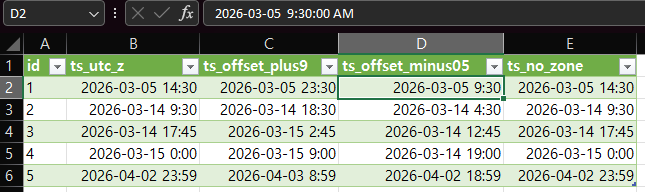
In row 1, the Z column shows 14:30, the +09:00 column shows 23:30, and the -05:00 column shows 9:30, though all three are the same instant. The ts_no_zone column also shows 14:30, which looks identical to the Z column even though Power Query had read it as +09:00.
Microsoft’s Power Query documentation says a date-time-zone value is converted to a date-time when loaded into the model. We observed the same loss when loading to a worksheet table. We only tested Excel 2021 with a Seoul time zone, so we can only say it can happen, not that it always does.
Line Them Up in UTC
The fix is to convert every value to one reference time zone before it reaches the sheet. We used three steps after the header row is promoted:
DateTimeZone.FromTextreads each string into a date-time-zone value.DateTimeZone.ToUtcconverts each one to UTC.DateTimeZone.RemoveZonedrops the zone label, so the column loads cleanly as a plain date-time that is known to be UTC.
Note: in our test (Excel 2021, Windows time zone UTC+09:00 Seoul), a column with no time zone ending was read as +09:00, which matches the PC’s time zone. We did not test other time zones, so confirm which zone the data was written in before using the result.
This code is an example for our five-column test CSV, not a general import. Two settings in the first line limit it. Columns = 5 makes Power Query read five columns; according to Microsoft’s documentation, extra columns in a wider file are ignored, so you could lose data without an error, and missing columns are added empty. QuoteStyle = QuoteStyle.None treats every line break as the end of a row, even inside a quoted value. Our test file has no quoted fields, so that is safe here. If your file has quoted text that contains line breaks, remove that option, because the default, QuoteStyle.Csv, keeps quoted line breaks as part of the value. We did not test files like that, or files with a different number of columns.
let
    Source = Csv.Document(File.Contents("C:\Path\To\your-file.csv"), [Delimiter = ",", Columns = 5, Encoding = 65001, QuoteStyle = QuoteStyle.None]),
    Promoted = Table.PromoteHeaders(Source, [PromoteAllScalars = true]),
    Parsed = Table.TransformColumns(Promoted, {
        {"ts_utc_z", each DateTimeZone.FromText(_), type datetimezone},
        {"ts_offset_plus9", each DateTimeZone.FromText(_), type datetimezone},
        {"ts_offset_minus05", each DateTimeZone.FromText(_), type datetimezone},
        {"ts_no_zone", each DateTimeZone.FromText(_), type datetimezone}}),
    ToUtc = Table.TransformColumns(Parsed, {
        {"ts_utc_z", each DateTimeZone.ToUtc(_), type datetimezone},
        {"ts_offset_plus9", each DateTimeZone.ToUtc(_), type datetimezone},
        {"ts_offset_minus05", each DateTimeZone.ToUtc(_), type datetimezone},
        {"ts_no_zone", each DateTimeZone.ToUtc(_), type datetimezone}}),
    UtcNoZone = Table.TransformColumns(ToUtc, {
        {"ts_utc_z", each DateTimeZone.RemoveZone(_), type datetime},
        {"ts_offset_plus9", each DateTimeZone.RemoveZone(_), type datetime},
        {"ts_offset_minus05", each DateTimeZone.RemoveZone(_), type datetime},
        {"ts_no_zone", each DateTimeZone.RemoveZone(_), type datetime}})
in
    UtcNoZone
Replace C:\Path\To\your-file.csv with the full path to your CSV file, and replace the column names with your own. In Power Query, you can paste this into Home > Advanced Editor.
Here is the ToUtc step. The first three columns show the same value in each row, +00:00. The ts_no_zone column, selected, shows a different one:

In row 1, the three real-offset columns show 2:30:00 PM +00:00. The ts_no_zone column shows 5:30:00 AM +00:00, nine hours earlier. This follows from the earlier step: the string was read as Seoul time, so converting it to UTC moved it back nine hours.
After loading the finished query, the sheet shows the three columns with matching values:

Row 1 reads 2026-03-05 14:30 in all three, and the later rows match as well (9:30, 17:45, 0:00, 23:59).
Microsoft’s pages describe the functions this way: DateTimeZone.ToUtc “changes timezone information of the datetime value … to the UTC”. DateTimeZone.RemoveZone returns a date-time with the time zone information removed. Their FromText page shows ISO 8601 strings with numeric offsets such as -08:00; it does not mention a trailing Z, and the Z reading above is what we observed.
Strings With No Time Zone
The ts_no_zone column is the risky one. Excel cannot know which zone the writer meant. In our test it was read as Seoul time, so it landed nine hours away from the same-looking Z column. If those strings were really written in UTC, treating them as local would be wrong. Ask whoever produced the file which zone they meant before you convert. We did not test how to force a different assumed zone, so this guide does not cover it.
Things to Know
- Scope. Everything above is from one test file on Excel 2021 with a Seoul time zone. Results can differ with another time zone or Excel version, and we did not test Mac.
- After RemoveZone. The sheet cells no longer say they are UTC, so label the column or sheet.
- Dates only. If your values are plain dates, see fixing dates after a CSV import. For splitting a date-time that is already text, see splitting date and time in one cell.
One-line Summary
Before loading ISO 8601 timestamps with Z or an offset into a sheet, parse them with DateTimeZone.FromText, convert with DateTimeZone.ToUtc, and drop the label with DateTimeZone.RemoveZone, because in our Excel 2021 / Seoul test the sheet kept no offset.
Sources
- Microsoft Learn: DateTimeZone.ToUtc, DateTimeZone.RemoveZone, DateTimeZone.FromText, Data types in Power Query, and Csv.Document (read 2026-10-27).
- Note: every value and screenshot on this page comes from our own reproduction in Excel 2021 on one PC. Microsoft’s pages describe the functions; they do not describe our observed results.