Text pasted or imported into Excel can arrive with line breaks inside the cell, so one address takes three lines. This guide tries three ways to turn those breaks into spaces: Find & Replace with Ctrl+J, formulas, and Power Query. It also shows two things that went wrong in our tests, so you know what to look for.
Tested in: Excel 2021 desktop (Home & Business 2021, Version 2608) with an English interface on Korean-language Windows. We did not test other versions or Excel for Mac.
The Test Data
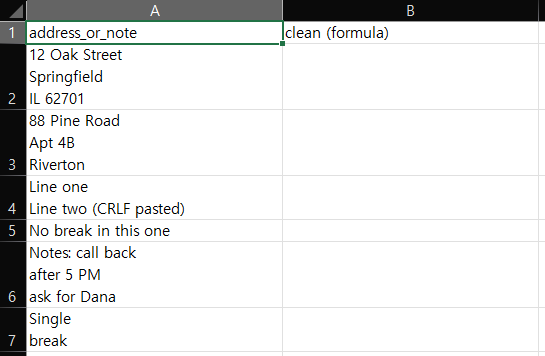
Our LineBreaks sheet has six cells in column A. Three of them have two line breaks (two addresses and a note). Two have one line break, and one has none (No break in this one). One of the single-break cells, Line one / Line two (CRLF pasted), was created on purpose with a Windows-style line ending (a carriage return followed by a line feed). The other line breaks are a line feed only. All text is made up.
Method 1: Find & Replace With Ctrl+J
Work on a copy of the sheet, because Replace All changes the cells in place.
- Select the cells, then press Ctrl+H.
- Click in Find what and press Ctrl+J.
- Put a single space in Replace with.
- Click Replace All.
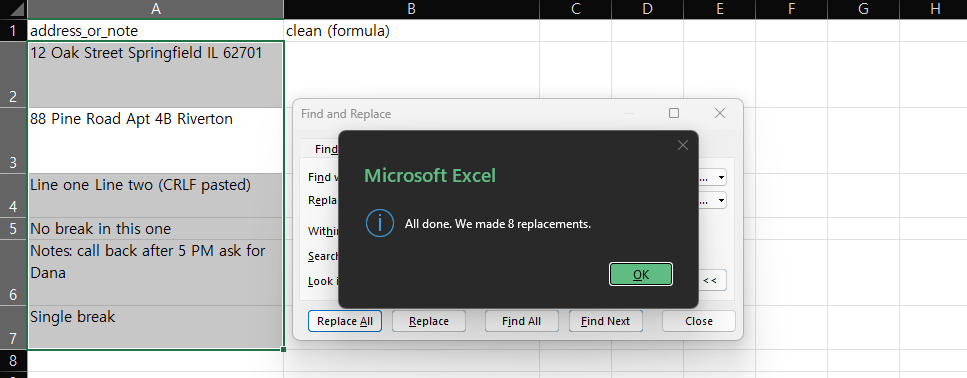
Excel reported “We made 8 replacements.” and every cell became a single line. Eight matches the number of line feeds in our six cells.
What went wrong the first time: our first Replace All said “We couldn’t find anything to replace.” The Ctrl+J had not actually been entered in the Find what box. After re-entering it, the replacement worked. We did not find out why the first attempt failed.
We did not check whether the carriage return in the CRLF cell was still there after this method. The formulas below did check it.
Method 2: Formulas
We put three formulas next to the data, in columns B, C and D, and compared them:
B2: =TRIM(SUBSTITUTE(SUBSTITUTE(A2,CHAR(13),""),CHAR(10)," "))
C2: =SUBSTITUTE(A2,CHAR(10)," ")
D2: =CLEAN(A2)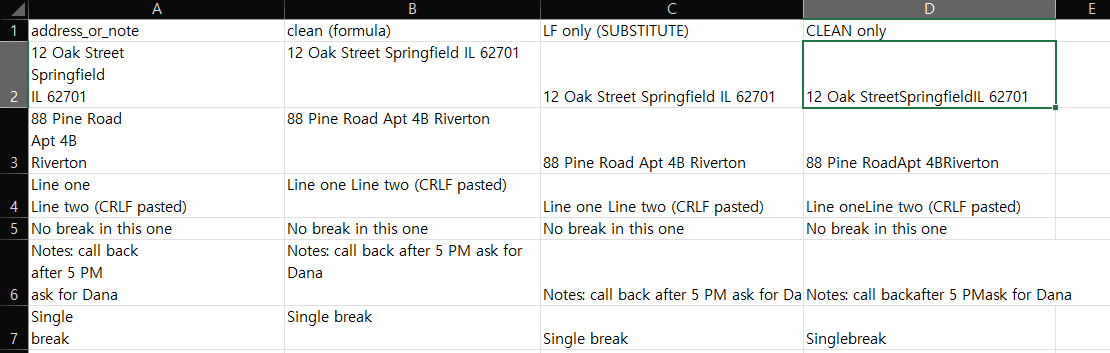
Column B gave a clean single line on all six rows, for example 12 Oak Street Springfield IL 62701. Column C looked the same as B on screen.
Column D, the CLEAN version, removed the line breaks but did not put a space in their place, so words ran together: 12 Oak StreetSpringfieldIL 62701 and Singlebreak. If you want readable text, use SUBSTITUTE with a space.
Why the CRLF cell needs CHAR(13)
B and C look identical, but they are not. We compared their lengths with =LEN(C2)-LEN(B2):

The six results were 0, 0, 1, 0, 0, 0. Only row 4 (the CRLF cell) differed. Replacing only CHAR(10) left one extra invisible character in that cell. We read that as the leftover carriage return, and the CHAR(13) in column B’s formula removes it. We created that cell on purpose. We cannot say how often your data has this ending.
Method 3: Power Query
In Power Query, use Replace Values twice, on the text column.
First replace the line feed with a space. In the Replace Values dialog, type #(lf) in Value To Find, expand Advanced options, and check Replace using special characters. Put a space in Replace With.

After this step, the CRLF row still showed two lines in the preview. Then add a second Replace Values step for #(cr), with Replace With left empty and the same checkbox checked. All six rows were then single lines:

Two mistakes cost us time, and both are easy to repeat:
- The checkbox. We typed
#(cr)with Replace using special characters unchecked. The formula bar showed#(#)(cr), so Power Query searched for that text and replaced nothing. The checkbox was the likely cause, but its state was not visible in that first attempt. - The order. After the first step had already turned each line feed into a space, we searched for
#(cr)#(lf). It matched nothing, because that pair no longer existed. Search for#(cr)alone.
Which Method Did What
| Method | All six rows single line | Keeps a space between lines | Handles the CRLF cell |
|---|---|---|---|
| Ctrl+J Replace All | Yes | Yes (we typed a space) | Not checked |
SUBSTITUTE CHAR(10) only | Looks yes | Yes | Leaves one extra character |
SUBSTITUTE with CHAR(13) and TRIM | Yes | Yes | Yes |
CLEAN only | Yes | No, words join | Not checked |
| Power Query, two steps | Yes | Yes | Yes |
Things to Know
- Formulas leave the original alone. Columns B to D are new columns, so column
Ais unchanged. Find & Replace overwrites the cells. - Extra spaces. The TRIM in column B also removes extra ordinary spaces. TRIM does not remove non-breaking spaces; see why TRIM isn’t removing them. We did not test that character here.
- Splitting instead. If you want the lines in separate cells instead of one line, that is a different task. We did not test it here. For splitting around one character with formulas, see extracting text before or after a character.
One-line Summary
Replace the line feed with a space (Ctrl+J in Find & Replace, SUBSTITUTE, or Power Query), and if your data may contain Windows-style CRLF breaks, also remove the carriage return:
=TRIM(SUBSTITUTE(SUBSTITUTE(A2,CHAR(13),""),CHAR(10)," "))Sources
- Note: every result, including the eight replacements, the length differences, and the Power Query steps, comes from our own reproduction in the Excel 2021 desktop app. We did not check these functions against Microsoft’s documentation for this guide.