A column of full names is easy to split if every name is two words. Real lists are not like that. They have middle names, suffixes such as Jr., and last names with several parts. A formula that takes the first word and the last word is quick to build, but it gets some of those names wrong.
This guide builds that formula, runs it on ten made-up names, and shows exactly which names came out right and which did not. We also show what happened when we tried the newer TEXTBEFORE and TEXTAFTER functions in Excel 2021.
Applies to: Microsoft lists TRIM and SUBSTITUTE for Excel for Microsoft 365, Excel 2024, Excel 2021, Excel 2019, and Excel 2016. We did not look up LEFT, RIGHT, FIND, and REPT on Microsoft’s pages. Tested in the Excel 2021 desktop app with an English interface on Korean-language Windows. We did not test other Excel versions.
The Names
Our Names sheet has ten full names in column A. Most are plain two-word names. The rest were chosen to cause trouble: a middle name (Cara Mae Brooks), suffixes (Ben Carter Jr., Dan Ortiz III, Jon Kim Sr.), a last name with a particle (Hal de la Cruz), a hyphenated name, a name with an apostrophe, and a name with two spaces between the words (Eve Hill). All names are fictional.

Step 1: Take the First Word
In B2, enter this formula:
=LEFT(TRIM(A2),FIND(" ",TRIM(A2)&" ")-1)Here is what each part does:
TRIM(A2)removes extra spaces, so the double space inEve Hillbecomes a single space.FIND(" ",TRIM(A2)&" ")finds the position of the first space. We add a space at the end so the formula still works if a cell holds only one word.LEFT(...,position-1)returns everything before that first space.
Step 2: Take the Last Word
In C2, enter this formula:
=TRIM(RIGHT(SUBSTITUTE(TRIM(A2)," ",REPT(" ",100)),100))This one works in three moves. SUBSTITUTE replaces every space with 100 spaces. RIGHT(...,100) takes the last 100 characters, which is the last word surrounded by padding. TRIM removes the padding and leaves the last word.
Fill both formulas down to row 11.
The Result
The formulas returned a first word and a last word for all ten rows. They were not always the right answer:
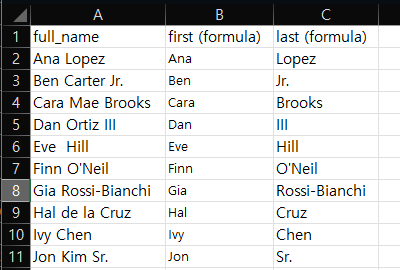
| Full name | First | Last | Right or wrong? |
|---|---|---|---|
Ana Lopez | Ana | Lopez | Right |
Eve Hill (two spaces) | Eve | Hill | Right, TRIM handled the extra space |
Finn O'Neil | Finn | O'Neil | Right |
Gia Rossi-Bianchi | Gia | Rossi-Bianchi | Right |
Ivy Chen | Ivy | Chen | Right |
Ben Carter Jr. | Ben | Jr. | Wrong, the last name is Carter |
Dan Ortiz III | Dan | III | Wrong, the last name is Ortiz |
Jon Kim Sr. | Jon | Sr. | Wrong, the last name is Kim |
Cara Mae Brooks | Cara | Brooks | Incomplete, Mae is in neither column |
Hal de la Cruz | Hal | Cruz | Incomplete, de la is lost |
Five names came out right and five did not. The three suffix names show the suffix as the last name, the middle name is dropped, and the particle de la is dropped from the last name. The formula cannot tell a suffix or a particle from an ordinary name, because it only counts words.
Where This Method Breaks
- Suffixes.
Jr.,III, andSr.become the last name. - Middle names. The middle word is not in either column. Whether you call it a middle name or part of the first name depends on your data, and the formula does not decide.
- Last names with several parts.
de la CruzbecomesCruz. Other multi-part names would be cut the same way.
We did not build a formula that fixes these cases. If your list has them, one practical option is to treat any name with more than two words as a row to review by hand. We did not test a formula for that, so check it on your own data first.
What About TEXTBEFORE and TEXTAFTER?
Newer Excel has TEXTBEFORE and TEXTAFTER, which can split on a character without the padding trick. We tried them in the same sheet:
=TEXTBEFORE(TRIM(A2)," ")
=TEXTAFTER(TRIM(A2)," ",-1)
In our Excel 2021, all ten rows in both columns showed #NAME?. Microsoft’s page for TEXTBEFORE lists Excel for Microsoft 365 and Excel 2024, and Excel 2021 is not on that list. So we do not know how these two functions handle the ten names above, and we did not compare them with the first-word and last-word formulas.
If you see #NAME? after typing one of these functions, check your Excel version before you look for a typo. Our guide on splitting comma-separated values into rows shows another function that gave #NAME? in Excel 2021. Our guide on extracting text before or after a character shows the same #NAME? result for TEXTBEFORE and TEXTAFTER.
Things to Know
- Only ordinary spaces.
TRIMremoves ordinary spaces. Microsoft says it does not remove the non-breaking space (character 160). If a name from a web page does not split correctly, see why TRIM isn’t removing non-breaking spaces. We did not test that character here. - One-word names. We did not test a cell that holds only one word.
- Original data. The formulas sit in new columns, so column
Ais unchanged.
One-line Summary
The first-word and last-word formulas split plain two-word names correctly, but they put suffixes such as Jr. in the last-name column and drop middle names and particles like de la, so review those rows by hand:
=LEFT(TRIM(A2),FIND(" ",TRIM(A2)&" ")-1)Sources
- TRIM function — Microsoft Support. Backs what
TRIMremoves, the note that it does not remove the non-breaking space (character 160), and the Applies-to list (Microsoft 365, 2024, 2021, 2019, 2016). - SUBSTITUTE function — Microsoft Support. Backs the Applies-to list (Microsoft 365, 2024, 2021, 2019, 2016).
- TEXTBEFORE function — Microsoft Support. Backs the Applies-to list (Microsoft 365 and Excel 2024).
- Note: the ten results, the
#NAME?results forTEXTBEFOREandTEXTAFTER, and the right-or-wrong judgment for each name come from our own reproduction in the Excel 2021 desktop app, not from these pages.