You open a CSV in Excel and the ZIP code 02134 turns into 2134. The customer ID 000123 becomes 123. In our test CSV, the zeros remained in the source file. They disappeared when Excel converted those columns to numbers as it opened the file.
The safest fix is to import the file with Data > From Text/CSV and set those columns to Text before the data reaches the worksheet. This guide shows how to keep leading zeros in Excel when you import a CSV: the exact steps, what each screen should look like, and what to do if you have already opened the file the usual way.
Applies to: Microsoft documents the leading-zeros behavior and the From Text/CSV import for Excel for Microsoft 365, Excel 2024, Excel 2021, Excel 2019, and Excel 2016. Tested in the Excel desktop app with an English interface on Korean-language Windows. We did not test other Excel versions, so menu names may look slightly different there.
The screenshots use a small made-up CSV with a customer_id column (000123, 000457, 001002, and so on) and a zip column (02134, 07030, 90210, and so on).
Free practice workbook. Download the CSV Import Cleanup Pack (one .xlsx file, no email address or sign-up needed). The CSV files are not included as separate downloads: to practice, copy the text from the workbook’s 1a_orders_csv and 1b_dates_csv sheets into Notepad and save them as .csv files, following the 2_Practice sheet. We tested the workbook in Excel 2021 on Windows with an English interface and Korean regional settings; other versions, regional settings, Mac and Excel Online were not tested.
What Goes Wrong When You Double-Click a CSV
When you open a .csv file directly, Excel interprets each column using its default data format settings, which may not match what you need. Microsoft’s own example is a column of numbers with leading zeros that you want to keep as text. Microsoft also explains that Excel removes leading zeros so formulas and math operations can work on the values.
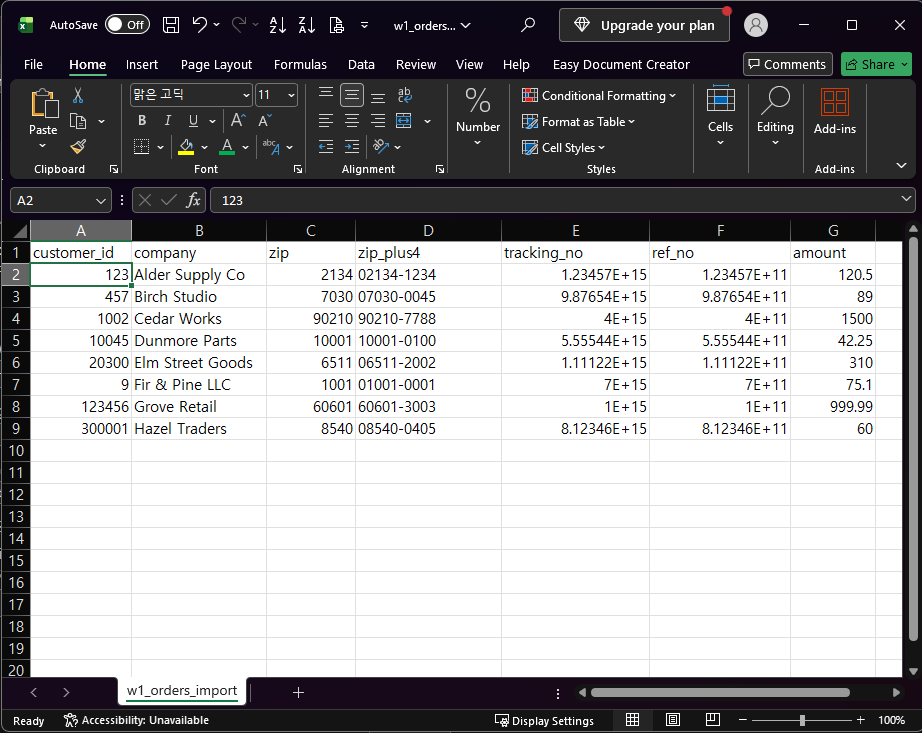
Click a cell such as A2 and look at the formula bar. It shows 123, not 000123, so the cell now contains the number 123. In our test the zip_plus4 column kept its zeros (02134-1234). Those values contain a hyphen, so Excel did not treat them as plain numbers.
Opening a CSV can change other kinds of data too. See our guides on importing long numbers without scientific notation or lost digits and on fixing dates after importing a CSV. If you have a folder of CSV files to combine, see our guide on combining CSV files from a folder with Power Query.
The Safest Method: Import With Data > From Text/CSV
- Do not double-click the CSV. Open a new blank workbook in Excel instead.
- Go to the Data tab, click From Text/CSV, select your file, and click Import.
- In the preview window, click Transform Data. This opens the Power Query Editor.
- In the Applied Steps pane on the right, look for a step named Changed Type. Excel added it automatically, and in our test it set
customer_idandzipto whole numbers (Int64), which is where the zeros were lost. Click the X next to Changed Type to delete it.
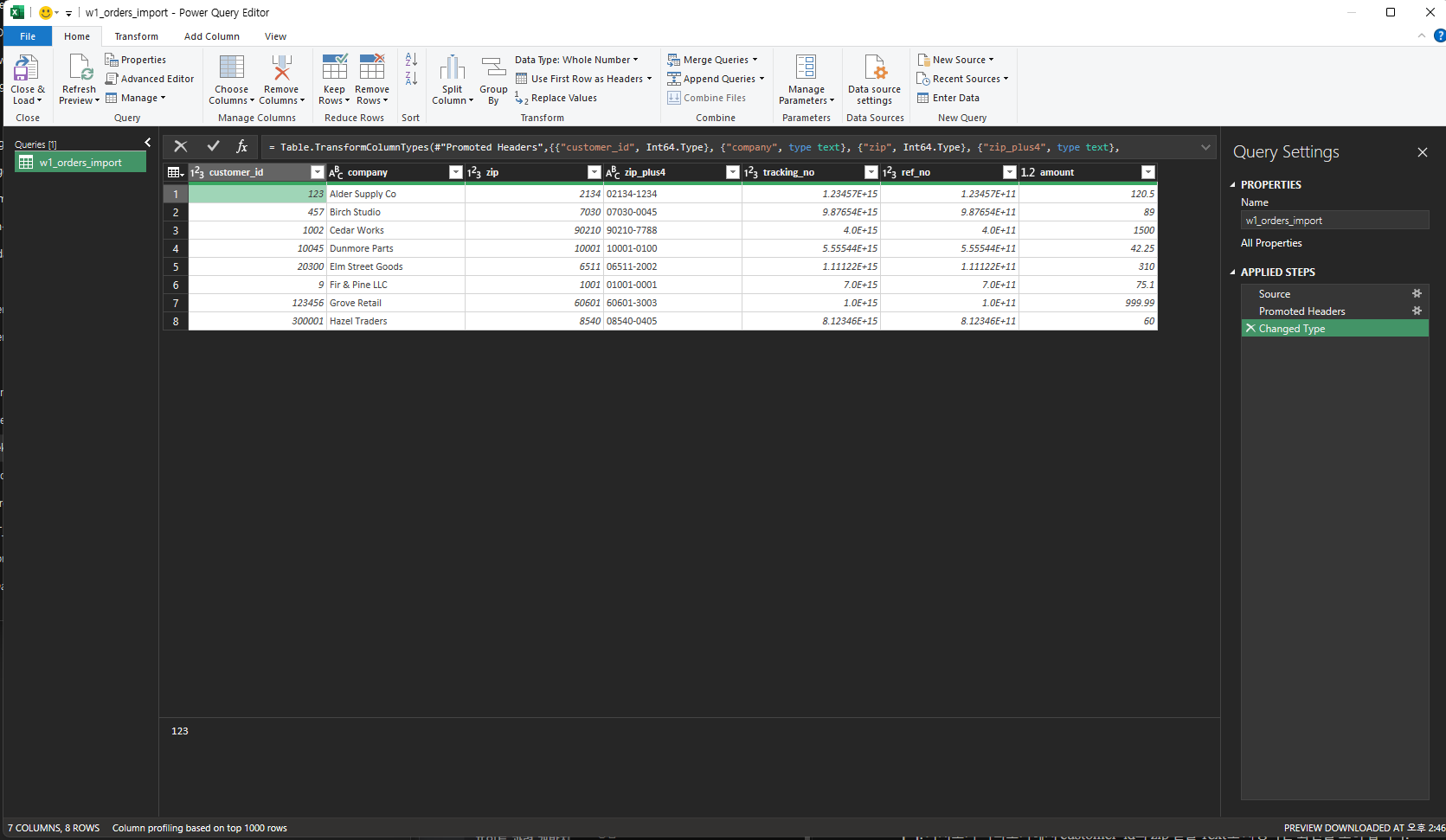
- Click the data type icon at the left of the
customer_idcolumn header and choose Text. Repeat forzip. Both columns should now show theABCicon and values such as000123and02134.
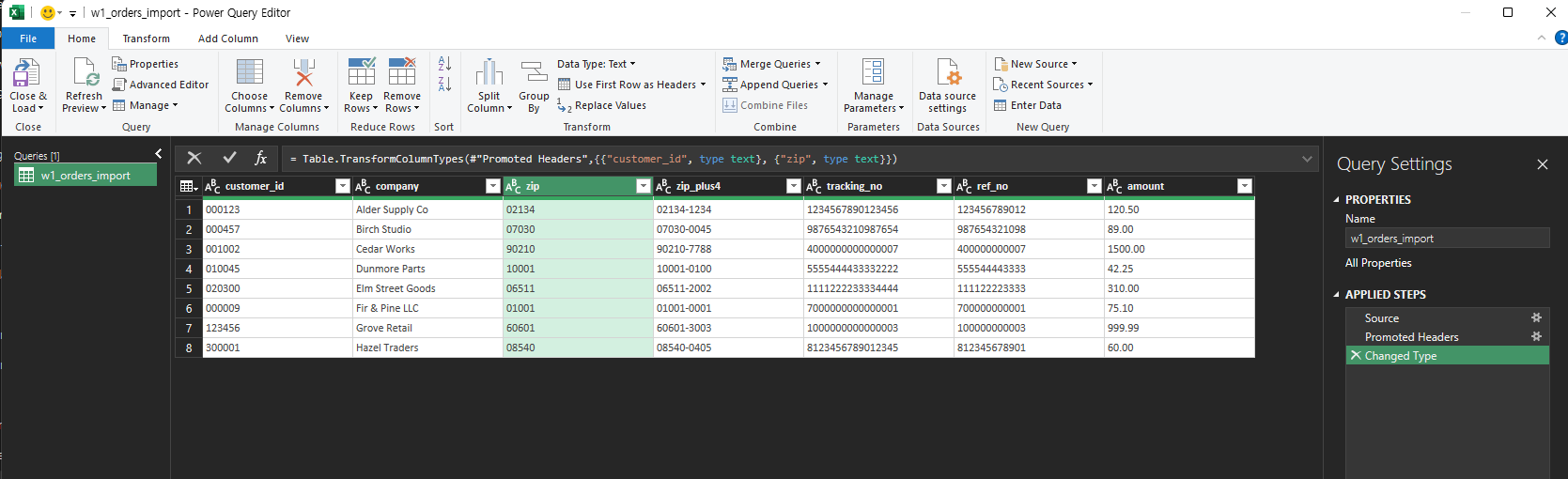
- On the Home tab, click Close & Load.
Check the result in the new worksheet. Select A2 and the formula bar should show 000123.
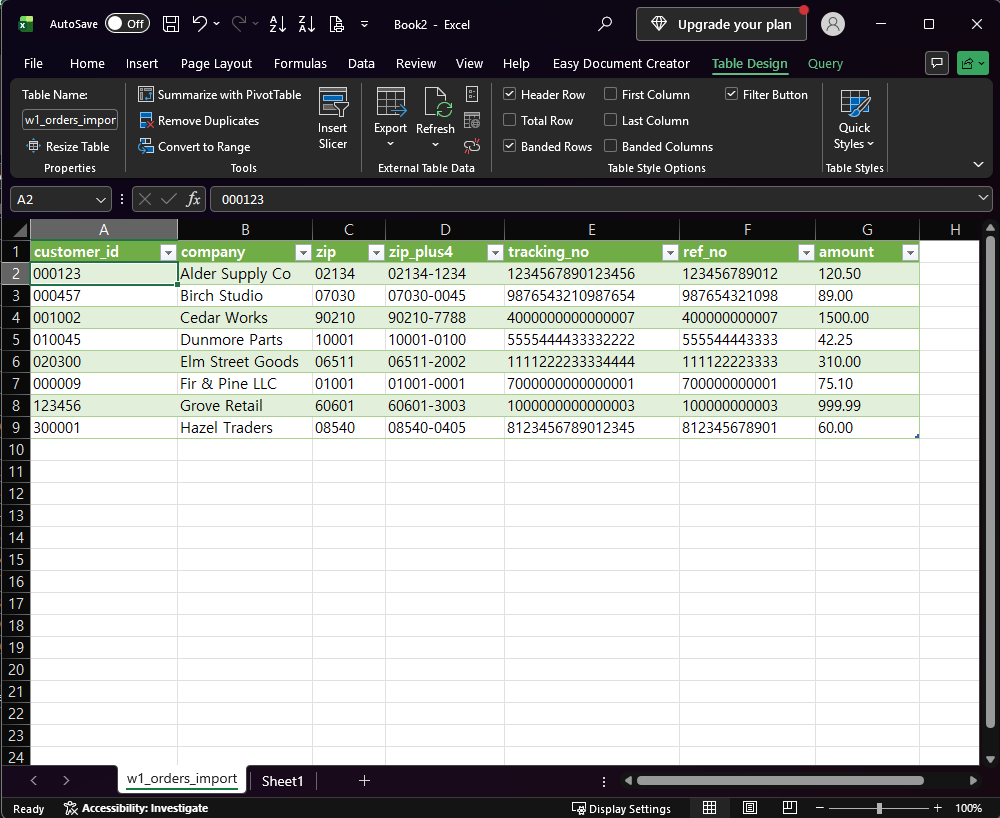
Keep columns such as ZIP codes and IDs as Text. If you later need to calculate with a column, convert it to numbers first.
If You Already Opened the CSV the Usual Way
Once Excel has converted the cells to numbers, the zeros are no longer in the cell values. The formula bar in the first screenshot shows this: it holds 123. Microsoft notes that applying a number format does not bring back leading zeros that were already removed, so reformatting those cells is not a reliable recovery.
The fix is to go back to the original file:
- Close the workbook without saving.
- Re-import the original CSV with the steps in the previous section.
In our test we closed the double-clicked file without saving, and the original CSV was unchanged. We opened the same file in Notepad and it still contained 000123 and 02134. We did not test what happens if you save the workbook over the original, so keep the original file untouched. If you saved the converted data over the only copy of the CSV, check file history, backups, or the system that produced the file. Excel cannot reconstruct the original leading zeros from the converted numeric cells alone.
Typing Values Directly Into Cells
This guide covers data that arrives in a CSV. If you type ZIP codes or IDs yourself, Microsoft’s guidance is to format the cells as Text before you enter the values, or to type an apostrophe before the number. We did not test those methods here.
Which Version of Excel Do You Need?
Microsoft lists Excel for Microsoft 365, Excel 2024, Excel 2021, Excel 2019, and Excel 2016 as applying to both source pages below. This guide uses no new functions. We tested only one desktop Excel build (English interface, Korean-language Windows), so button names in other versions may differ slightly.
One-line Summary
Do not double-click a CSV that contains ZIP codes or ID numbers. Import it with Data > From Text/CSV, delete the automatic Changed Type step, set those columns to Text, and click Close & Load. If you have already opened the file, close it without saving and import it again.
Sources
- Keeping leading zeros and large numbers — Microsoft Support. Backs the statements that Excel removes leading zeros so formulas and math operations can work, that formatting does not restore zeros removed earlier, and the Text-format and apostrophe options for typed values. It also describes converting columns to Text in the Power Query Editor and using Close & Load.
- Import or export text (.txt or .csv) files — Microsoft Support. Backs the Data > From Text/CSV path and the statement that opening a
.csvdirectly applies Excel’s default format settings, with a column of numbers that contains leading zeros as the example. - Note: the automatic Changed Type step setting
customer_idandziptoInt64, the123value in the formula bar, and the000123result after Close & Load come from our own reproduction in the Excel desktop app, not from these pages.