A report with one column per month is easy to read but hard to sort, filter, or summarize. Power Query can turn those month columns into rows, so each value gets its own line with the month name next to it.
This guide uses a made-up table with one product per row and three month columns. We unpivot it, show the exact result, and point out what happened to the one empty cell.
Applies to: Microsoft documents unpivoting columns in Power Query for Excel for Microsoft 365, Excel 2024, and Excel 2021. Tested in the Excel desktop app with an English interface on Korean-language Windows. We did not test other Excel versions, so menu names may differ.
What the Data Looks Like
Our test sheet has a product column and one column each for Jan, Feb, and Mar. Three products, nine numbers, except that the Gadget cell under Feb is empty. All names and numbers are fictional.

Step 1: Send the Table to Power Query
Click any cell in the data. On the Data tab, choose From Table/Range. Excel asks you to confirm the range and whether the table has headers.
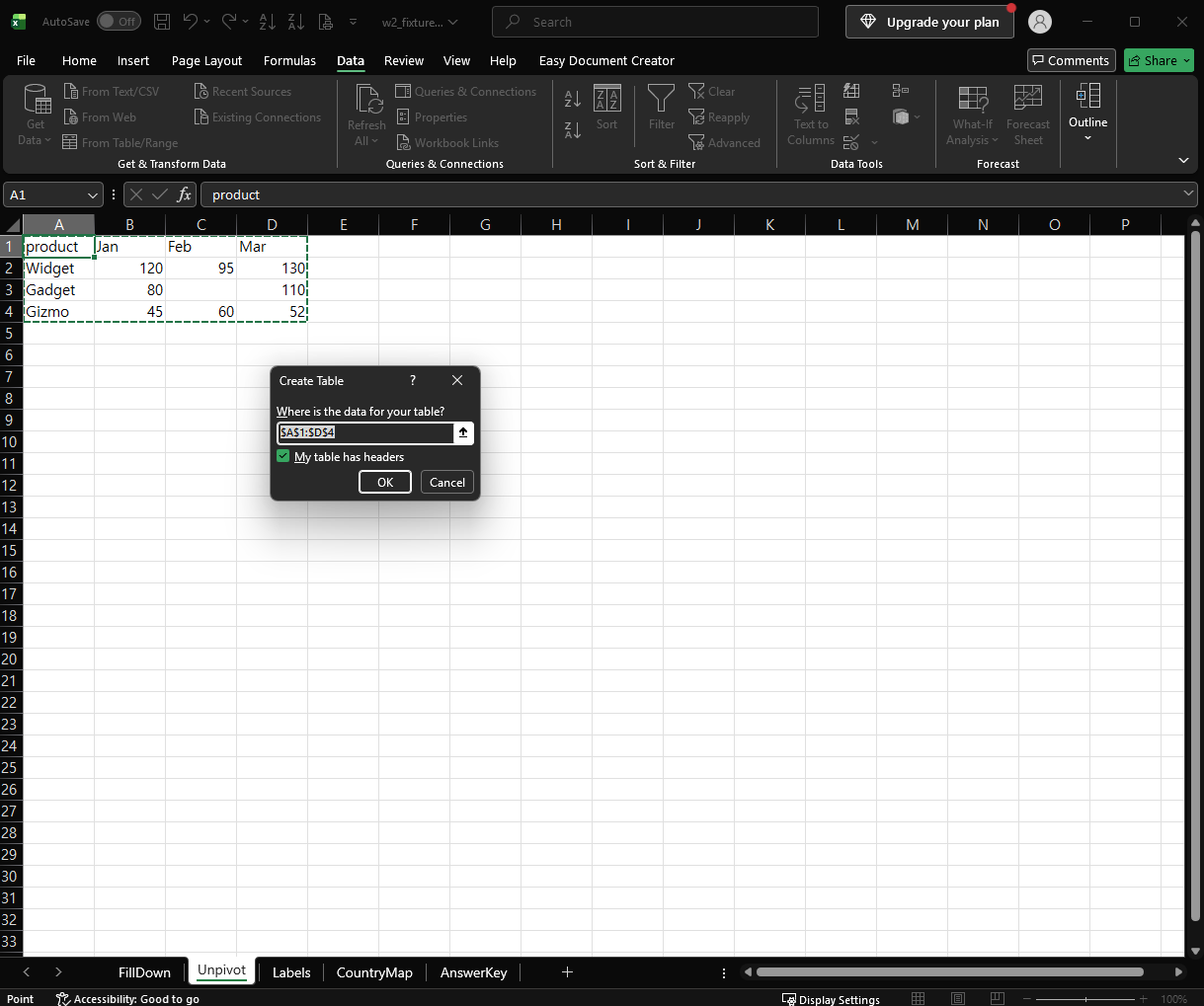
We confirmed A1:D4 with the header option checked. The Power Query Editor opens with the data and a Changed Type step. Excel named our query Table2, and yours may have another name.
Step 2: Unpivot the Other Columns
Click the product column header to select it. On the Transform tab, open the Unpivot Columns drop-down. It has three commands: Unpivot Columns, Unpivot Other Columns, and Unpivot Only Selected Columns.

Choose Unpivot Other Columns. This keeps the column you selected and turns every other column into rows. Per Microsoft, it is the command to use when you do not know all the column names in advance.
The Result
The table now has three columns: product, Attribute (the old column names), and Value (the numbers). It has 8 rows. The step list shows Source, Changed Type, and Unpivoted Other Columns, and the step uses this formula:
= Table.UnpivotOtherColumns(#"Changed Type", {"product"}, "Attribute", "Value")
We started with nine value cells and got eight rows. The empty Gadget / Feb cell did not become a row. In the preview the empty cell had shown as null, and the unpivoted result has no line for it. Check this if you count rows or total the values afterward.
If you need a row for the empty cell, replace the null with a value before you unpivot. We did not test that.
What We Did Not Test
- Loading the result back to a worksheet with Close & Load.
- Adding a new month column and refreshing. Microsoft says new columns are also unpivoted when you use Unpivot Other Columns. We did not verify that ourselves.
- Tables with more than one ID column, text values in the month columns, or other Excel versions.
For background on what a null is, see our guide on null vs empty string in Power Query. Another way to reshape data into rows is covered in splitting comma-separated values into rows.
One-line Summary
Use Data > From Table/Range, select the ID column, choose Transform > Unpivot Columns > Unpivot Other Columns, and check the row count, because empty cells do not become rows.
Sources
- Unpivot columns (Power Query) — Microsoft Support. Backs the Transform tab commands, what each of the three commands does, the statement that Unpivot Other Columns suits unknown column names, the statement that new columns added during a refresh are also unpivoted, and the Applies-to list (Microsoft 365, 2024, 2021).
- Note: the 8-row result, the missing
Gadget/Febrow, theTable.UnpivotOtherColumnsformula, and theCreate Tablestep come from our own reproduction in the Excel desktop app, not from this page.